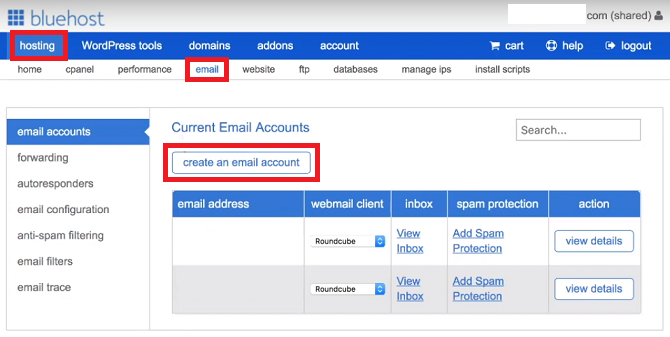
To use Bluehost email, log into your Bluehost account and navigate to the Email tab to create and manage accounts. Bluehost offers a seamless email service integrated with your hosting account.
Setting up your Bluehost email is simple and user-friendly. You can manage your emails from the Bluehost dashboard. This service allows you to create professional email addresses using your domain name. Accessing your emails can be done through webmail or by configuring your email client.
Bluehost’s email service supports popular clients like Outlook and Gmail. With Bluehost email, you ensure your communication is professional and branded. It also offers features like spam protection and customizable storage options. This setup is ideal for businesses looking to maintain a professional online presence.
Introduction To Bluehost Email
Bluehost Email is a popular choice for businesses. It offers reliable and professional email services. In this guide, you will learn how to use Bluehost Email effectively.
What Is Bluehost Email?
Bluehost Email is a service provided by Bluehost. It allows you to create and manage your own email accounts. These accounts use your business’s domain name. This helps in building a professional image.
Benefits Of Using Bluehost Email
- Professional Appearance: Use your domain for email addresses.
- Reliability: Bluehost offers high uptime and secure servers.
- Easy Management: Simple interface for managing emails.
- Spam Protection: Built-in tools to filter out spam.
Feature Comparison
| Feature | Benefit |
|---|---|
| Custom Domain | Builds brand trust |
| Secure Servers | Protects sensitive information |
| Spam Filters | Reduces unwanted emails |
| User-Friendly Interface | Makes email management easy |
Steps to Get Started
- Log in to your Bluehost account.
- Navigate to the Email section.
- Create a new email account.
- Configure your email client to use the new account.
Setting Up Your Bluehost Email
Creating and managing your Bluehost email is easy. Follow these steps to set up your email account and configure the settings.
Creating An Email Account
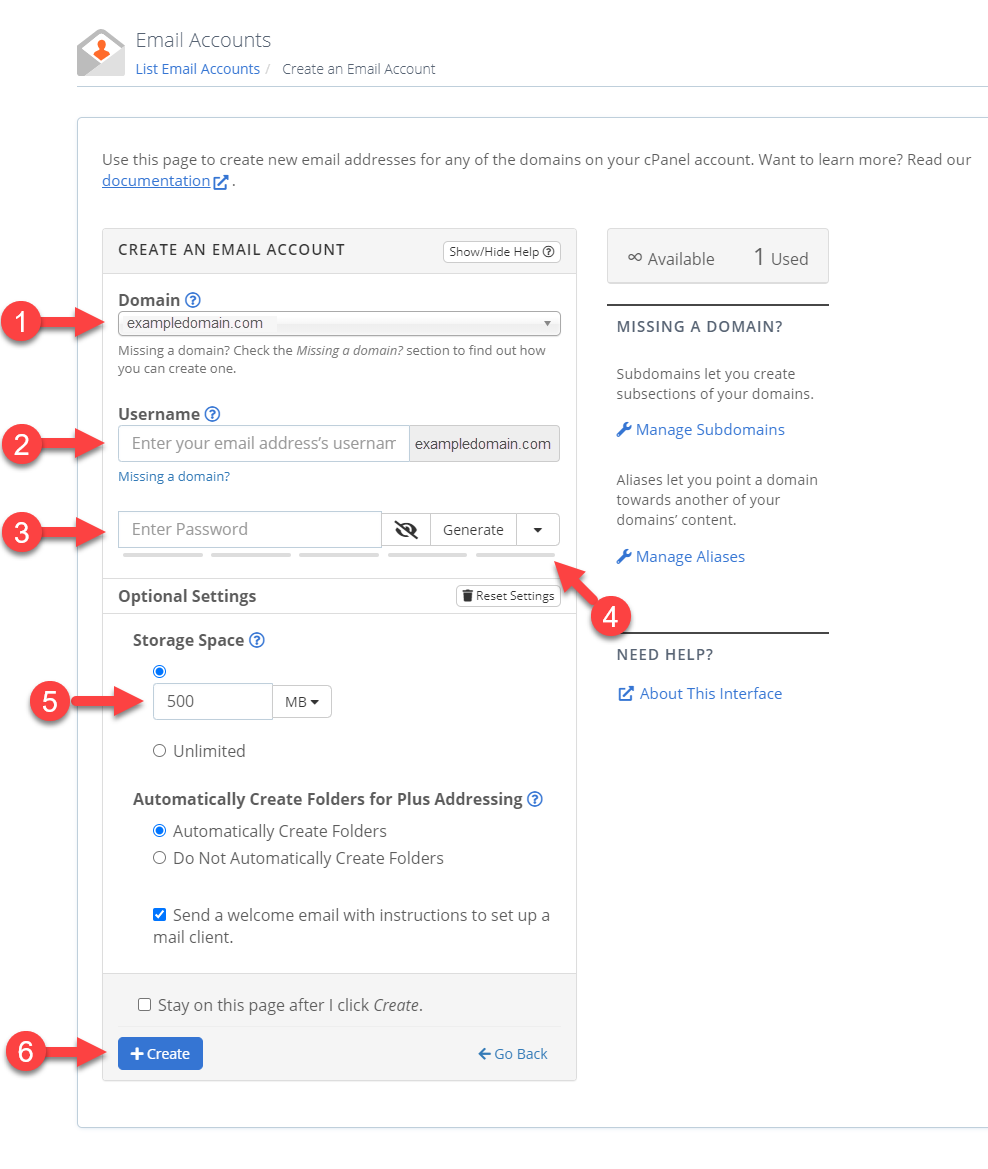
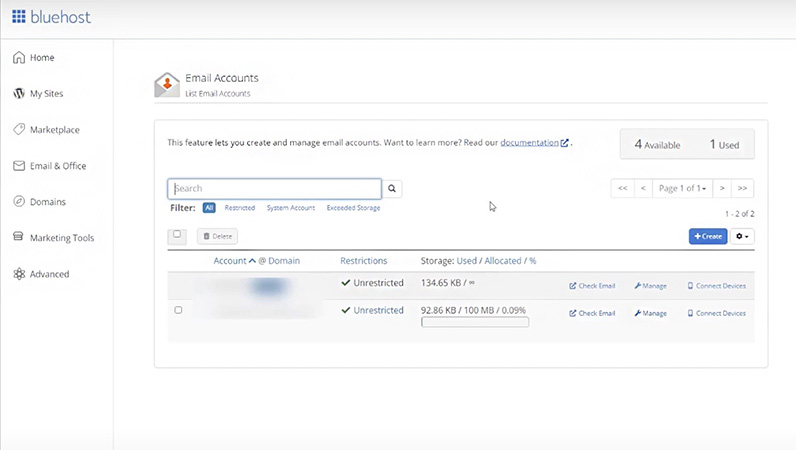
To start, log in to your Bluehost account. Navigate to the “Email & Office” tab. Click on the “Manage” button next to your domain name. Here, you’ll find options to create a new email account.
- Click the “Create” button.
- Enter your desired email address.
- Choose a strong password.
- Select your mailbox size (default or unlimited).
- Click “Create” to finish setting up your email account.
Configuring Email Settings
Once your email account is created, you need to configure your email settings. This ensures your email works smoothly.
| Setting | Value |
|---|---|
| Incoming Server | mail.yourdomain.com |
| Outgoing Server | mail.yourdomain.com |
| IMAP Port | 993 |
| POP3 Port | 995 |
| SMTP Port | 465 |
Use these settings in your email client (e.g., Outlook, Thunderbird). Ensure SSL/TLS is enabled for security. Your email is now ready to use.
Accessing Bluehost Email
Accessing your Bluehost email is simple and can be done in a few ways. Whether you use webmail, mobile, or desktop, each method is straightforward. Follow this guide to get started with your Bluehost email.
Webmail Access
Access your Bluehost email through webmail using any browser. Here’s how:
- Log in to your Bluehost account.
- Go to the Email & Office section.
- Click on Manage next to your email account.
- Select Check Email.
- You will be redirected to the webmail login page. Enter your email and password.
- Choose your preferred webmail client, such as Roundcube or Horde.
You can now read, compose, and manage your emails using webmail.
Mobile And Desktop Access
Set up your Bluehost email on mobile or desktop for easier access. Follow these steps:
| Device | Steps |
|---|---|
| Mobile (iOS/Android) |
|
| Desktop (Outlook, Thunderbird) |
|
Make sure to use the correct server settings for your email client.

Credit: m.youtube.com
Managing Your Inbox
Managing your inbox efficiently is crucial for maintaining productivity. Bluehost email provides various tools to help you stay organized. You can keep your inbox clean and find important emails quickly. Learn how to manage your inbox effectively using folders and filters.
Organizing Emails
Organizing your emails can save you time and reduce stress. Start by sorting your emails into different categories. This can be done manually or automatically.
- Important emails
- Work emails
- Personal emails
- Spam emails
By categorizing your emails, you can easily find what you need. This keeps your inbox clutter-free and helps you focus on priority tasks.
Using Folders And Filters
Folders and filters are powerful tools provided by Bluehost email. They help you organize and manage your emails more effectively.
| Tool | Function |
|---|---|
| Folders | Store emails by category |
| Filters | Automatically sort incoming emails |
Folders: Create folders for different email categories. Move emails to these folders to keep your inbox tidy.
- Go to your inbox.
- Select the emails you want to move.
- Click the “Move to” option.
- Choose the appropriate folder.
Filters: Set up filters to automatically sort incoming emails. Filters can save you time and ensure important emails are never missed.
- Go to the settings menu.
- Select “Filters.”
- Click “Add New Filter.”
- Define criteria for the filter.
- Choose the folder for sorted emails.
Using folders and filters together can greatly enhance your email management. Try these tips to stay organized and efficient.
Advanced Features
Bluehost offers several advanced email features. These features enhance your email experience and productivity. Learn how to make the most of your Bluehost email with these tools.
Setting Up Email Forwarding
Email forwarding lets you send emails from one address to another. This feature is useful for managing multiple email accounts.
- Log in to your Bluehost account.
- Go to the Email section.
- Select Email Forwarding.
- Enter the email address you want to forward.
- Specify the destination email address.
- Click Save to activate forwarding.
Email forwarding helps you stay organized. You will never miss an important email again.
Using Auto-responders
Auto-responders send automatic replies to received emails. This feature is perfect for vacation or out-of-office messages.
- Log in to your Bluehost account.
- Go to the Email section.
- Select Auto-Responders.
- Click Add Auto-Responder.
- Enter your email address.
- Type your auto-response message.
- Set the start and end date for the auto-response.
- Click Save to activate the auto-responder.
Using auto-responders keeps your contacts informed. They will know you are away and when to expect a response.
| Feature | Benefit |
|---|---|
| Email Forwarding | Manage multiple accounts easily |
| Auto-Responders | Send automatic replies |
Credit: fitsmallbusiness.com
Security Measures
When using Bluehost email, keeping your account secure is crucial. Implementing robust security measures ensures your data remains safe. This section will guide you through essential practices.
Enabling Two-factor Authentication
Two-Factor Authentication (2FA) adds an extra layer of security to your email account. Here is how you can enable it:
- Log in to your Bluehost account.
- Navigate to the Security section.
- Select Two-Factor Authentication.
- Follow the on-screen instructions to set it up.
With 2FA, you will need to enter a code sent to your phone. This makes it hard for hackers to access your account.
Recognizing Phishing Attacks
Phishing attacks are attempts to steal your personal information. Recognizing these attacks is key to protecting your account.
| Signs of Phishing | What to Do |
|---|---|
| Emails asking for personal info | Never share your details |
| Links to unknown websites | Do not click on them |
| Urgent security alerts | Verify with Bluehost support |
Always check the sender’s email address. Avoid opening attachments from unknown sources. If an email looks suspicious, delete it immediately.
Educate yourself and your team on these security measures. Staying informed helps keep your Bluehost email secure.
Troubleshooting Common Issues
Bluehost email is a reliable service, but issues can arise. This section will help you troubleshoot common problems.
Email Not Sending Or Receiving
Sometimes, emails do not send or reach your inbox. Here are steps to solve this:
- Check your internet connection: Ensure you have a stable connection.
- Verify email settings: Confirm IMAP/POP3 settings are correct.
- Clear browser cache: Clear cache to fix temporary issues.
- Update your email client: Use the latest version of your email app.
- Check spam folder: Emails might land in the spam folder.
Recovering Lost Emails
Losing emails can be stressful, but you can recover them. Follow these steps:
- Check Trash/Spam folders: Lost emails might be there.
- Use the search feature: Search for specific keywords or senders.
- Restore from backup: If you have backups, restore your emails.
- Contact support: If all else fails, contact Bluehost support for help.
By following these steps, you can resolve common Bluehost email issues effectively.
Tips And Best Practices
Mastering your Bluehost email can boost productivity and enhance communication. Follow these tips and best practices for optimal usage.
Maintaining Inbox Zero
Keeping your inbox clean helps you stay organized and efficient. Aim for inbox zero by taking these steps:
- Delete Unnecessary Emails: Remove emails you no longer need.
- Use Folders: Create folders for different projects or clients.
- Archive Old Emails: Archive emails that you might need later.
- Unsubscribe: Unsubscribe from newsletters you don’t read.
Effective Email Communication
Communicating effectively through email can save time and reduce misunderstandings. Follow these guidelines:
- Clear Subject Lines: Make your subject lines clear and concise.
- Be Brief: Keep your emails short and to the point.
- Use Bullet Points: Use bullet points for easy reading.
- Proofread: Always proofread your emails for errors.
Here’s a sample of a clear and effective email:
Subject: Project Update Meeting

Hi Team,

Please join the project update meeting on Monday at 10 AM.

Agenda:
- Project status
- Upcoming tasks
- Q&A session

Best,
[Your Name]
Following these practices will help you manage your Bluehost email efficiently. Stay organized and communicate effectively.
Credit: seofy.medium.com
Frequently Asked Questions
How Do I Use My Bluehost Email?
Log in to your Bluehost account. Navigate to the “Email” section. Click “Create” to set up your email. Access your email via Bluehost webmail or configure it in your email client using IMAP/POP settings provided by Bluehost.
Is Email Free With Bluehost?
Yes, Bluehost includes free email hosting with their hosting plans. You can create professional email addresses.
How Do I Redirect My Bluehost Email To Gmail?
To redirect your Bluehost email to Gmail, log in to Bluehost, go to Email Forwarding, and add your Gmail address. Save changes.
Is Bluehost A Good Email Provider?
Yes, Bluehost is a reliable email provider. It offers robust features, strong security, and excellent customer support.
Conclusion
Mastering Bluehost email is straightforward and beneficial for businesses. Follow the steps outlined to optimize your communication. With Bluehost, managing emails becomes efficient and user-friendly. Enhance your professional image and stay connected effortlessly. Implement these tips today and experience the difference.



