
Yes, you can delete the Hostinger WordPress plugin. Ensure you have a backup before deleting it to avoid issues.
Deleting the Hostinger WordPress plugin is straightforward. First, log in to your WordPress dashboard. Navigate to the ‘Plugins’ section and locate the Hostinger plugin. Select ‘Deactivate’ to stop its functions temporarily. Then click ‘Delete’ to remove it permanently. This process is quick and helps streamline your WordPress site by removing unnecessary plugins.
Always back up your website before making changes to prevent data loss. Removing unused plugins can enhance your site’s performance and security. This step ensures a cleaner, faster, and more secure WordPress environment.
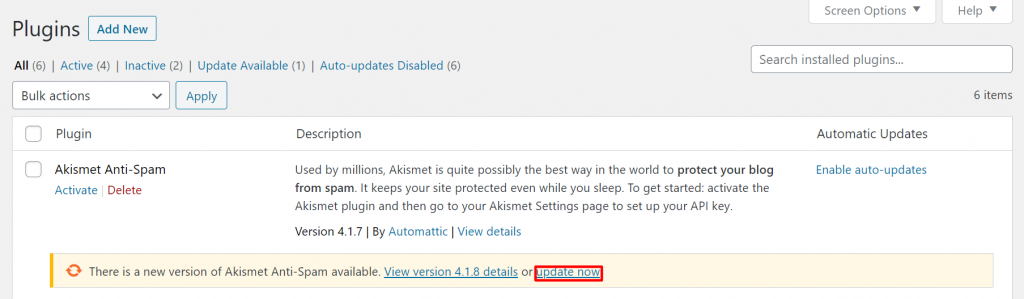
Credit: www.hostinger.com
Hostinger WordPress Plugin
The Hostinger WordPress Plugin simplifies your website management. It offers various features and tools to enhance your WordPress experience. This plugin integrates seamlessly with Hostinger’s hosting services.
What It Does
The Hostinger WordPress Plugin automates several tasks. It helps manage your website efficiently. The plugin ensures your website runs smoothly and stays secure.
- Automates website backups
- Optimizes website performance
- Provides security features
- Facilitates easy updates
Key Features
The plugin offers several key features. These features enhance the usability and functionality of your WordPress site.
| Feature | Description |
|---|---|
| Automatic Backups | Ensures your data is safe and easily restorable. |
| Performance Optimization | Improves site loading speed and user experience. |
| Security Tools | Protects your site from threats and vulnerabilities. |
| One-Click Updates | Simplifies the process of updating themes and plugins. |
The Hostinger WordPress Plugin is essential for any WordPress user. It provides a robust set of tools to manage and secure your website effectively.
Credit: www.hostinger.com
Reasons To Delete The Plugin
Deleting the Hostinger WordPress Plugin can improve your site’s performance. It also helps eliminate unnecessary functionality. Below are some key reasons why you might consider removing the plugin.
Performance Issues
One major reason for deleting the Hostinger WordPress Plugin is performance issues. The plugin might slow down your website. A slower website can lead to a poor user experience. It can also affect your search engine rankings.
Here is a table showing potential performance issues:
| Issue | Impact |
|---|---|
| Increased Load Time | Visitors leave your site quickly |
| Higher Bounce Rate | Lower search engine ranking |
| Resource Overload | Server crashes |
Redundant Functionality
Another reason to delete the plugin is redundant functionality. You might have other plugins offering the same features. Having multiple plugins doing the same job can cause conflicts. It can also make your dashboard cluttered.
Consider the following points:
- Check if other plugins provide similar features.
- Identify and remove duplicate functionalities.
- Keep your plugin list concise and organized.
Removing unnecessary plugins can streamline your website. It can also make it easier to manage.
Potential Risks
Deleting the Hostinger WordPress plugin can cause serious issues for your website. It’s important to understand the potential risks involved. Let’s dive into the key risks: data loss and site downtime.
Data Loss
Deleting the plugin might result in losing important data. This data includes settings, configurations, and customizations. Such data is crucial for the smooth operation of your site.
- Settings: Custom settings may disappear.
- Configurations: Your site’s configurations might reset.
- Customizations: Custom changes could be lost.
Site Downtime
Another risk is site downtime. Your site may go offline temporarily. This affects your visitors and can hurt your SEO rankings.
| Risk | Impact |
|---|---|
| Site Offline | Visitors can’t access your site. |
| SEO Rankings | Search engines may rank your site lower. |
Backup Before Deleting
Before you delete the Hostinger WordPress plugin, it’s crucial to back up your site. A backup ensures your data remains safe. If anything goes wrong, you can restore it easily.
Backup Methods
There are several ways to back up your WordPress site. You can choose manual backups or automated ones. Manual backups involve downloading files and databases. Automated backups use plugins or services.
- Manual Backup: Download your site files via FTP. Export the database using phpMyAdmin.
- Automated Backup: Use a backup plugin. Schedule regular backups without manual intervention.
Recommended Tools
Several tools can help you back up your WordPress site. Below are some of the best options:
| Tool | Description |
|---|---|
| UpdraftPlus | Popular plugin for automated backups. Supports cloud storage. |
| BackupBuddy | Comprehensive solution for full-site backups. Easy to use. |
| Duplicator | Great for backups and site migrations. Free and premium versions. |
These tools make the backup process simple. They ensure your data is safe before you delete the Hostinger WordPress plugin.
How To Delete The Plugin
Deleting a WordPress plugin can improve your website’s performance and security. You may need to delete the Hostinger WordPress Plugin if it’s causing issues or no longer needed. Follow these simple steps to remove the plugin safely.
Step-by-step Guide
- Log in to your WordPress admin dashboard.
- Navigate to the “Plugins” section in the sidebar menu.
- Find the Hostinger WordPress Plugin in the list.
- Click on the “Deactivate” button under the plugin name.
- Once deactivated, click on the “Delete” button.
- Confirm the deletion by clicking “OK” when prompted.
Common Mistakes
- Not Deactivating First: Always deactivate before deleting.
- Skipping Backup: Backup your site to avoid data loss.
- Ignoring Updates: Make sure no updates are pending.
- Overlooking Dependencies: Check if other plugins depend on it.
- Failing to Clear Cache: Clear your cache after deletion.
Following these steps ensures a smooth and error-free deletion process. Removing unnecessary plugins can enhance your WordPress site’s speed and security.
Alternatives To Hostinger Plugin
Thinking of deleting the Hostinger WordPress Plugin? You might need alternatives. Here are some popular options to consider.
Popular Options
- Yoast SEO: A great tool for optimizing your website’s SEO.
- WP Super Cache: Helps speed up your site with caching.
- Jetpack: Offers security, performance, and marketing tools.
- Elementor: A drag-and-drop page builder for WordPress.
- WooCommerce: A top choice for creating an online store.
Comparative Analysis
| Plugin | Features | Pros | Cons |
|---|---|---|---|
| Yoast SEO | SEO Optimization | Easy to use, great support | Can be overwhelming |
| WP Super Cache | Website Caching | Improves speed, free version | Advanced settings can be tricky |
| Jetpack | Security, Performance | Many features, easy setup | Some features need paid plans |
| Elementor | Page Builder | Drag-and-drop, many templates | Can slow down site |
| WooCommerce | E-commerce | Flexible, many extensions | Requires configuration |

Credit: wordpress.org
Frequently Asked Questions
Can I Delete The Hostinger Plugin?
Yes, you can delete the Hostinger plugin. Ensure you have a backup before removal to avoid data loss.
What Does The Hostinger Plugin Do In WordPress?
The Hostinger plugin optimizes your WordPress site for speed, security, and performance. It simplifies website management and integrates hosting services.
What Happens When You Delete A WordPress Plugin?
Deleting a WordPress plugin removes its files from your server. Settings and data may still remain in the database. Check plugin documentation for complete removal steps.
Is It Safe To Deactivate WordPress Plugins?
Yes, deactivating WordPress plugins is generally safe. It won’t delete data. Always check for compatibility issues before reactivating.
Conclusion
Deleting the Hostinger WordPress plugin is safe if you no longer need its features. Make sure to backup your site before removal. This ensures you can restore any lost functionality. Enjoy a streamlined website experience by keeping only essential plugins.
Simplifying your plugins can improve site performance and security.



