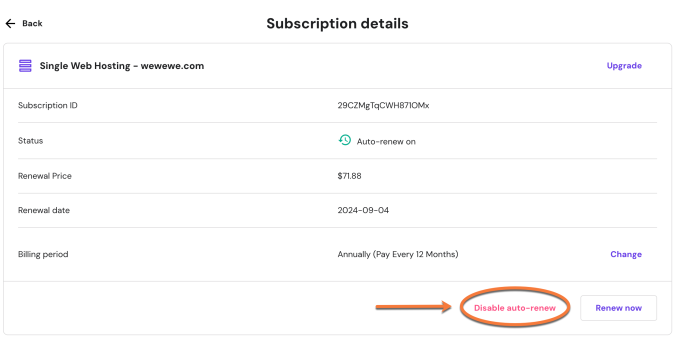
Yes, you can cancel your Hostinger subscription. You can do this through your Hostinger account dashboard.
Hostinger offers flexible hosting plans that cater to various needs. Sometimes, users may find it necessary to cancel their subscription for different reasons. Hostinger makes the cancellation process straightforward and hassle-free. Whether you need a change in hosting plans or are opting for a different provider, canceling your Hostinger subscription is simple.
This guide will help you understand how to cancel your Hostinger subscription quickly. Ensuring a smooth and easy experience is Hostinger’s priority, making it easy for users to manage their hosting plans. Knowing the steps and requirements for cancellation helps you make informed decisions about your hosting needs.
Credit: www.websiteplanet.com
Subscription Cancellation Process
Cancelling your Hostinger subscription is straightforward. Follow these steps to ensure a smooth process. Make sure you have your account details handy.
Steps To Cancel
- Log in to your Hostinger account.
- Navigate to the Dashboard.
- Select the Services tab.
- Find the subscription you want to cancel.
- Click on the Manage button.
- Scroll down to the Cancel Subscription option.
- Follow the prompts to confirm cancellation.
Accessing Your Account
To access your Hostinger account, visit the Hostinger website and click the Log In button at the top right corner. Enter your email and password to proceed.
If you have forgotten your password, click on the Forgot Password link and follow the instructions to reset it.
Refund Policies
Understanding Hostinger’s refund policies is crucial if you decide to cancel your subscription. This section covers the eligibility criteria and the refund timeline for a seamless cancellation process.
Eligibility Criteria
To qualify for a refund, ensure you meet specific criteria:
- You must cancel within 30 days of purchase.
- Refund applies to most services, excluding domain names.
- Promotional items and some add-ons are non-refundable.
Always check the terms and conditions for any specific exclusions.
Refund Timeline
Once you request a refund, the process takes a few steps:
- Submit a cancellation request through your Hostinger account.
- Wait for confirmation from the support team.
- Refunds are usually processed within 7-14 business days.
Refunds are returned via the original payment method used.
Common Issues
Many users face challenges when trying to cancel their Hostinger subscription. These common issues can often cause frustration. Let’s explore some frequent problems and solutions.
Troubleshooting Errors
Sometimes, errors occur during the cancellation process. Here are some steps to resolve them:
- Ensure your internet connection is stable.
- Clear your browser’s cache and cookies.
- Try using a different browser.
- Check if your account has any outstanding payments.
These simple steps often fix most issues. If errors persist, you may need further assistance.
Contacting Support
If you still face problems, contact Hostinger’s support team. They can guide you through the process. Here’s how to reach them:
| Method | Details |
|---|---|
| support@hostinger.com | |
| Live Chat | Available on the Hostinger website |
When contacting support, provide your account details and a brief description of the issue. This helps the team assist you better.
Impact On Services
Canceling your Hostinger subscription can significantly impact your online services. Understanding the potential effects can help you make informed decisions. Here, we explore two critical aspects: website downtime and data backup.
Website Downtime
Canceling your Hostinger subscription may lead to immediate website downtime. This means your site could become unavailable to visitors right away. If your website is crucial for your business, downtime can affect your revenue. Ensure you have a plan before canceling to avoid this.
During downtime, users will see an error message instead of your content. Search engines might also temporarily rank your website lower. This can impact your SEO efforts negatively. To minimize downtime, consider transferring your website to a new host before canceling.
Data Backup
Before canceling, always ensure you have a data backup. Hostinger will not store your data once your subscription ends. Losing data can be disastrous, especially if you do not have a recent backup.
Follow these steps to create a backup:
- Log in to your Hostinger account.
- Navigate to the “Files” section.
- Select “Backups” and click “Generate new backup”.
- Download the backup file to your local storage.
Having a backup ensures you can restore your website elsewhere. It also protects your content and customer information. Regular backups are essential for any website owner.
Alternative Solutions
Are you considering canceling your Hostinger subscription? Before taking that step, explore these alternative solutions. You might find a better option that suits your needs.
Plan Upgrades
Sometimes, upgrading your plan can resolve your issues. Hostinger offers various plans with different features.
| Plan | Features | Price |
|---|---|---|
| Single Shared Hosting | One website, 50 GB SSD storage | $1.99/month |
| Premium Shared Hosting | Unlimited websites, 100 GB SSD storage | $2.99/month |
| Business Shared Hosting | Unlimited websites, 200 GB SSD storage | $4.99/month |
By upgrading, you may get more storage, better performance, and additional features. This can often meet your growing needs without canceling your subscription.
Temporary Suspension
If you need a break but don’t want to cancel, consider a temporary suspension. This option allows you to pause your service for a certain period.
- Contact Hostinger support.
- Request a temporary suspension.
- Specify the duration of suspension.
During the suspension, your website remains inactive. You won’t lose any data or settings. This is a good option if you plan to return soon.
Credit: www.youtube.com
Customer Support
Hostinger offers robust customer support for canceling subscriptions. Their support options are easy to use. Whether you prefer chatting live or sending an email, Hostinger has you covered.
Live Chat Assistance
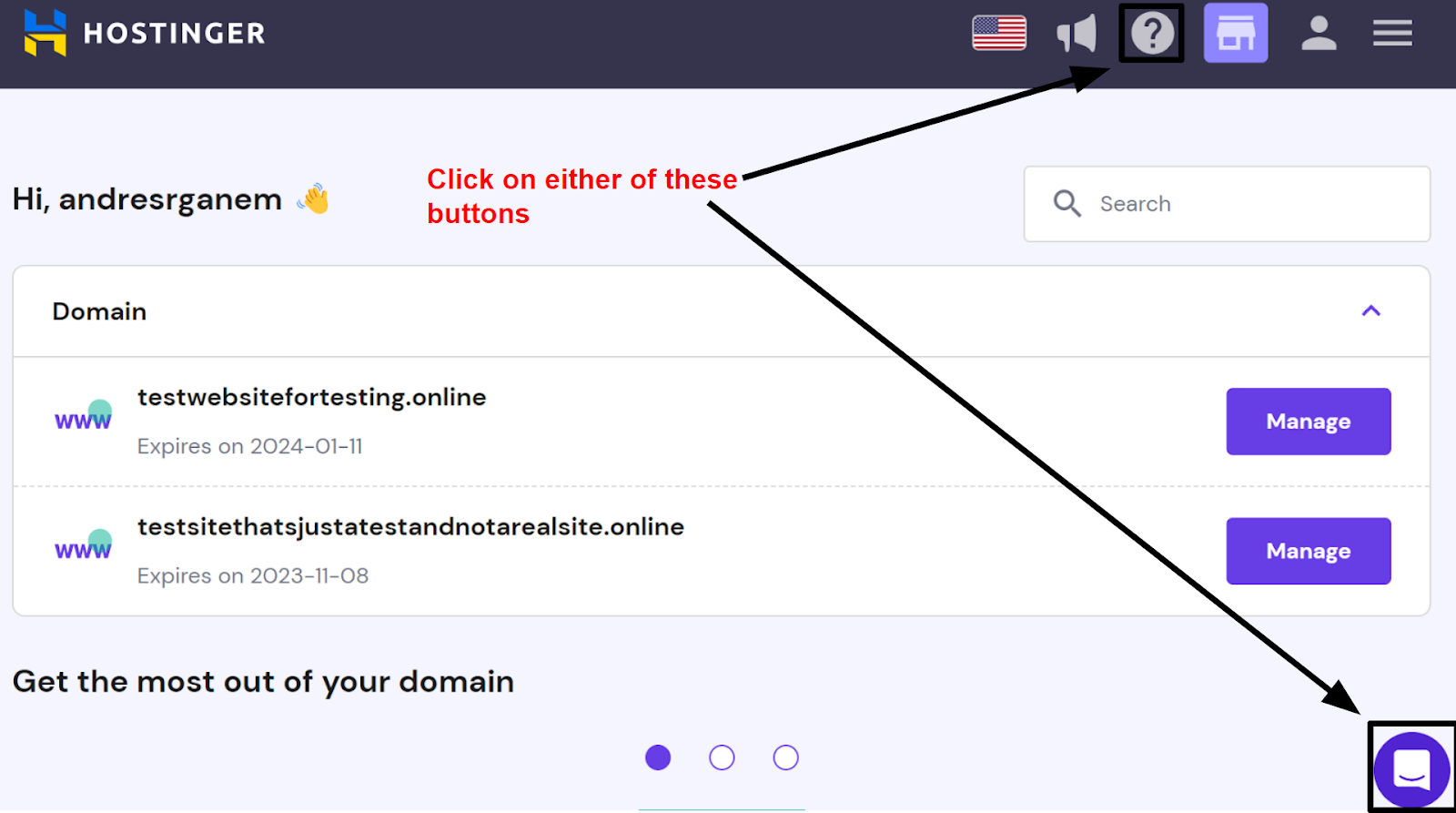
Hostinger provides 24/7 live chat support. This service helps you cancel your subscription quickly. Simply visit their website and click the chat icon. A support agent will join the chat within minutes.
Here is a step-by-step guide to using live chat:
- Go to the Hostinger website.
- Click on the live chat icon at the bottom right.
- Type your issue and wait for a support agent.
- Explain your request to cancel the subscription.
- Follow the agent’s instructions to complete the process.
Live chat is the fastest way to resolve your issues. Make sure to have your account details ready.
Email Support
If you prefer email, Hostinger also offers email support. This method can be useful if you don’t need an immediate response. To cancel your subscription via email, follow these steps:
- Open your email client.
- Compose a new email to support@hostinger.com.
- Include your account details and reason for cancellation.
- Send the email and wait for a response.
Email responses may take up to 24 hours. Make sure to check your spam folder for replies.
Both support options provide effective ways to cancel your subscription. Choose the one that fits your needs best.
User Experiences
Many users have shared their experiences about canceling their Hostinger subscription. This section highlights both the success stories and common complaints. Understanding these can help you make an informed decision.
Success Stories
Some users have had positive experiences with canceling their Hostinger subscription. They found the process to be quick and straightforward. Below are a few success stories:
- John managed to cancel his subscription in just a few clicks.
- Emma received her refund within three days.
- David appreciated the helpful customer support during the cancellation process.
These stories show that canceling a Hostinger subscription can be a smooth experience for many users. The key is to follow the proper steps and reach out to customer support if needed.
Common Complaints
Despite many success stories, some users have faced challenges. Here are the common complaints about canceling a Hostinger subscription:
| Complaint | Description |
|---|---|
| Delayed Refunds | Some users reported waiting weeks for their refunds. |
| Difficult Process | Others found the cancellation process confusing and time-consuming. |
| Unresponsive Support | A few users struggled to get timely responses from customer support. |
These complaints highlight areas where Hostinger can improve. Knowing these issues can prepare you better for the cancellation process.
Credit: www.websiteplanet.com
Reactivating Subscription
Decided to return to Hostinger? Great choice! Reactivating your subscription is simple. Follow the steps below to get back on track. This section will guide you through the process and associated costs.
Reactivation Steps
Reactivating your Hostinger subscription is easy. Just follow these steps:
- Log in to your Hostinger account.
- Navigate to the Control Panel.
- Find the Subscription section.
- Click on Reactivate.
- Confirm your payment details.
- Click Submit to complete the process.
Once reactivated, your services will resume immediately. You can start managing your website right away.
Associated Costs
Reactivating a Hostinger subscription may incur some costs. Here’s what to expect:
| Service | Cost |
|---|---|
| Basic Plan | $2.99/month |
| Premium Plan | $5.99/month |
| Business Plan | $8.99/month |
Reactivation fees depend on your chosen plan. Ensure you have the funds available before starting the process.
If you have any questions, Hostinger Support is always ready to help. Feel free to reach out for any assistance.
Frequently Asked Questions
Can I Cancel An Hostinger Subscription And Get A Refund?
Yes, you can cancel a Hostinger subscription. Refunds are available within 30 days of purchase. Contact customer support to process your request.
How Do I Cancel My Membership On Hostinger?
Log in to your Hostinger account. Go to the “Billing” section. Click on “Cancel Subscription” and follow the prompts.
What Happens If I Did Not Renew My Hosting Plan In Hostinger?
Your website will go offline, and your data may be lost. Renew promptly to avoid service interruption.
Does Hostinger Offer Refunds?
Yes, Hostinger offers refunds. They provide a 30-day money-back guarantee for most services. Certain products may have different policies.
Conclusion
Canceling your Hostinger subscription is straightforward and hassle-free. Follow the steps provided in your account settings. Ensure you understand the terms and any potential fees. Always check Hostinger’s support resources for assistance. Making informed decisions about your hosting needs will help maintain seamless online operations.



