
Your Hostinger domain may not work due to DNS configuration issues or domain propagation delays. Ensure DNS settings are correct and allow up to 48 hours for changes to take effect.
Experiencing issues with your Hostinger domain can be frustrating, especially when you need your website up and running. Common reasons for a domain not working include DNS configuration errors and delays in domain propagation. DNS settings must be correctly configured to point to Hostinger’s servers.
Sometimes, changes take up to 48 hours to propagate fully across the internet. Regularly check your DNS settings in the Hostinger control panel and ensure they are accurate. If problems persist, contacting Hostinger’s customer support can provide additional troubleshooting steps. This ensures your domain is live and accessible promptly, minimizing downtime for your site.

Credit: www.reddit.com
Common Issues
Facing issues with your Hostinger domain can be frustrating. This section explores common problems users encounter. It covers DNS settings and expired domains, helping you troubleshoot and resolve these issues quickly.
Dns Settings
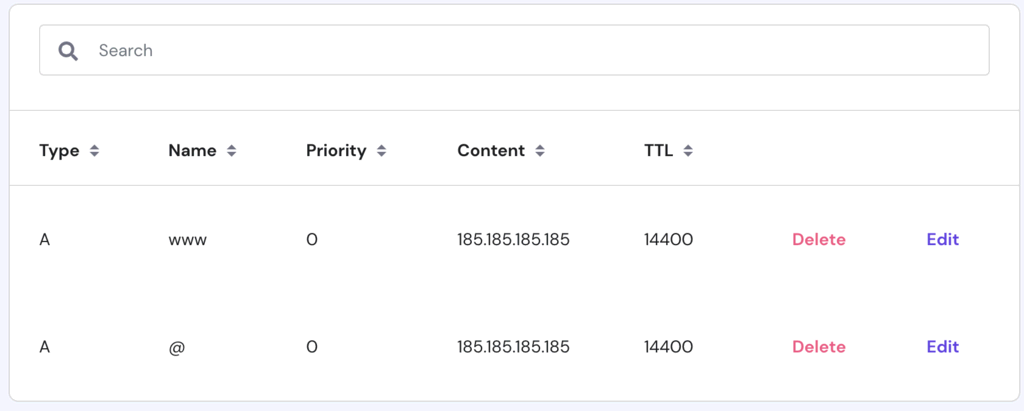
Incorrect DNS settings can cause your Hostinger domain to stop working. The domain name system (DNS) translates domain names into IP addresses. This makes it crucial for your website to function correctly.
Here are common DNS issues and their solutions:
- Incorrect Nameservers: Ensure your domain points to the correct nameservers.
- Propagation Delay: DNS changes may take up to 48 hours to propagate.
- DNS Records: Verify A, CNAME, and MX records are correctly configured.
You can check your DNS settings in the Hostinger control panel. Look for the “DNS Zone Editor” to update records.
Expired Domain
An expired domain can cause your website to go offline. Domains must be renewed periodically. If not renewed, your domain will expire.
To check your domain status:
- Log in to your Hostinger account.
- Go to the “Domains” section.
- Check the renewal date next to your domain name.
If your domain has expired, renew it immediately to restore service. Hostinger usually sends reminders before the expiry date. Make sure to keep your contact information up to date.
Credit: www.hostinger.com
Troubleshooting Steps
Is your Hostinger domain not working? Don’t worry. Follow these simple troubleshooting steps to get your domain back online. These steps cover checking your domain status and verifying DNS configuration. Let’s dive in!
Check Domain Status
First, you need to check your domain status. This helps you understand if the domain is active or expired. Follow these steps:
- Log in to your Hostinger account.
- Navigate to the Dashboard.
- Locate your domain under the Domains section.
- Check the status next to your domain name.
If your domain is expired, renew it immediately. If it is active, proceed to the next step.
Verify Dns Configuration
Incorrect DNS settings can cause your domain to stop working. Follow these steps to verify your DNS configuration:
- In your Hostinger dashboard, go to the DNS Zone Editor.
- Ensure your A record points to the correct IP address.
- Check your CNAME records for accuracy.
- Verify that your MX records are set correctly if you use email services.
Here is an example table of a typical DNS configuration:
| Type | Name | Value | TTL |
|---|---|---|---|
| A | @ | 192.0.2.1 | 3600 |
| CNAME | www | @ | 3600 |
| MX | @ | mail.example.com | 3600 |
Make sure all entries are correct. Incorrect entries can cause your domain to malfunction.
Dns Propagation
Experiencing issues with your Hostinger domain not working? The culprit might be DNS propagation. Understanding how DNS propagation works is crucial to resolving these issues. Let’s dive deeper into this topic.
Understanding Propagation Time
DNS propagation is the time it takes for DNS changes to be updated across the internet. This process can take anywhere from a few minutes to 72 hours. The delay happens because the DNS information needs to be updated on all DNS servers globally.
During this period, some users might see the old site, while others see the new one. This inconsistency occurs because different DNS servers update at different times. Patience is key during DNS propagation.
Tools To Check Dns
Several tools can help you check the status of your DNS propagation. These tools provide insights into how far the DNS changes have spread.
- WhatsMyDNS.net: This tool lets you check DNS records globally.
- DNS Checker: Another reliable tool to track DNS propagation.
- IntoDNS: Provides detailed DNS information and diagnostic reports.
To use these tools, enter your domain name and select the type of DNS record you’re checking. This will show the current state of DNS records worldwide.
Here’s a table summarizing these tools:
| Tool Name | Features | Website |
|---|---|---|
| WhatsMyDNS.net | Global DNS check | Visit |
| DNS Checker | Track DNS propagation | Visit |
| IntoDNS | DNS diagnostics | Visit |
Using these tools helps monitor the progress of DNS propagation, ensuring your domain works correctly.
Credit: github.com
Nameserver Settings
Nameserver settings are crucial for domain functionality. They direct your domain to the correct server. If your Hostinger domain is not working, check the nameserver setup first. Incorrect settings can lead to downtime or errors.
Correct Nameserver Setup
Ensure you have the correct nameservers. Hostinger usually provides specific nameservers for your domain. These nameservers typically look like:
- ns1.dns-parking.com
- ns2.dns-parking.com
Verify these nameservers in your domain registrar’s control panel. If they differ, update them to match Hostinger’s provided nameservers.
Updating Nameservers
To update nameservers, log in to your domain registrar. Navigate to the DNS settings or nameserver section. Enter the correct nameservers provided by Hostinger. Save the changes and wait for DNS propagation.
- Log in to your domain registrar.
- Find the DNS or nameserver settings.
- Enter Hostinger’s nameservers.
- Save the changes.
- Wait for DNS propagation (24-48 hours).
DNS propagation can take up to 48 hours. During this period, your domain may not work properly. Be patient and check again after some time.
Domain Expiry
Experiencing issues with your Hostinger domain not working? One common reason is Domain Expiry. Understanding domain expiry helps avoid website downtime and potential loss of visitors.
Renewal Process
The renewal process for your Hostinger domain is simple. Follow these steps:
- Log into your Hostinger account.
- Navigate to the Domains section.
- Select the domain you wish to renew.
- Click on the Renew button.
- Choose the renewal period.
- Complete the payment process.
Ensuring timely renewal keeps your domain active. This prevents your website from going offline.
Avoiding Expiry
Prevent domain expiry by following these tips:
- Enable auto-renewal in your Hostinger account settings.
- Keep your payment information updated.
- Set up email reminders for domain expiry dates.
- Renew your domain well before the expiry date.
Auto-renewal is the best way to avoid missing renewal dates. This option charges your account automatically and renews your domain.
Keeping payment information updated ensures smooth transactions. Set reminders to alert you about upcoming expirations. Renewing early avoids last-minute issues.
Ssl Certificates
SSL certificates are crucial for securing your website. They encrypt the connection between your server and users. This ensures that sensitive information remains private. If your Hostinger domain is not working, SSL issues may be the cause.
Installing Ssl
Installing an SSL certificate on your Hostinger domain is simple. First, log into your Hostinger control panel. Navigate to the SSL section. Click on the Install button next to your domain.
You may need to provide some information. This includes your domain name and contact details. Once entered, click Submit. Hostinger will handle the rest. Your SSL certificate should be active in a few minutes.
Renewing Ssl
SSL certificates have an expiration date. You must renew them to keep your site secure. Hostinger makes this process easy. You will receive a notification before your SSL expires.
To renew your SSL, log into your Hostinger account. Go to the SSL section. Find your domain and click on the Renew button. Follow the on-screen instructions. Your SSL certificate will be renewed, keeping your site safe.
| Step | Action |
|---|---|
| 1 | Log into Hostinger control panel |
| 2 | Navigate to the SSL section |
| 3 | Click on Install or Renew |
| 4 | Provide necessary details |
| 5 | Submit and wait for activation |
Technical Support
Experiencing issues with your Hostinger domain can be frustrating. Understanding the available technical support options can help resolve these issues quickly. Hostinger offers various support channels and solutions to ensure your domain works smoothly.
Contacting Hostinger Support
Hostinger provides multiple ways to contact their support team. These include live chat, email, and support tickets. The most efficient method is live chat, available 24/7. To access it, log into your Hostinger account and click on the chat icon in the bottom-right corner.
For email support, send your queries to support@hostinger.com. Ensure you include all relevant details about your issue. Alternatively, you can submit a support ticket through the Hostinger control panel. Go to the ‘Help’ section, then ‘Submit a Ticket’.
Common Support Solutions
Hostinger’s support team often deals with common domain issues. Here are some frequent solutions:
- DNS Settings: Incorrect DNS settings can cause domain issues. Verify your DNS records in the Hostinger control panel.
- Domain Propagation: Domain propagation can take up to 48 hours. Be patient and wait for changes to take effect.
- Domain Expiry: Ensure your domain has not expired. Renew your domain if necessary.
- Website Configuration: Check your website configuration files. Incorrect settings can lead to domain problems.
For a detailed list of potential issues and fixes, refer to the Hostinger knowledge base. This resource includes comprehensive guides and troubleshooting steps.
Advanced Configuration
Facing issues with your Hostinger domain? Advanced configuration can resolve many problems. This section covers custom DNS records and advanced DNS tools.
Custom Dns Records
Custom DNS records let you control how your domain works. These records include A, CNAME, MX, and TXT records. Each type serves a different purpose.
- A Records: Points your domain to an IP address.
- CNAME Records: Points your domain to another domain.
- MX Records: Directs email to mail servers.
- TXT Records: Holds text information for your domain.
Incorrect settings can cause your domain to stop working. Ensure each record is correct. Always double-check the values.
Advanced Dns Tools
Hostinger offers advanced DNS tools to manage your domain. These tools help troubleshoot and configure your DNS settings.
| Tool | Description |
|---|---|
| DNS Zone Editor | Edit and manage all DNS records. |
| DNS Checker | Verify DNS propagation worldwide. |
| DNS History | View changes made to DNS records. |
Use these tools for precise DNS management. Always save changes and monitor the results.
Frequently Asked Questions
Why Is My Domain Name Not Working?
Your domain might not work due to DNS issues, expired registration, or improper configuration. Check DNS settings, renew your domain, or contact support.
Why Is Hostinger Not Working?
Hostinger may not work due to server issues, maintenance, or internet connection problems. Check their status page for updates.
Why Is My Domain Not Active?
Your domain might be inactive due to DNS issues, unpaid registration fees, or recent registration delays. Ensure your domain is correctly configured and paid for. Contact your registrar for support.
How Long Does It Take To Activate A Domain On Hostinger?
Domain activation on Hostinger typically takes up to 24 hours. Most domains activate within a few hours.
Conclusion
Experiencing issues with your Hostinger domain can be frustrating. By following the steps outlined, you can resolve most problems. Ensure your settings are correct and seek support if needed. Addressing these issues promptly will help keep your website accessible and your visitors happy.
Stay proactive to maintain a smooth online presence.



