**Answer:** Hostinger may not work due to server issues, maintenance, or network problems. Check their status page for updates.
Experiencing issues with Hostinger can be frustrating, especially when relying on their services for your website. Common problems include server downtime, scheduled maintenance, or network disruptions. These situations can affect your site’s accessibility and performance. Hostinger usually informs users about any ongoing issues through their status page or social media channels.
It’s essential to stay updated and follow any provided instructions to resolve the problem quickly. Regularly monitoring your hosting service can help you identify and address potential issues before they impact your site. Always have a backup plan to minimize disruptions and ensure your website remains functional.
Common Issues
Experiencing issues with Hostinger can be frustrating. Understanding common problems helps fix them quickly. Let’s explore the most frequent issues users face with Hostinger.
Server Downtime
Server downtime is a major concern. It happens when servers are under maintenance or facing technical problems. During downtime, your website becomes inaccessible. This affects both visitors and search engine rankings.
To check server status, visit the Hostinger Status Page. Regularly monitoring this page can keep you updated on any ongoing issues.
Dns Problems
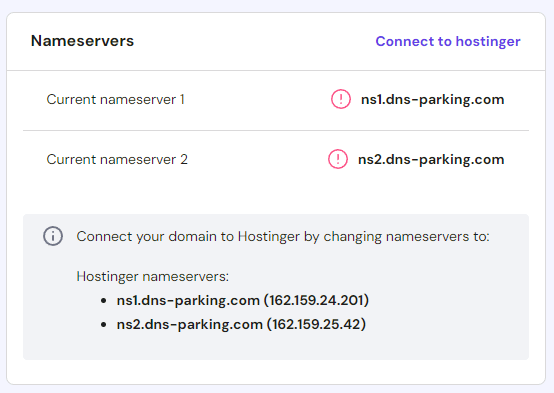
DNS problems disrupt the connection between your domain and hosting server. This makes your website unreachable. Common DNS issues include:
- Incorrect DNS settings
- Propagation delays
- Expired DNS records
To resolve DNS issues, ensure your DNS settings are correct. You can also use tools like What’s My DNS to check propagation status.
Configuration Errors
Configuration errors often occur during website setup or updates. These errors can break your website or cause it to malfunction.
Common configuration errors include:
- Incorrect file permissions
- Misconfigured .htaccess file
- Faulty plugin or theme
To fix these, double-check your settings. Ensure file permissions are correct and review your .htaccess file for errors.
If a plugin or theme is causing issues, disable them one by one. This helps identify the problematic one.
Credit: www.hostinger.com
Diagnosing Problems
Experiencing issues with Hostinger can be frustrating. Identifying the problem is the first step. Diagnosing problems helps resolve them faster. Follow these steps to fix common Hostinger issues.
Checking Server Status
First, check the server status. Visit the Hostinger Server Status page. Ensure your server is up and running. If the server is down, wait for Hostinger to fix it.
Use third-party tools like IsItDownRightNow. These tools verify if the issue is widespread.
Analyzing Error Logs
Next, analyze the error logs. Error logs provide detailed information on issues. Access your error logs through your Hostinger account.
- Log in to your Hostinger account.
- Navigate to the Control Panel.
- Select Error Logs under the Advanced section.
Look for recent errors. Common errors include 404 Not Found or 500 Internal Server Error. Fix these errors based on the log details.
Testing Dns Settings
Incorrect DNS settings can cause issues. Verify your DNS settings are correct. Use tools like DNS Checker to test your DNS.
| Record Type | Expected Value |
|---|---|
| A Record | Your server’s IP address |
| MX Record | Your mail server’s address |
| CNAME Record | Alias or subdomain |
Ensure all records point to the correct servers. Correct any discrepancies in the DNS settings.
Server Downtime Solutions
Experiencing downtime on your website can be frustrating. It affects user experience and SEO rankings. Understanding server downtime solutions is crucial. Here, we will cover three essential steps to handle Hostinger not working: Contacting Support, Monitoring Uptime, and Using Backup Servers.
Contacting Support
First, contact Hostinger support. This can resolve issues quickly. Use the live chat option for immediate assistance. You can also submit a ticket. Provide all necessary details:
- Website URL
- Error messages
- Steps to reproduce the issue
This helps support identify and fix the problem faster. Hostinger’s support team is available 24/7. Make use of their expertise to get your site back online.
Monitoring Uptime
Next, monitor your website’s uptime. Use tools like UptimeRobot or Pingdom. These tools notify you of any downtime instantly. Set up alerts via email or SMS. This helps you act swiftly.
Consistent monitoring provides valuable insights. You can identify patterns and recurring issues. This aids in long-term solutions.
Using Backup Servers
Finally, consider using backup servers. A backup server ensures your site remains live. Even if the main server goes down, the backup kicks in. This minimizes downtime and maintains user experience.
| Primary Server | Backup Server |
|---|---|
| Main Server | Secondary Server |
| Handles traffic normally | Activates during downtime |
Investing in backup servers is a wise decision. It ensures reliability and uptime for your website.

Credit: stackoverflow.com
Fixing Dns Issues
Experiencing DNS issues with Hostinger can be frustrating. But, fixing them is often simple. Below are steps you can take to resolve common DNS problems.
Updating Dns Records
Ensure your DNS records are up-to-date. Incorrect records can cause service disruptions. Follow these steps to update them:
- Log in to your Hostinger account.
- Navigate to the DNS settings section.
- Update the A, CNAME, or MX records as needed.
- Save changes and wait for propagation.
Important: Propagation can take up to 48 hours.
Flushing Dns Cache
Sometimes, clearing your DNS cache can solve access issues. Here are steps for different operating systems:
| Operating System | Steps to Flush DNS |
|---|---|
| Windows |
|
| MacOS |
|
| Linux |
|
Switching Dns Providers
If DNS issues persist, consider switching your DNS provider. Popular alternatives offer more reliability. Here’s how to switch:
- Choose a new DNS provider (e.g., Google DNS, Cloudflare).
- Update the DNS settings in your Hostinger account.
- Enter the new DNS server addresses.
- Save changes and allow time for propagation.
Tip: Research the best DNS provider for your needs.
Configuration Fixes
Experiencing issues with Hostinger not working can be frustrating. Often, the root cause lies within configuration settings. In this section, we will explore some key configuration fixes that can help get your site back online.
Correcting File Permissions
Incorrect file permissions can prevent your website from functioning properly. Files and directories should have specific permissions set to ensure smooth operation. Use the following table for a quick reference:
| File/Directory | Recommended Permissions |
|---|---|
| Files | 644 |
| Directories | 755 |
To change file permissions, follow these steps:
- Open your file manager or FTP client.
- Navigate to the file or directory.
- Right-click and select Permissions.
- Enter the recommended value and save.
Updating .htaccess
The .htaccess file controls many aspects of your website, including redirects and security. A corrupted .htaccess file can cause errors. Follow these steps to update it:
- Access your file manager or FTP client.
- Locate the .htaccess file in your website’s root directory.
- Download a backup of the current file.
- Open the file in a text editor.
- Replace its contents with the default WordPress .htaccess code:
# BEGIN WordPress

RewriteEngine On
RewriteBase /
RewriteRule ^index\.php$ - [L]
RewriteCond %{REQUEST_FILENAME} !-f
RewriteCond %{REQUEST_FILENAME} !-d
RewriteRule . /index.php [L]

# END WordPress
Reconfiguring Ssl Certificates
SSL certificates ensure your website is secure. Misconfigured SSL certificates can lead to site inaccessibility. Follow these steps to reconfigure SSL certificates:
- Log in to your Hostinger account.
- Go to the SSL section under Hosting.
- Select the domain needing reconfiguration.
- Click Install or Reinstall SSL.
- Follow the on-screen instructions to complete the process.
Performance Optimization
Is Hostinger not working as you expect? Performance optimization is key. It helps your website load faster and run smoothly. Let’s explore some effective strategies.
Caching Strategies
Caching is crucial for fast websites. Cache stores static files temporarily. This reduces the server load and speeds up the page loading time.
- Use browser caching to store files locally.
- Enable server-side caching to reduce database queries.
- Implement content delivery networks (CDNs) for global reach.
Image Optimization
Large images can slow down your site. Image optimization helps in reducing the file size without losing quality.
Follow these steps to optimize images:
- Use tools like TinyPNG or Compressor.io.
- Choose the right file format (JPEG, PNG, WebP).
- Enable lazy loading to defer offscreen images.
Database Tuning
A well-tuned database enhances performance. Database tuning involves optimizing queries and indexes.
Consider these best practices:
- Regularly clean up old or unused data.
- Use indexes to speed up data retrieval.
- Optimize SQL queries for faster execution.
| Strategy | Benefit |
|---|---|
| Caching | Speeds up page load time |
| Image Optimization | Reduces file size |
| Database Tuning | Enhances data retrieval speed |
Security Measures
Ensuring your website is secure is crucial for its smooth functioning. Hostinger offers various security measures to keep your site safe. These measures prevent unauthorized access and protect your data.
Enabling Firewalls
Firewalls act as barriers between your site and potential threats. Enabling firewalls on Hostinger helps block unauthorized access. This step is essential for protecting sensitive information.
Follow these steps to enable firewalls:
- Login to your Hostinger account.
- Go to the control panel.
- Select the “Security” option.
- Enable the firewall settings.
Regular Software Updates
Keeping your software up-to-date is vital. Hostinger makes it easy to update software. Regular updates fix security vulnerabilities.
Here’s how you can update software on Hostinger:
- Access your control panel.
- Navigate to the “Updates” section.
- Check for available updates.
- Click “Update” to install the latest versions.
Using Strong Passwords
Strong passwords are critical for your site’s security. Use a mix of letters, numbers, and symbols. Avoid using common words or easy-to-guess phrases.
Consider these tips for creating strong passwords:
- Use at least 12 characters.
- Include both uppercase and lowercase letters.
- Add numbers and special characters.
- Change your passwords regularly.
Hostinger provides tools to help manage and generate strong passwords. Utilize these tools to enhance your site’s security.
Preventative Steps
Experiencing downtime with Hostinger can be frustrating. Implementing preventative steps can help avoid these issues. Regular backups, routine maintenance, and monitoring tools can keep your website running smoothly.
Regular Backups
Regular backups are crucial to prevent data loss. Schedule backups weekly to ensure data safety. Use Hostinger’s built-in backup tools for convenience.
- Automatic backups
- Manual backups
- Cloud storage for backups
Routine Maintenance
Routine maintenance can prevent many issues. Ensure your software is always updated. Clean up unused files and plugins to enhance performance.
- Update plugins and themes
- Remove unused files
- Check for broken links
Monitoring Tools
Monitoring tools can alert you to potential issues. Use these tools to keep track of your website’s performance. Choose tools that offer uptime monitoring and performance alerts.
| Tool | Feature |
|---|---|
| UptimeRobot | Uptime Monitoring |
| Pingdom | Performance Alerts |
| Google Analytics | Traffic Monitoring |
Credit: www.hostinger.com
Frequently Asked Questions
Why Is Hostinger Not Working?
Hostinger may not work due to server issues, maintenance, or incorrect DNS settings. Check status or contact support for help.
Is There A Problem With Hostinger Today?
Check Hostinger’s status page for real-time updates. They provide information on any ongoing issues or maintenance activities.
Why Can’t I Log Into Hostinger?
You can’t log into Hostinger due to incorrect login details, browser issues, or account suspension. Ensure your credentials are correct, clear your browser cache, and check your email for suspension notices.
Is Currently Connecting To Hostinger, It May Take Up To 24 Hours.?
Connecting to Hostinger can take up to 24 hours. Ensure all settings are correct for a smooth connection.
Conclusion
Experiencing issues with Hostinger can be frustrating. Regularly check their status page for updates. Ensure your internet connection is stable. Clear browser cache and cookies. Contact Hostinger support if problems persist. Staying informed and proactive can help resolve most hosting issues quickly.
Don’t let technical glitches disrupt your online presence.



