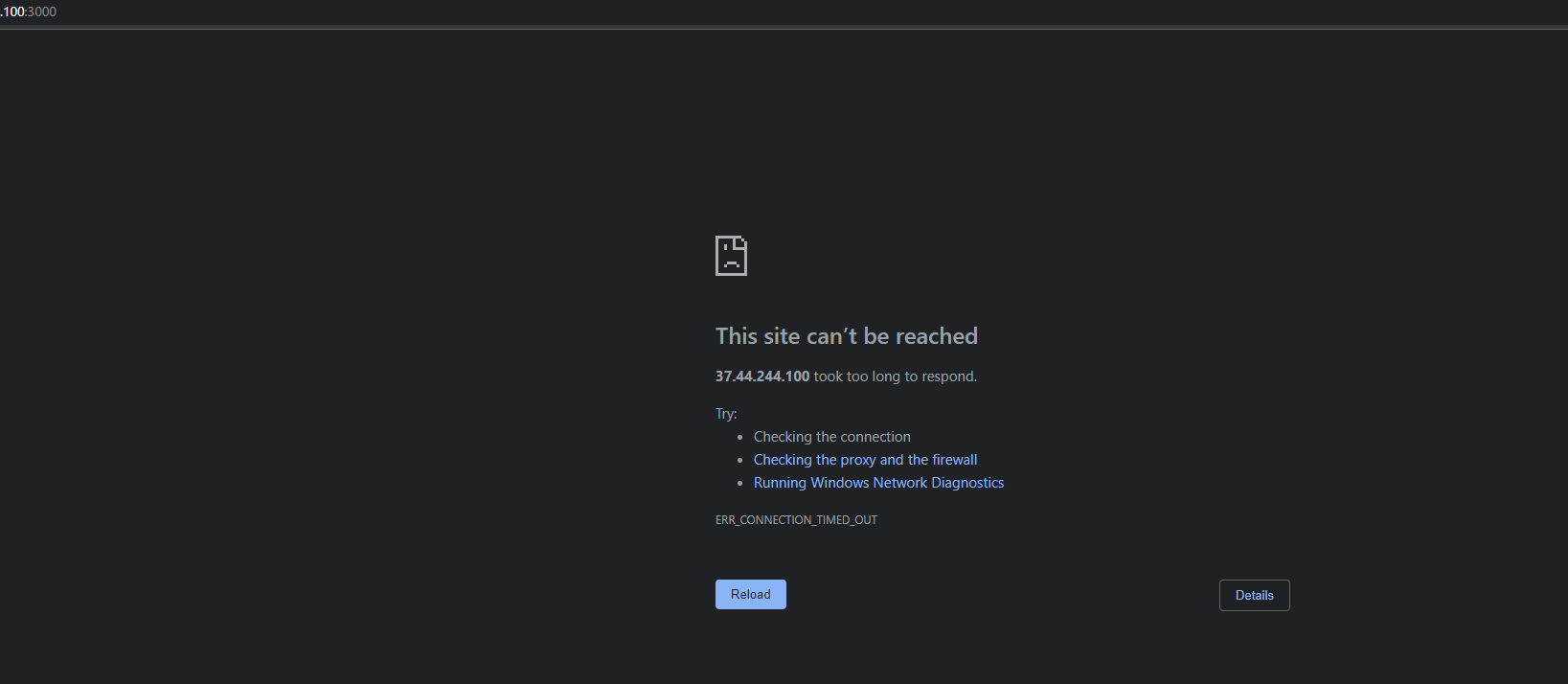
The Hostinger site can’t be reached due to potential server issues or network connectivity problems. Check your internet connection or Hostinger’s server status.
Experiencing a “site can’t be reached” error on Hostinger can be frustrating, especially if you’re trying to access your website or dashboard. This issue might stem from various causes, such as server downtime, DNS problems, or network connectivity issues. Ensuring your internet connection is stable and verifying Hostinger’s server status can help diagnose the problem.
If the issue persists, clearing your browser’s cache or trying to access the site from a different device or network might offer a solution. Understanding these potential causes can help you quickly identify and fix the issue, ensuring minimal disruption to your online activities.
Common Causes
Experiencing issues with your Hostinger website can be frustrating. Understanding the common causes helps resolve them quickly. Let’s look at some typical reasons your Hostinger site might be unreachable.
Dns Issues
DNS issues are a frequent cause of website unavailability. DNS, or Domain Name System, translates domain names into IP addresses. If DNS settings are incorrect, your site won’t load.
Common DNS issues include:
- Incorrect DNS configuration
- Propagation delays
- Expired domain
Verify your DNS settings in your Hostinger control panel. Ensure they align with recommended configurations.
Server Downtime
Server downtime is another common reason for an unreachable site. Servers may go down due to maintenance, technical issues, or high traffic.
Hostinger provides a server status page. Check this page to see if there are ongoing issues.
Here’s a simple table to understand server downtime causes:
| Cause | Description |
|---|---|
| Maintenance | Scheduled updates or upgrades |
| Technical Issues | Hardware or software malfunctions |
| High Traffic | Server overload due to many visitors |
Regularly monitor your site’s uptime. Use tools like UptimeRobot to get alerts.

Credit: www.reddit.com
Troubleshooting Steps
Encountering the ‘Hostinger Site Can’t Be Reached’ error can be frustrating. Follow these simple troubleshooting steps to solve the problem quickly.
Check Internet Connection
Ensure your internet connection is active and stable. Follow these steps to confirm:
- Verify if other websites load properly.
- Restart your router and modem.
- Use a different device to access the site.
If your internet connection is unstable, contact your internet service provider (ISP).
Clear Browser Cache
Browser cache can sometimes cause loading issues. Clear your browser cache to resolve this:
- Open your browser settings.
- Navigate to the privacy or history section.
- Select Clear Browsing Data.
- Choose the time range (e.g., last hour, all time).
- Check the box for Cached images and files.
- Click Clear Data.
After clearing the cache, refresh the page to see if the issue is resolved.
Dns Configuration
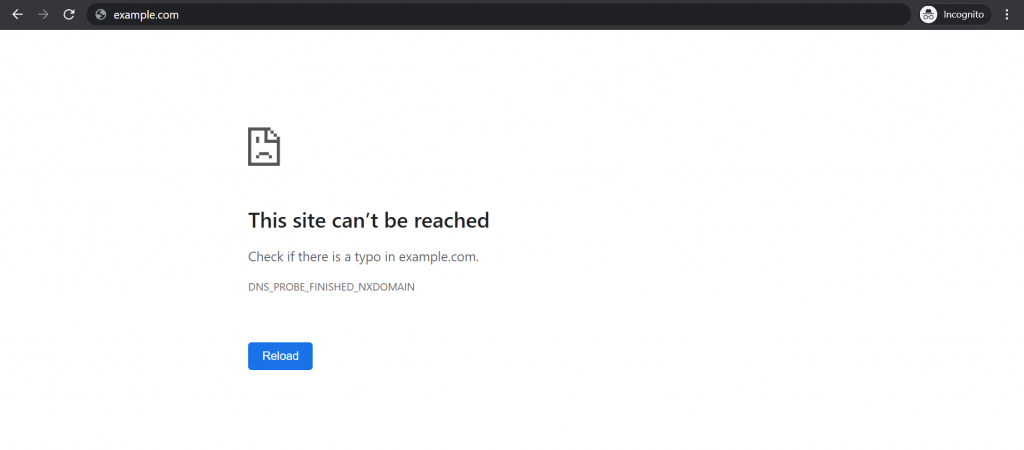
DNS Configuration plays a vital role in accessing websites. Incorrect DNS settings can cause the “Site Can’t Be Reached” error. This guide will help you troubleshoot and fix DNS issues.
Verify Dns Settings
Verify your DNS settings to ensure they are correct. Follow these simple steps:
- Log in to your Hostinger account.
- Navigate to the DNS Zone Editor.
- Check the A record and CNAME record.
The A record should point to your server IP address. The CNAME record should point to your domain name. If these records are incorrect, update them. Changes can take up to 48 hours to propagate.
Use Alternative Dns
Sometimes, your ISP’s DNS servers might be slow. Switching to a public DNS can help. Here are steps to use an alternative DNS:
- Open your network settings.
- Find the option for DNS servers.
- Enter a public DNS, like Google’s DNS (8.8.8.8, 8.8.4.4).
Using a reliable public DNS can improve site accessibility. It can also enhance internet speed and security.
Credit: www.hostinger.com
Server-side Solutions
Experiencing a “Hostinger Site Can’t Be Reached” error can be frustrating. Server-side solutions help resolve this issue effectively. Focus on these key areas to get your site back online.
Restart Server
Restarting the server is often the simplest fix. Follow these steps:
- Log in to your hosting control panel.
- Navigate to the server management section.
- Select “Restart Server” or “Reboot”.
Wait a few minutes for the server to restart. This can fix many common issues.
Check Server Logs
Server logs provide detailed information about server activities. These logs can help identify the root cause of the problem. Access your server logs by:
- Logging into your control panel.
- Going to the “Logs” or “Monitoring” section.
- Reviewing the latest entries for errors or warnings.
Look for error codes or messages that indicate server issues. Common issues include:
| Error Code | Description |
|---|---|
| 500 | Internal Server Error |
| 503 | Service Unavailable |
| 504 | Gateway Timeout |
Address the specific error by consulting documentation or support.
Browser-specific Fixes
Experiencing the “Hostinger Site Can’t Be Reached” issue can be frustrating. Often, the problem is browser-specific. This section covers different browser-specific fixes. These quick solutions can help you regain access to your Hostinger website.
Update Browser
An outdated browser can cause connectivity issues. Always use the latest version of your browser. New updates often fix bugs and improve security. Follow these steps to update your browser:
- Google Chrome: Click the three dots in the top-right corner. Select “Help” > “About Google Chrome”. Chrome will automatically check for updates. If an update is available, it will install it and prompt a restart.
- Mozilla Firefox: Click the menu button and select “Help” > “About Firefox”. Firefox will check for updates and install them automatically. Restart Firefox to complete the update.
- Microsoft Edge: Click the three dots in the top-right corner. Select “Settings” > “About Microsoft Edge”. Edge will check for updates and install them. Restart Edge to finish the process.
Disable Extensions
Browser extensions can interfere with website loading. Some extensions block certain scripts or content. Disabling them can resolve the issue. Here’s how to disable extensions in different browsers:
| Browser | Steps to Disable Extensions |
|---|---|
| Google Chrome | Click the three dots > “More tools” > “Extensions”. Toggle off each extension to disable it. |
| Mozilla Firefox | Click the menu button > “Add-ons and Themes”. Disable each extension by clicking the blue toggle button. |
| Microsoft Edge | Click the three dots > “Extensions”. Toggle off each extension to disable it. |
After disabling extensions, try accessing your Hostinger site again. If the site loads, re-enable extensions one by one. This will help identify the problematic extension.
Network Issues
A “Hostinger site can’t be reached” error often points to network issues. These problems can stem from your local network or broader internet connectivity. Understanding how to diagnose and fix these issues is crucial.
Router Restart
Restarting your router can often solve connectivity problems. Follow these steps:
- Unplug your router from the power source.
- Wait for 30 seconds.
- Plug the router back in.
- Allow it to reboot completely.
This simple process can resolve many network issues. It clears the router’s cache and resets the connection.
Firewall Settings
Firewalls can block access to your Hostinger site. Ensure your firewall settings are not too restrictive.
Follow these steps to check your firewall settings:
- Open your firewall settings in the control panel.
- Look for rules blocking internet access.
- Adjust the rules to allow connections to Hostinger.
Important: Always be cautious when modifying firewall settings. Incorrect changes can expose your system to threats.
| Step | Description |
|---|---|
| 1 | Open firewall settings. |
| 2 | Check for restrictive rules. |
| 3 | Allow Hostinger access. |
Fixing network issues can help you regain access to your Hostinger site. Always ensure your router and firewall settings are optimal.
Contacting Support
Experiencing the “Hostinger Site Can’t Be Reached” error can be frustrating. Knowing who to contact for help is crucial. This section covers how to reach out to Hostinger support and other technical forums for assistance.
Hostinger Support
Hostinger Support is available 24/7 to help you. Their team is well-trained to resolve your issues quickly. Here’s how you can contact them:
- Live Chat: Access via your Hostinger account dashboard.
- Email Support: Send an email to support@hostinger.com.
- Help Center: Browse their tutorials and FAQs for quick solutions.
Using the live chat option often provides the fastest response. Ensure you have your account details handy. This helps the support team to assist you efficiently.
Technical Forums
Sometimes, the community can be a great resource. Engaging in Technical Forums can provide quick solutions. Here are some forums you can check:
These forums have experienced users who might have faced similar issues. Posting your problem there can get you diverse solutions. Always search the forum first to see if your issue has already been discussed.

Credit: forum.infinityfree.com
Preventive Measures
Preventive measures can ensure your Hostinger site remains accessible. Simple steps can save you from future headaches. Implementing these measures can keep your site running smoothly.
Regular Backups
Regular backups are crucial for website safety. They protect your data from unexpected issues. Create a backup schedule to avoid data loss.
Hostinger offers easy backup options. Use these to safeguard your information. Manual and automatic backups are both available. Ensure you store backups in multiple locations.
| Backup Type | Frequency | Storage |
|---|---|---|
| Manual | Weekly | External Drive |
| Automatic | Daily | Cloud Storage |
Monitoring Tools
Use monitoring tools to keep track of your site’s health. These tools alert you to potential problems.
Many tools offer real-time monitoring. They help you spot issues quickly. UptimeRobot and Pingdom are popular choices. Configure alerts to receive notifications.
- Check site uptime
- Monitor server performance
- Receive instant alerts
Monitoring tools can also track page load speeds. They highlight areas that need improvement. Regular checks ensure your site performs well.
Frequently Asked Questions
Why Is My Website Saying Site Can’t Be Reached?
Your website might be down due to server issues, DNS problems, or network connectivity errors. Check your hosting provider and internet connection. Clear your browser cache and try again.
Why Is My Hostinger Website Not Opening?
Your Hostinger website might not open due to DNS issues, server downtime, or incorrect settings. Check your domain configuration and server status. Ensure your hosting plan is active and not expired.
How Do You Fix This Site Can’t Be Reached Refused To Connect?
Clear browser cache. Restart your router. Check website URL. Disable firewall or antivirus temporarily. Try using another browser.
How To Fix This Site Can’t Be Reached The Connection Was Reset?
Clear your browser cache and cookies. Restart your router. Check your internet connection. Disable any VPN or proxy. Reset your TCP/IP settings.
Conclusion
Experiencing the “Hostinger site can’t be reached” error can be frustrating. By following the steps outlined, you can quickly resolve it. Ensure your internet connection is stable and clear your browser cache regularly. Keeping your software updated also helps. Remember, a little troubleshooting goes a long way.



