
Hostinger website not working could be due to server issues or incorrect DNS settings. Check Hostinger’s status page and update DNS records.
Experiencing problems with your Hostinger website can be frustrating. Server issues or DNS configuration errors are common culprits. First, visit Hostinger’s status page to identify if there are any ongoing server problems. If servers are operational, review your DNS settings, ensuring they are correctly configured.
Incorrect DNS settings can prevent your website from loading properly. Additionally, clear your browser cache and cookies, as this can sometimes resolve minor issues. If the problem persists, reach out to Hostinger’s customer support for assistance. Troubleshooting these steps can often help get your website back online quickly.

Credit: stackoverflow.com
Common Causes
Are you experiencing issues with your Hostinger website? There are several common causes that may lead to your website not functioning correctly. Understanding these causes can help you troubleshoot and fix the problem quickly.
Server Downtime
Server downtime occurs when the server hosting your website is temporarily unavailable. This could be due to scheduled maintenance, unexpected technical issues, or hardware failures.
Scheduled maintenance usually happens during off-peak hours and is announced in advance. It ensures the server runs smoothly and securely.
Unexpected technical issues can arise from software bugs, cyber-attacks, or overloads. These issues might cause temporary disruptions.
Hardware failures involve physical components of the server breaking down. This is less common but can lead to extended downtime.
Dns Issues
DNS issues can prevent your website from loading correctly. DNS stands for Domain Name System, which translates domain names into IP addresses.
If the DNS records for your domain are incorrect, visitors may not reach your site. Common DNS problems include:
- Incorrect DNS settings in your Hostinger account
- Propagation delays after DNS changes
- Expired domain names or DNS records
To fix DNS issues, check your DNS settings. Ensure your domain name has not expired. Wait for DNS changes to propagate, which can take up to 48 hours.
| Problem | Possible Causes | Solutions |
|---|---|---|
| Server Downtime | Maintenance, Technical Issues, Hardware Failures | Check Hostinger status, Contact Support |
| DNS Issues | Incorrect Settings, Propagation, Expired Records | Review DNS Settings, Wait for Propagation |
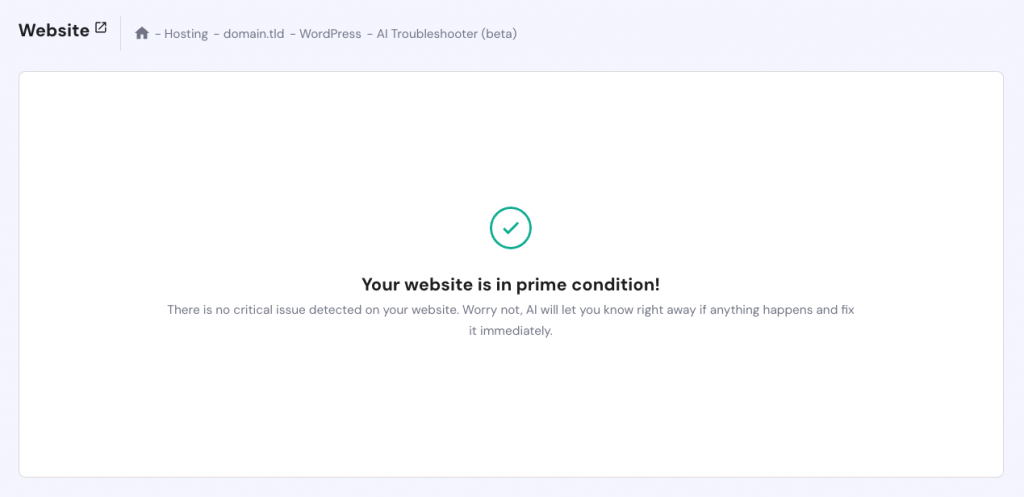
Credit: www.hostinger.com
Troubleshooting Steps
Your Hostinger website is not working? Don’t worry! Follow these simple troubleshooting steps. They can help you get your website back online quickly.
Check Internet Connection
First, make sure your internet connection is stable. A weak or unstable connection can cause websites to load slowly or not at all. Here’s how to check your connection:
- Ensure your device is connected to the internet.
- Try visiting other websites to see if they load.
- Restart your router or modem.
- Contact your internet service provider if the issue persists.
Clear Browser Cache
Clearing your browser cache can solve many website issues. Cached data can sometimes cause conflicts and prevent your website from loading correctly. Follow these steps to clear your browser cache:
- Open your browser settings.
- Find the option for clearing browsing data or history.
- Select the time range (choose “All time” for a thorough clean).
- Check the box for cached images and files.
- Click the clear data button.
After clearing the cache, restart your browser and try visiting your website again.
Server-side Problems
Sometimes, your Hostinger website may face issues due to server-side problems. These issues can cause your site to go down or load slowly. Understanding these problems can help you manage them better.
Overloaded Servers
Overloaded servers occur when many users try to access the website at once. This sudden spike in traffic can slow down or crash the server.
- High traffic from promotions
- Unexpected viral content
- Bot attacks
To avoid server overload, you can upgrade your hosting plan. Use a Content Delivery Network (CDN) to distribute traffic. Monitor your website’s traffic patterns regularly.
Maintenance Windows
Maintenance windows are scheduled times when Hostinger performs server updates. During this period, your website might be temporarily unavailable.
| Type of Maintenance | Impact |
|---|---|
| Software Updates | Short downtime |
| Hardware Upgrades | Potentially longer downtime |
| Security Patches | Minimal downtime |
Check for maintenance announcements from Hostinger. Plan your updates during low-traffic hours. Inform your users about potential downtime.
Client-side Issues
Sometimes, the reason your Hostinger website is not working lies on the client-side. This means the problem is on your device or browser. Let’s explore some common client-side issues that might be causing trouble.
Browser Compatibility
Browser compatibility can affect how a website functions. Different browsers interpret code differently. If your Hostinger website isn’t working, check if your browser is up to date. Modern websites need updated browsers to function well.
Here are some steps to ensure browser compatibility:
- Ensure your browser is updated to the latest version.
- Clear your browser cache and cookies.
- Try accessing the site using a different browser.
Refer to the table below for a quick browser compatibility check:
| Browser | Compatibility |
|---|---|
| Google Chrome | High |
| Mozilla Firefox | High |
| Safari | Moderate |
| Internet Explorer | Low |
Device-specific Problems
Device-specific problems can also cause your Hostinger website to not work. Different devices have different capabilities. A site may work well on a desktop but not on a mobile device.
Here are some tips to troubleshoot device-specific problems:
- Restart your device.
- Ensure your device software is updated.
- Try accessing the website on a different device.
Device-specific issues can be tricky to identify but are often easy to fix. Always check your website on multiple devices to ensure a smooth experience for all users.
Dns Troubles
Is your Hostinger website not working? DNS troubles might be the cause. DNS issues are common but can be fixed. Below, we discuss two major DNS problems.
Dns Propagation
DNS propagation can take time. Changes to DNS records are not instant. The process can take up to 48 hours. This means your site may be temporarily unavailable.
During this time, DNS servers update across the globe. This delay can cause access issues for some users. Be patient and wait for the changes to take effect.
| Time Frame | Expected Changes |
|---|---|
| 0-24 hours | Partial propagation |
| 24-48 hours | Full propagation |
Incorrect Dns Settings
Incorrect DNS settings can cause your site to be unreachable. Ensure your DNS records are set correctly. Double-check the following settings:
- A Record: Points to the correct IP address.
- NS Record: Points to the correct name servers.
- MX Record: Manages email routing correctly.
Even one wrong setting can disrupt your site. Fixing these settings can resolve the issue. Always verify your DNS settings in the Hostinger dashboard.
For further assistance, contact Hostinger support. They can guide you through the troubleshooting process.
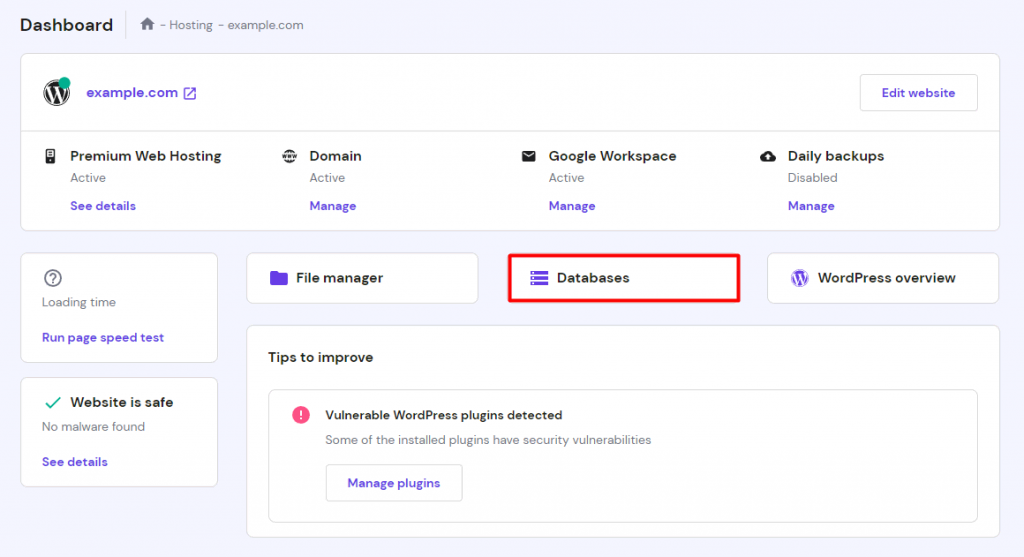
Credit: www.hostinger.com
Ssl Certificate Errors
SSL Certificate Errors can make your Hostinger website inaccessible. These errors occur when your SSL certificate faces issues. This can be due to expiry, misconfiguration, or other technical problems. Below, we will discuss two common SSL certificate errors: Expired SSL and Misconfigured SSL.
Expired Ssl
An expired SSL certificate can cause your website to show a “Not Secure” warning. This warning scares visitors away. Regularly check the expiry date of your SSL certificate. Renew it before it expires. Hostinger usually sends reminders before expiry. If you miss this, your site will be affected.
| Action | Description |
|---|---|
| Check Expiry Date | Ensure your SSL certificate is valid. |
| Renew SSL Certificate | Renew it before the expiry date. |
| Set Reminders | Set reminders for SSL renewal. |
Misconfigured Ssl
A misconfigured SSL certificate can also disrupt your website. Incorrect installation or settings can cause this issue. Ensure you follow Hostinger’s SSL installation guide. Verify all settings and configurations. If you are unsure, contact Hostinger support for help.
- Double-check SSL installation steps.
- Verify SSL settings in the Hostinger dashboard.
- Consult Hostinger support if needed.
Misconfiguration can result from changes in server settings. Always review any changes made. Regular checks can prevent misconfiguration issues. Proper configuration ensures your site remains secure and accessible.
Content Delivery Network
A Content Delivery Network (CDN) helps improve your website’s performance. It does this by distributing your content across multiple servers worldwide. This ensures your visitors experience faster load times, regardless of their location. But, sometimes issues with the CDN can lead to your website not working properly.
Cdn Misconfigurations
CDN misconfigurations can cause your website to malfunction. Incorrect DNS settings might lead to website downtime. Ensure your DNS settings match the CDN provider’s requirements.
Here’s a simple checklist to troubleshoot misconfigurations:
- Verify DNS settings
- Check SSL certificates
- Review CDN integration settings
Cdn Caching Issues
CDN caching issues can also affect your website’s performance. Caching helps speed up your site by storing copies of your web pages. But, sometimes, outdated cache can display old content.
To resolve caching issues, try the following:
- Clear the cache
- Set correct cache expiration times
- Use cache-busting techniques
Using a cache-busting technique, like appending a version number to URLs, can help.
Contacting Support
Experiencing issues with your Hostinger website can be frustrating. The good news is that Hostinger offers dedicated support to resolve your issues quickly. In this section, we’ll guide you through the steps for contacting support.
Gathering Information
Before reaching out, gather all necessary information. This helps the support team address your issue promptly.
- Website URL: The address of your website.
- Error Messages: Note any error messages you see.
- Actions Taken: List actions you’ve already tried.
- Browser Details: Mention the browser you’re using.
- Screenshots: Take screenshots of the problem.
Submitting A Ticket
Once you have all the information, submit a support ticket.
Follow these steps to submit a ticket:
- Log in to your Hostinger account.
- Go to the Help Center.
- Click on Submit a Ticket.
- Fill in the required fields.
- Attach any screenshots if needed.
- Click Submit to send your ticket.
The support team will review your ticket and respond as soon as possible. Make sure to check your email for any updates.
| Step | Description |
|---|---|
| 1 | Log in to Hostinger |
| 2 | Go to Help Center |
| 3 | Click Submit a Ticket |
| 4 | Fill in fields |
| 5 | Attach screenshots |
| 6 | Click Submit |
Frequently Asked Questions
Why Is My Hostinger Website Not Opening?
Your Hostinger website may not open due to server issues, DNS misconfiguration, or expired hosting plans. Check your internet connection, clear your browser cache, and ensure your domain is correctly pointed to Hostinger’s servers. Contact Hostinger support if the problem persists.
Why Is My Website Server Not Working?
Your website server might be down due to issues like server overload, maintenance, or network problems. Check with your hosting provider.
Why Is A Website Not Working?
A website might not work due to server issues, DNS problems, coding errors, or expired domain. Check internet connection and browser settings.
Why Would I Suddenly Not Be Able To Access A Website?
You might not access a website due to server issues, internet connection problems, or incorrect URL. Browser cache or security settings can also block access.
Conclusion
Facing issues with Hostinger can be frustrating. By following the steps mentioned, you can resolve most problems. Regularly monitor your website’s performance. Contact Hostinger support if issues persist. Ensure your website is always up and running smoothly. Your online presence depends on a reliable hosting service.



