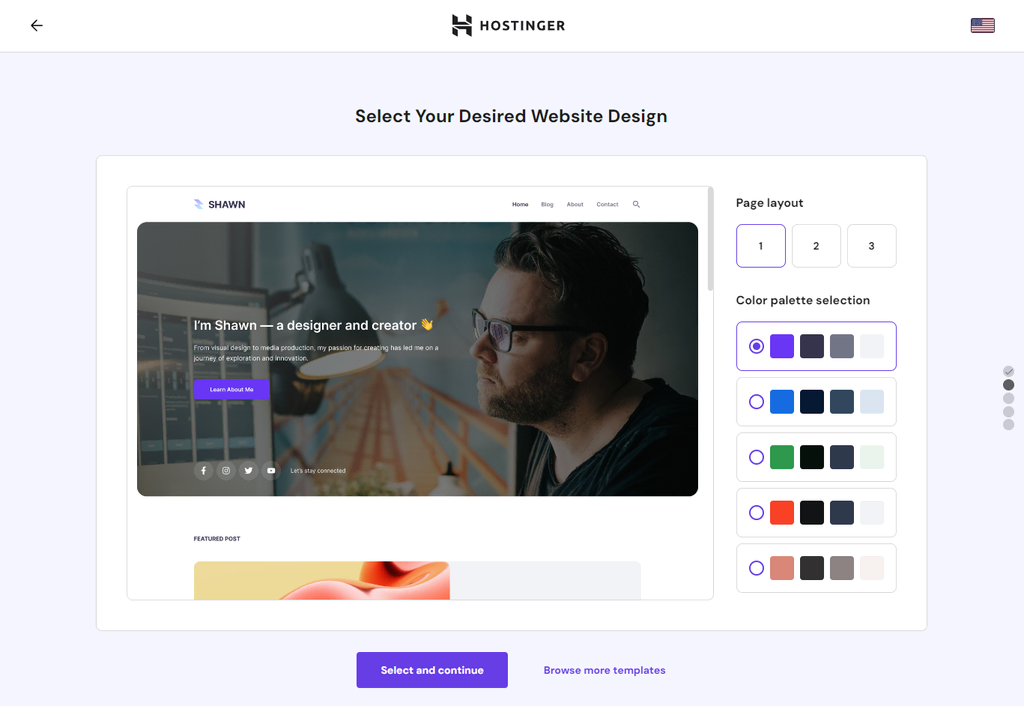
To make a WordPress website with Hostinger, sign up for a Hostinger account and choose a hosting plan. Install WordPress using Hostinger’s one-click installer.
Creating a WordPress website with Hostinger is a straightforward process. Hostinger offers affordable hosting plans and user-friendly tools that simplify website setup. Begin by selecting a hosting plan that suits your needs. Hostinger provides various options, including shared, VPS, and cloud hosting.
After choosing a plan, sign up for an account. Hostinger’s intuitive interface makes navigation easy, even for beginners. Use the one-click installer to install WordPress quickly. Customize your site with themes and plugins to enhance functionality and design. Hostinger also offers reliable customer support to assist you throughout the process. This approach ensures you can launch a professional-looking website efficiently.
Getting Started
Creating a WordPress website with Hostinger is simple and fun. This guide helps you get started quickly. Follow these steps to set up your Hostinger account and choose the best hosting plan.
Setting Up Hostinger Account
First, visit the Hostinger website and click on the “Get Started” button. You’ll see a form to create an account. Enter your email and choose a password. Alternatively, you can sign up with Google or Facebook for quicker access.
Once your account is created, you’ll be taken to the Hostinger dashboard. This is your control center for managing hosting, domains, and websites. Take a moment to explore the dashboard and get familiar with it.
Choosing A Hosting Plan
Hostinger offers several hosting plans to fit different needs. Here’s a breakdown of the options:
| Plan | Features |
|---|---|
| Single Shared Hosting |
|
| Premium Shared Hosting |
|
| Business Shared Hosting |
|
Choose the plan that best suits your needs. For beginners, the Premium Shared Hosting plan is a great choice. It offers good value and includes a free domain.
After selecting your plan, click “Add to Cart”. You will be prompted to choose a billing cycle. Longer billing cycles offer better discounts.
Complete the checkout process by entering your payment details. Once payment is confirmed, your hosting account will be ready.
With your hosting plan set up, you’re now ready to install WordPress and start building your website!
Domain Registration
Registering a domain is an essential step in building your WordPress website with Hostinger. A domain name is your website’s address on the internet. It helps visitors find your site easily. Follow these steps for a smooth domain registration process.
Selecting A Domain Name
Choosing a domain name is crucial. It should be unique and easy to remember. Here are some tips:
- Keep it short and simple.
- Use keywords related to your content.
- Avoid numbers and hyphens.
- Choose a relevant domain extension, like .com or .net.
Registering Your Domain
Once you have selected a domain name, it’s time to register it. Follow these steps:
- Visit the Hostinger website.
- Go to the Domain Checker tool.
- Enter your chosen domain name.
- Check the availability of your domain.
- Select your domain if it’s available.
- Add the domain to your cart.
- Complete the purchase process.
After purchasing, you will get a confirmation email. Your domain is now registered and ready to use!
Installing WordPress
Installing WordPress is the first step to creating your site. Hostinger makes this process easy. You can use the auto-installer or install it manually. Let’s explore both methods.
Using Hostinger Auto-installer
The Hostinger auto-installer simplifies WordPress installation. Follow these steps:
- Log in to your Hostinger account.
- Navigate to the hPanel dashboard.
- Click on Website and select Auto Installer.
- Choose WordPress from the list.
- Fill in the required details:
- Admin Username
- Admin Password
- Admin Email
- Click on the Install button.
Your WordPress site will be ready in a few minutes.
Manual Installation Steps
Manual installation takes a few more steps. Here’s how to do it:
- Download the latest WordPress version from WordPress.org.
- Upload the WordPress files to your hosting account. Use an FTP client like FileZilla.
- Create a MySQL database. Use the hPanel to set up the database and user.
- Configure the wp-config.php file. Enter your database details:
- Database Name
- Database User
- Database Password
- Database Host
- Run the WordPress installation script. Go to your domain name in the browser.
- Complete the installation form. Enter your site title and admin details.
WordPress is now installed and ready for customization.
Configuring WordPress
Once you’ve installed WordPress using Hostinger, it’s time to configure it. Proper configuration ensures your site runs smoothly and is optimized for search engines. Let’s dive into the basic settings you need to tweak.
General Settings
Navigate to your WordPress dashboard. Click on Settings and then General. Here, you’ll find fields to update your site’s title and tagline. Make them catchy but relevant. This information helps search engines understand your site’s purpose.
Ensure your WordPress Address (URL) and Site Address (URL) are correct. They should match and include “https” if you have an SSL certificate installed. This secures your website and boosts SEO.
Set your Timezone to your local time. This ensures posts are published at the correct time. Adjust the Date Format and Time Format to your preference. Remember to save changes by clicking the Save Changes button.
Permalinks Structure
Next, click on Settings again, and then Permalinks. Permalinks are the URLs of your pages and posts. A good permalink structure is crucial for SEO.
Select the Post name option. This makes your URLs clean and readable. For example, https://yourwebsite.com/sample-post/ is better than https://yourwebsite.com/?p=123.
Click the Save Changes button to apply the new permalink structure.
| Setting | Recommended Action |
|---|---|
| Site Title | Enter a catchy and relevant title |
| Tagline | Provide a clear description of your site |
| Timezone | Select your local timezone |
| Permalink Structure | Choose “Post name” |
With these basic settings configured, your WordPress site is ready to go live. These adjustments will improve user experience and SEO. Happy blogging!
Choosing A Theme
Choosing the right theme for your WordPress website is crucial. It determines your site’s look and user experience. With Hostinger, you have many options. Themes can be free or premium, and each has its benefits. Let’s explore how to choose and install a theme for your site.
Free Vs. Premium Themes
Free themes are a great starting point. They are cost-effective and offer basic features. You can find many free themes in the WordPress repository. These themes are often updated and supported by the community.
Premium themes offer advanced features and customization options. They come with dedicated support and regular updates. Premium themes often include more design options and built-in functionalities. They are a good choice for professional websites and businesses.
| Feature | Free Themes | Premium Themes |
|---|---|---|
| Cost | Free | Paid |
| Support | Community-based | Dedicated |
| Updates | Frequent | Regular |
| Features | Basic | Advanced |
Installing And Customizing Themes
Installing a theme on WordPress is simple. Follow these steps:
- Log in to your WordPress dashboard.
- Go to Appearance > Themes.
- Click on Add New.
- Search for a theme you like or upload one.
- Click Install and then Activate.
After installing, you can customize your theme:
- Go to Appearance > Customize.
- Use the customizer to change colors, fonts, and layouts.
- Preview your changes in real-time.
- Save your changes and publish them.
Choosing and customizing a theme can enhance your website’s appeal. With Hostinger and WordPress, it’s easy to create a stunning site.
Essential Plugins
Creating a WordPress website with Hostinger is a smooth process. Essential plugins help enhance your site’s functionality, security, and performance. Below, we discuss the most important plugins you should consider.
Seo Plugins
Search Engine Optimization (SEO) plugins are crucial. They help your site rank higher on search engines. Here are some top choices:
- Yoast SEO: This plugin simplifies SEO with easy-to-follow suggestions. It offers keyword optimization, readability checks, and meta tags management.
- All in One SEO Pack: Another popular option, this plugin provides XML sitemaps, Google Analytics support, and advanced canonical URLs.
- Rank Math: This plugin integrates with Google Search Console. It provides keyword suggestions and content analysis for better rankings.
Security Plugins
Website security is vital. Security plugins protect your site from threats and malware. Consider these top security plugins:
- Wordfence Security: This plugin offers firewall protection, malware scanning, and login security. It also provides real-time threat defense.
- Sucuri Security: This plugin includes security activity auditing, file integrity monitoring, and malware scanning. Sucuri Security also offers post-hack security actions.
- iThemes Security: Known for its comprehensive protection, this plugin provides brute force protection, 404 detection, and database backups.
| Plugin | Features |
|---|---|
| Yoast SEO | Keyword optimization, readability checks, meta tags management |
| All in One SEO Pack | XML sitemaps, Google Analytics support, advanced canonical URLs |
| Rank Math | Google Search Console integration, keyword suggestions, content analysis |
| Wordfence Security | Firewall protection, malware scanning, login security |
| Sucuri Security | Activity auditing, file integrity monitoring, malware scanning |
| iThemes Security | Brute force protection, 404 detection, database backups |
Creating Content
Creating content is the heart of your WordPress website. With Hostinger, it’s easy to create engaging content that captures your audience’s attention. Let’s dive into adding pages and posts, and utilizing the Gutenberg Editor to make your content shine.
Adding Pages And Posts
Pages and posts are the building blocks of your WordPress site. Pages are static and timeless, such as “About Us” or “Contact.” Posts are dynamic and appear in reverse chronological order, perfect for your blog.
Here’s how to add them:
- Log in to your WordPress dashboard.
- For pages, go to Pages > Add New.
- For posts, navigate to Posts > Add New.
- Enter your title and content in the editor.
- Click Publish to make it live.
Using Gutenberg Editor
The Gutenberg Editor makes content creation simple and intuitive. It uses blocks to add various elements to your pages and posts.
To use the Gutenberg Editor:
- Open a new page or post in your dashboard.
- Click the + icon to add a block.
- Select the type of block you need (paragraph, image, heading, etc.).
- Drag and drop blocks to rearrange them easily.
- Customize each block using the settings on the right panel.
Key features of Gutenberg Editor:
| Feature | Description |
|---|---|
| Reusable Blocks | Create a block once and use it anywhere. |
| Block Library | Wide variety of blocks for different content types. |
| Inline Formatting | Directly format text within the block. |

Credit: www.udemy.com
Optimizing Performance
Optimizing your WordPress website is crucial. It ensures fast loading times and a smooth user experience. Hostinger offers several tools and plugins to help you achieve this.
Caching Solutions
Caching is essential for speeding up your site. It stores static versions of your website. This reduces the time it takes to load pages.
- Use Hostinger’s built-in cache manager.
- Install plugins like WP Super Cache or W3 Total Cache.
- Enable browser caching to save resources.
Here is an example of enabling browser caching:
        # BEGIN EXPIRES

            ExpiresActive On
            ExpiresByType image/jpg "access 1 year"
            ExpiresByType image/jpeg "access 1 year"
            ExpiresByType image/gif "access 1 year"
            ExpiresByType image/png "access 1 year"
            ExpiresByType text/css "access 1 month"
            ExpiresByType application/pdf "access 1 month"
            ExpiresByType text/x-javascript "access 1 month"
            ExpiresByType application/x-shockwave-flash "access 1 month"
            ExpiresByType image/x-icon "access 1 year"
            ExpiresDefault "access 2 days"

        # END EXPIRES
Image Optimization
Images can slow down your website. Optimize them to ensure faster load times.
- Use tools like TinyPNG or ImageOptim.
- Install plugins like Smush or ShortPixel.
- Choose the right image format. Use JPEG for photos and PNG for graphics.
| Tool | Feature | Benefit |
|---|---|---|
| TinyPNG | Compress PNG and JPEG | Reduces file size |
| Smush | Bulk optimize images | Saves time |
| ShortPixel | Optimize and convert | Improves performance |
Maintaining Your Website
After creating your WordPress website with Hostinger, the next step is maintenance. Proper maintenance ensures your site runs smoothly and remains secure. Below are some essential tasks for maintaining your WordPress website.
Regular Backups
Regular backups are crucial for your website’s safety. They help you restore your site if something goes wrong.
Here are the steps to create backups:
- Log into your Hostinger account.
- Navigate to the control panel.
- Find the ‘Backups’ option and click it.
- Select ‘Generate a New Backup’.
- Save the backup file in a secure location.
Updating WordPress Core And Plugins
Keeping WordPress core and plugins up-to-date is vital. Updates fix bugs, add features, and improve security.
Follow these steps to update:
- Log into your WordPress dashboard.
- Navigate to the ‘Updates’ section.
- Click ‘Update Now’ under the WordPress version.
- Scroll down to the ‘Plugins’ section.
- Select the plugins and click ‘Update’.
Important: Always back up your site before updating.
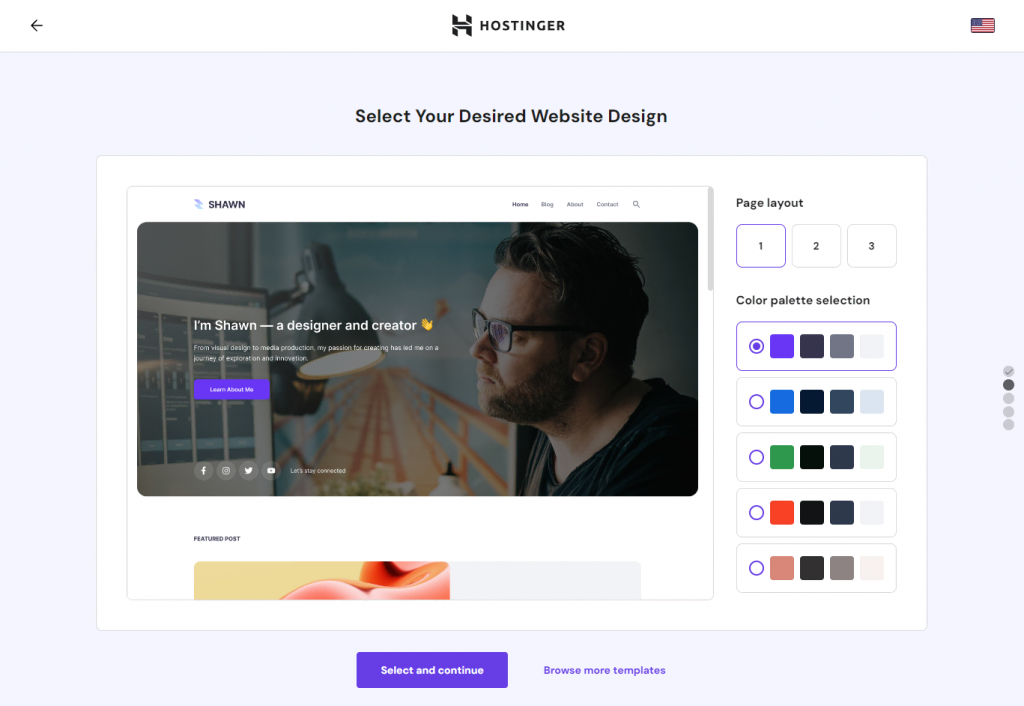
Credit: www.hostinger.com

Credit: www.youtube.com
Frequently Asked Questions
How To Build A WordPress Website Using Hostinger?
To build a WordPress website using Hostinger, follow these steps: 1. Sign up for a Hostinger account. 2. Choose a hosting plan. 3. Install WordPress via Hostinger’s control panel. 4. Configure your website settings. 5. Select and customize a theme.
6. Add necessary plugins and content.
Does Hostinger Support WordPress?
Yes, Hostinger supports WordPress. They offer specialized WordPress hosting plans. Enjoy features like one-click installation, fast performance, and 24/7 support.
How Do I Link My Hostinger Domain To WordPress?
To link your Hostinger domain to WordPress, update the DNS settings. Point the domain to your WordPress hosting server. Use Hostinger’s DNS management tool. Install WordPress and configure the domain settings in WordPress. Ensure proper propagation.
How Do I Go From Hostinger To WordPress?
To migrate from Hostinger to WordPress, first, purchase a WordPress hosting plan. Next, use Hostinger’s migration tool to transfer your site. Install WordPress, then import your content. Finally, update your DNS settings to point to your new WordPress hosting.
Conclusion
Creating a WordPress website with Hostinger is simple and efficient. Follow the steps outlined, and you’ll have a professional site in no time. Hostinger’s user-friendly interface and robust features make it an ideal choice for beginners. Start building your online presence today with Hostinger and WordPress.
Happy website building!



