
To use Hostinger for Minecraft, sign up for a Hostinger account and select a Minecraft hosting plan. Follow the setup instructions to configure your server.
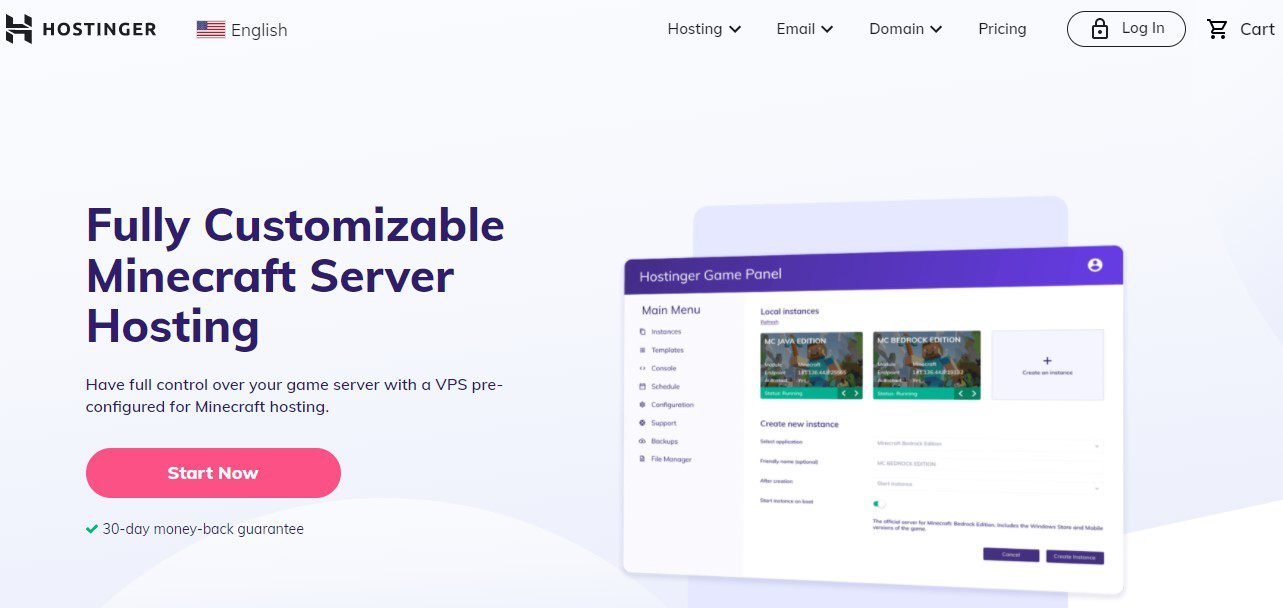
Hostinger offers an excellent platform for hosting Minecraft servers. With its user-friendly interface and reliable performance, you can easily set up and manage your server. Hostinger provides various plans tailored to different needs, ensuring you get the best performance for your budget.
The control panel simplifies server configuration, making it accessible even for beginners. With 24/7 customer support, you receive assistance whenever needed. Hostinger’s robust infrastructure ensures minimal downtime and smooth gameplay. Ideal for both casual players and serious gamers, Hostinger’s Minecraft hosting enhances your gaming experience. Start your Minecraft adventure with Hostinger today for a seamless and enjoyable gaming experience.
Credit: www.youtube.com
Introduction To Hostinger
Hostinger is a popular web hosting provider known for its affordability and reliability. It’s a top choice for hosting various types of websites and applications, including Minecraft servers. Using Hostinger for Minecraft ensures smooth gameplay and minimal downtime.
Why Choose Hostinger?
There are several reasons to choose Hostinger for your Minecraft server:
- Affordability: Hostinger offers budget-friendly plans.
- Reliability: You can count on their robust infrastructure.
- Ease of Use: The control panel is user-friendly.
Key Features Of Hostinger
Hostinger provides a range of features that make it ideal for hosting a Minecraft server:
| Feature | Description |
|---|---|
| Custom Control Panel | Manage your server easily with a custom control panel. |
| Instant Setup | Get your server up and running in minutes. |
| 99.9% Uptime Guarantee | Enjoy uninterrupted gameplay with high uptime. |
| 24/7 Support | Access round-the-clock support for any issues. |
| Mod and Plugin Support | Install and manage mods and plugins effortlessly. |
Using Hostinger for Minecraft is straightforward and beneficial. With its affordable plans, reliable uptime, and user-friendly control panel, Hostinger stands out as a top choice for gamers.
Setting Up A Hostinger Account
Setting up a Hostinger account is the first step to hosting your Minecraft server. With Hostinger, you can easily create an account and choose a plan that fits your needs. Follow these steps to get started.
Creating Your Account
To create your Hostinger account, follow these steps:
- Go to the Hostinger website.
- Click on the “Sign Up” button.
- Enter your email address.
- Create a strong password.
- Click on the “Create Account” button.
After creating your account, you will receive a confirmation email. Click on the link in the email to verify your account. You are now ready to choose a plan.
Choosing The Right Plan
Hostinger offers several plans for Minecraft hosting. Here are some options:
| Plan | Features | Price |
|---|---|---|
| Alex |
|
$8.95/month |
| Enderman |
|
$15.95/month |
| Herobrine |
|
$29.95/month |
Choose a plan based on your requirements. If you are unsure, start with the Alex plan and upgrade later.
After selecting your plan, proceed to checkout. Enter your payment details and complete the purchase. You are now ready to set up your Minecraft server!
Installing Minecraft Server
Hostinger makes it easy to set up a Minecraft server. Follow these steps to get your server running quickly. This guide will help you through each part of the installation process.
Accessing Control Panel
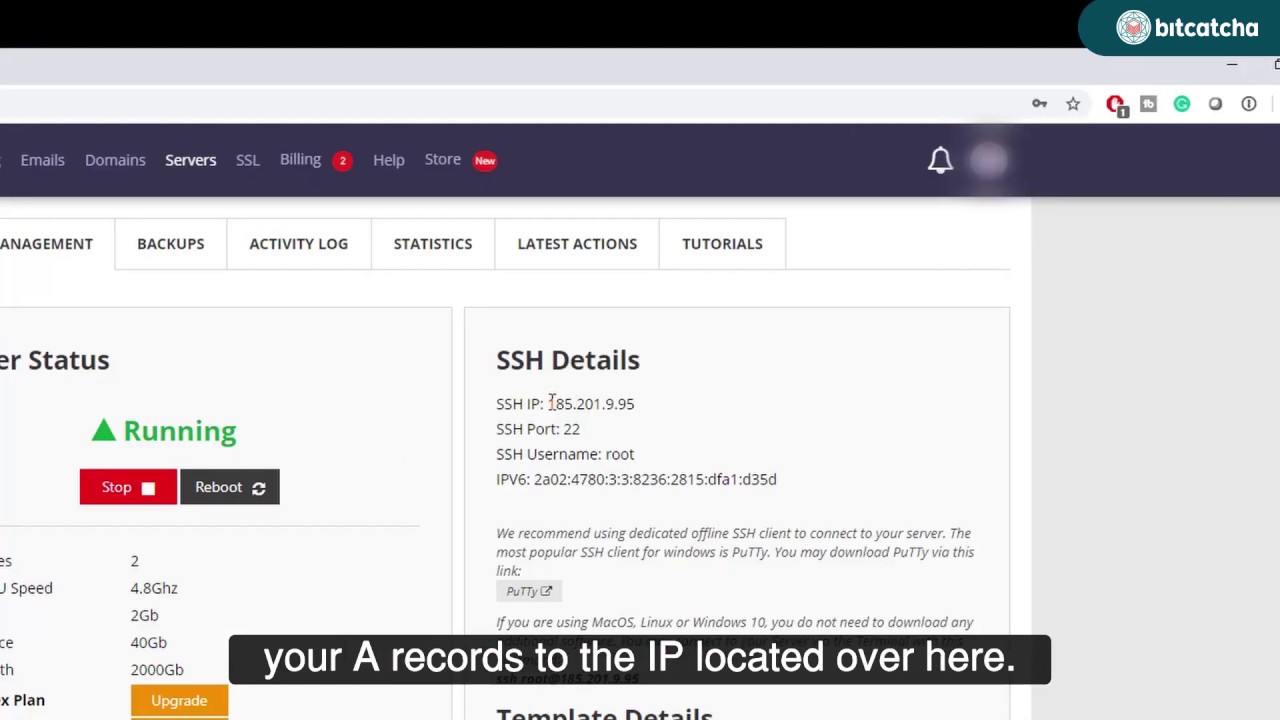
First, log in to your Hostinger account. Go to the dashboard. There, you will find the control panel. Click on it to access all the settings.
In the control panel, look for the “Servers” section. Click on it. You will see a list of your servers. Select the one you want to use for Minecraft.
Selecting Minecraft Server Software
Once you are in the server settings, find the software section. Here, you can choose which Minecraft server software to install. Options include Spigot, Vanilla, and more.
Click on the “Install” button next to your chosen software. The installation process will start automatically. This may take a few minutes. Once done, you will receive a confirmation message.
After installation, configure your server settings. This includes setting the game mode, difficulty, and other parameters. You can do this from the control panel.
Save your settings and restart the server. Your Minecraft server is now ready to use!
Configuring Your Server
Setting up your Minecraft server with Hostinger can be fun. This guide will help you configure your server. Follow these steps to ensure optimal performance and a great gaming experience.
Adjusting Server Settings
Adjusting your server settings is crucial for gameplay. Log into your Hostinger account and navigate to your server dashboard. Here, you will find the server settings tab.
- Game Mode: Choose between Survival, Creative, Adventure, or Spectator.
- Difficulty: Select the difficulty level: Peaceful, Easy, Normal, or Hard.
- Max Players: Set the maximum number of players allowed on your server.
- Whitelist: Enable this to control who can join your server.
Allocating Resources
Proper resource allocation ensures your server runs smoothly. Hostinger allows you to allocate resources like RAM and CPU.
| Resource | Description |
|---|---|
| RAM | Allocate enough RAM based on the number of players and mods. |
| CPU | Ensure sufficient CPU power to handle server tasks. |
To allocate resources, go to the Resource Management section. Adjust the sliders to allocate the required amount of RAM and CPU. Save the changes to apply the new settings.
Managing Plugins And Mods
Managing plugins and mods can enhance your Minecraft experience. Hostinger makes it easy. You can add many features to your server. This section will guide you through finding, installing, and configuring plugins and mods.
Finding Compatible Plugins
First, find plugins that work with your server version. Visit popular sites like SpigotMC or Bukkit. Look for plugins that match your Minecraft version. Check user reviews and ratings to ensure reliability.
Here’s a quick table to help you find trusted plugin sources:
| Plugin Source | Website |
|---|---|
| SpigotMC | spigotmc.org |
| Bukkit | dev.bukkit.org |
Installing And Configuring Mods
To install mods, download the mod files. Use sites like CurseForge or MinecraftMods. Make sure the mods are compatible with your Minecraft version.
Follow these steps to install mods:
- Upload the mod files to your server’s mod folder.
- Restart your server to apply the changes.
- Check the server console for any errors.
Configuring mods involves editing configuration files. Open the mod’s config file in a text editor. Adjust settings as per your needs. Save changes and restart the server.
Here are some tips for successful mod configuration:
- Always backup your config files before making changes.
- Read the mod’s documentation for detailed instructions.
- Test changes in a safe environment first.
Managing plugins and mods on Hostinger is straightforward. With these steps, you can customize your Minecraft server easily.
Credit: hostingdolphin.com
Securing Your Minecraft Server
Securing your Minecraft server is essential. It helps protect your world from unwanted guests. Using Hostinger, you can easily secure your Minecraft server. Follow these steps to keep your server safe and sound.
Setting Up Whitelists
Whitelists allow only certain players to join your server. This way, you control who can enter and play. To set up a whitelist in Hostinger:
- Log in to your Hostinger account.
- Go to the Server Management section.
- Select your Minecraft server.
- Find and click on Settings.
- Enable the Whitelist option.
- Add the usernames of players you trust.
Using a whitelist ensures only your friends can join. This reduces the risk of griefers and hackers.
Configuring Firewalls
A firewall is a security system that blocks unwanted traffic. Configuring a firewall for your Minecraft server adds an extra layer of protection. Follow these steps to configure a firewall in Hostinger:
- Log in to your Hostinger account.
- Navigate to the Security section.
- Click on Firewall settings.
- Add a new rule to block unwanted IP addresses.
- Allow traffic only from trusted IP addresses.
Firewalls help prevent attacks from hackers. They filter out harmful traffic and keep your server secure.
By setting up whitelists and configuring firewalls, you protect your Minecraft server. Your game world stays safe for you and your friends to enjoy.
Optimizing Server Performance
Running a Minecraft server on Hostinger can be smooth with the right steps. Optimizing server performance ensures a lag-free experience for your players. This section will guide you through crucial steps to maintain and enhance your server’s performance.
Monitoring Server Health
Regularly monitor your server’s health to keep it running efficiently. Hostinger provides tools to track various metrics:
- CPU Usage: Keep an eye on CPU usage. High usage indicates the server might need a break or fewer plugins.
- Memory Usage: Memory is crucial for smooth gameplay. Check for spikes in memory usage which might indicate a problem.
- Disk Space: Ensure you have enough disk space. Low disk space can slow down your server.
Monitoring these metrics helps to identify potential issues before they affect gameplay.
Implementing Performance Tweaks
Use performance tweaks to enhance your server’s efficiency. Here are some key tweaks:
- Optimize Your Plugins: Use only essential plugins. Too many plugins can slow down your server.
- Adjust View Distance: Lower the view distance in the server settings. This reduces the amount of loaded chunks and improves performance.
- Use Performance Mods: Install mods like Paper or Spigot. These mods optimize server performance significantly.
- Allocate More RAM: If your server is slow, allocate more RAM. Hostinger allows easy RAM adjustments based on your plan.
Implementing these tweaks will help you maintain a fast and efficient Minecraft server.
Troubleshooting Common Issues
Running a Minecraft server on Hostinger can be fun. Sometimes, you may face issues that need fixing. Connection problems and lag are common. Here, you will learn how to solve them.
Resolving Connection Problems
Connection problems can stop players from joining your server. Follow these steps to fix them:
- Check your internet connection.
- Ensure your server is online.
- Verify the server IP address and port.
- Restart your Minecraft server.
If problems persist, contact Hostinger support for help.
Fixing Lag And Latency
Lag and latency can ruin the game experience. Use these tips to reduce them:
- Lower the render distance in server settings.
- Use a lightweight server version.
- Limit the number of players on your server.
- Install performance-boosting plugins.
Make sure your server has enough RAM and CPU resources. Upgrading your plan may help.
Backing Up And Restoring Data
Running a Minecraft server on Hostinger is exciting. But safeguarding your game progress is crucial. Regular backups ensure your data is safe. Restoring data helps recover from unexpected issues. Let’s dive into these important tasks.
Creating Regular Backups
To create regular backups, follow these steps:
- Log in to your Hostinger account.
- Navigate to the Minecraft server dashboard.
- Find the Backup section and click on it.
- Select Create Backup to start the process.
You can also schedule automatic backups:
- Go to the Settings tab.
- Choose Backup Schedule.
- Select how often you want backups.
Regular backups keep your data safe. Always verify your backups are complete.
Restoring From Backups
If you need to restore data, follow these steps:
- Log in to your Hostinger account.
- Navigate to the Minecraft server dashboard.
- Find the Backup section and click on it.
- Choose the backup you want to restore.
- Click Restore to start the process.
Restoring from backups is quick and easy. It helps recover lost progress. Ensure you choose the correct backup.
Engaging With The Minecraft Community
Engaging with the Minecraft community can elevate your gaming experience. It helps you learn new tips and tricks, and even make new friends. Hostinger makes it easy to connect with the Minecraft community. Here are a few ways to get started:
Joining Forums And Groups
Joining Minecraft forums and groups is an excellent way to engage. These platforms host many experienced players who share valuable insights.
- Search for popular Minecraft forums.
- Create an account and introduce yourself.
- Ask questions and participate in discussions.
- Share your own experiences and tips.
Forums and groups are a treasure trove of information. You can find tutorials, mod recommendations, and server setup guides. It’s an ideal place to stay updated on the latest Minecraft news.
Participating In Events
Participating in Minecraft events can be a thrilling experience. Events range from building contests to survival challenges.
Here are some steps to get involved:
- Check out Minecraft event calendars.
- Register for events that interest you.
- Prepare your game skills and strategies.
- Join the event and have fun!
Events provide an opportunity to showcase your skills. They also help you meet other players and form teams. This could lead to long-lasting friendships within the community.
Credit: www.hostinger.com
Frequently Asked Questions
How To Run A Minecraft Server On Hostinger?
To run a Minecraft server on Hostinger, first purchase a Minecraft hosting plan. Access the control panel, install the server, and configure settings. Start the server and share the IP address with players.
How Do I Install Minecraft Mods On Hostinger?
To install Minecraft mods on Hostinger, first, access your game panel. Upload the mod files via FTP. Restart the server to apply changes. Ensure mod compatibility with your Minecraft version. Enjoy your modded gameplay!
How Much Does Hostinger Minecraft Cost?
Hostinger Minecraft hosting starts at $8. 95 per month. Prices vary based on the plan and server specifications.
How To Install Plugins Hostinger Minecraft?
To install plugins on Hostinger Minecraft, access your control panel, go to the “Files” section, and select “FTP File Access. ” Upload the plugin files to the “plugins” folder. Restart your server to activate the plugins.
Conclusion
Hostinger makes hosting a Minecraft server easy and efficient. Follow the steps outlined to set up your server. Enjoy seamless gameplay and control over your Minecraft world. Hostinger’s features ensure an optimized experience for all players. Start your Minecraft adventure today with Hostinger!



