
Creating a SharePoint landing page might seem daunting, but it doesn’t have to be. Imagine transforming your team’s online experience into something intuitive and engaging.
A well-crafted landing page isn’t just a digital face; it’s the gateway to seamless collaboration and productivity. You have the power to make information accessible and visually appealing, making every visit to your SharePoint site a pleasure rather than a chore.
Think about the last time you stumbled upon a website that was cluttered and confusing. Frustrating, right? Now, picture a landing page where everything is exactly where you expect it to be. That’s the experience you can offer. This isn’t just about aesthetics; it’s about creating an environment where your team can thrive, and you can be the architect of that transformation. By the end of this guide, you’ll feel confident in your ability to design a SharePoint landing page that wows your team and enhances productivity. Let’s dive in and unlock the secrets to making your SharePoint site not only functional but also inviting and efficient.
Getting Started With Sharepoint
First, you need a Microsoft 365 account to use SharePoint. Ensure you have the right permissions to access and create sites. Find the Admin Center from the Microsoft 365 home. This is where you can manage users and settings. Create a new site by choosing from available templates. Make sure the template fits your needs. Name your site and give it a description. This helps others know what your site is about. Once done, your SharePoint environment is ready.
Open a web browser and go to office.com. Sign in with your Microsoft account. Click on the SharePoint icon to open it. You will see a list of sites you can access. Click on a site to view its content. For ease, bookmark the sites you visit often. This way, you can find them quickly later. Always ensure your browser is up to date. This helps in having a smooth experience.
Planning Your Landing Page
First, understand the purpose of your landing page. Is it to share news? Or to offer resources? Decide what you want visitors to do. This helps in setting clear objectives. Knowing your audience is also key. Are they students, professionals, or others? This affects your design choices. Clear goals and understanding your audience make a strong start.
A neat and simple design works best. Use colors that match your brand. Too many colors can confuse. Keep the text easy to read. Large fonts help. Use headings to break text into sections. Pictures are good, but not too many. They should support your message. White space is important. It makes the page look clean. Think about the layout carefully. It guides the eyes of the visitors.
Building The Page Structure
Web parts are like building blocks for your page. You can add text, images, and other elements. Think of them as tools to share information. Choose web parts that fit your content needs. Some web parts show lists, while others display charts. Pick the ones that make your page look and work well. Try to keep the page simple and clean. This helps users find what they need quickly.
Content organization is key to a successful page. Start with the most important information. Use headings to separate sections. This makes it easy to read. Lists or tables can help present data clearly. Short paragraphs are easier to understand. Arrange content in a way that guides the viewer’s eyes naturally. Make sure everything is easy to find.

Credit: mydigitalworkplace.wordpress.com
Customizing Design Elements
Transforming a SharePoint landing page involves tweaking design elements to align with your brand. Choose colors, fonts, and images that reflect your company’s identity. Enhance user experience by organizing content in a visually appealing way.
Using Themes And Templates
Themes and templates help your page look nice. Choose a theme that fits your style. Templates give you a structure. They help organize content. Use them to make pages look clean. Change colors and fonts to match your brand. It makes the page feel personal. Simple changes can make a big difference. Always save changes to keep your work. Preview before you make pages live.
Adding Branding And Graphics
Branding makes your page unique. Use your logo on every page. It helps people remember you. Graphics make pages look interesting. Add pictures that fit the content. Use images that are clear. Avoid too many graphics. It makes pages load slowly. Choose graphics that tell a story. Keep them simple and engaging.
Enhancing Functionality
Creating a SharePoint landing page boosts team collaboration and simplifies access to resources. Start by choosing a clear layout that highlights important links and documents. Customize the design to match your organization’s needs, ensuring easy navigation and user engagement.
Integrating Apps And Services
Adding apps makes a page more useful. Connect to your favorite tools. Use Microsoft Teams for easy chats. Link OneDrive for saving files. Add a calendar to track events. All these apps help your team work better. Choose apps based on your needs. Make sure they fit your tasks.
Setting Up Navigation
Good navigation helps users find things fast. Use a clear menu at the top. Add links to important pages. Use labels that make sense. Arrange items in order of need. Keep it simple. Too many links can confuse people. Always test the menu. Make sure links work.
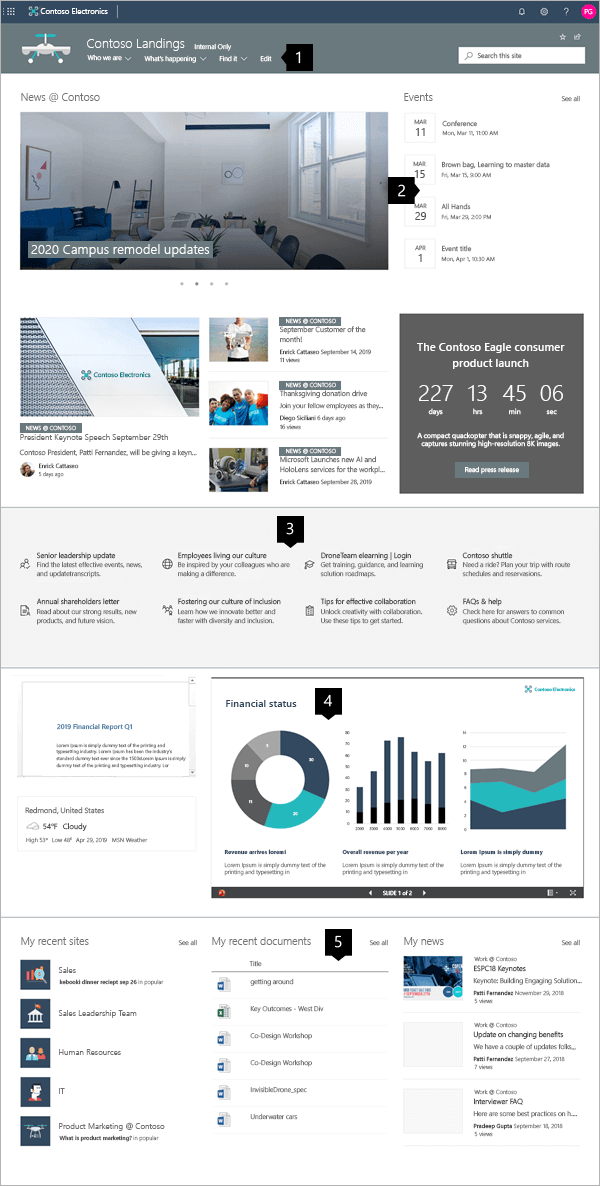
Credit: learn.microsoft.com
Testing And Publishing
Testing ensures your SharePoint landing page functions smoothly before publishing. Fix any issues for a seamless user experience. Publish the page to share your content with the audience effectively.
Reviewing Page Functionality
Check every button and link. Ensure they work. Look at the layout. It should be neat. Your text must be easy to read. Images should load quickly. Test the page on different devices. It should look good everywhere. Ask someone else to review it. They might see mistakes you missed.
Making Your Page Live
Once the page is ready, publish it. Use the SharePoint tools. They are simple. Click the “Publish” button. This makes your page live. Others can see it now. Share the link with your team. Get feedback from them. Always check the page after publishing. There might be errors. Fix them quickly.
Maintenance And Updates
Regular updates ensure your SharePoint landing page remains functional and secure. Maintenance keeps the design fresh and user-friendly, enhancing the visitor experience.
Monitoring User Feedback
Listening to users is crucial. Feedback helps improve the landing page. Users share what they like and dislike. Surveys and comments are useful tools. Reading feedback shows problems and areas to improve. Fix issues quickly to keep users happy. Happy users visit more often and recommend the page.
Regular Content Updates
Fresh content keeps users interested. Update information to stay relevant. New posts engage visitors. Keep photos and texts current. Outdated content can confuse users. Make changes often to show you care. Regular updates keep the page exciting. Exciting pages attract more visitors.

Credit: mydigitalworkplace.wordpress.com
Frequently Asked Questions
How To Create A Sharepoint Site Page?
Open SharePoint, click “New” then “Site Page”. Choose a template, customize content, and save your page.
How To Set Sharepoint As A Home Page?
Open your browser settings. Find the homepage option. Enter your SharePoint site URL. Save changes. Refresh to see SharePoint as your home page.
What Is The Difference Between A Sharepoint Site And A Page?
A SharePoint site is a collection of web pages, lists, and libraries for collaboration. A page is a single web page within a site, displaying content like text, images, and web parts. Sites organize content, while pages present it.
How Do I Lay Out A Sharepoint Page?
Start by selecting a layout option from the SharePoint design library. Add web parts to your page. Customize web parts to fit your content needs. Use drag-and-drop functionality for easy arrangement. Finally, preview and publish your SharePoint page for users to access.
Conclusion
Creating a SharePoint landing page can be simple and rewarding. Start with clear objectives. Keep your design clean and user-friendly. Use templates for a quick start. Customize layouts to fit your needs. Add engaging content and visuals. Test your page on various devices.
Ensure easy navigation for users. Regularly update with fresh content. Seek feedback to improve the page. With these steps, your SharePoint page will serve your team well. Enhance collaboration and communication efficiently. Happy designing!


