
Are you looking to elevate your Mailchimp landing page to the next level? Imagine the impact of not just one, but two captivating image backgrounds that draw in your audience and keep them engaged.
Visuals are powerful tools in capturing attention and conveying your brand’s message effectively. By learning how to seamlessly incorporate two image backgrounds, you can create a dynamic and memorable experience for your visitors. This guide will walk you through the steps, ensuring you have the skills to make your landing page stand out.
Dive in, and discover how to transform your page into a visually stunning masterpiece that resonates with your audience.
Credit: mailchimp.com
Understanding Mailchimp’s Landing Page Builder
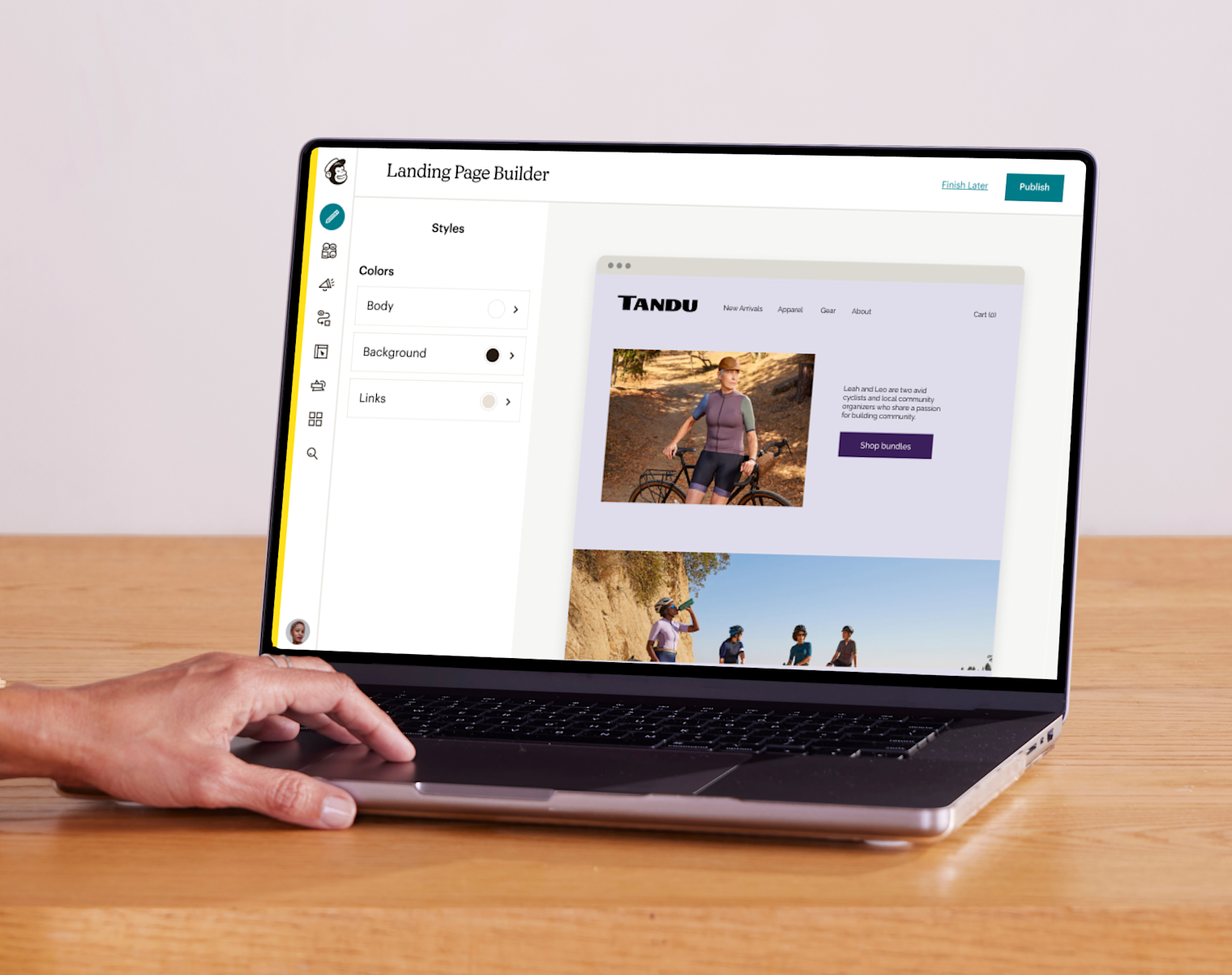
Mailchimp’s landing page builder is easy to use. It offers many tools. You can add images, text, and buttons. Drag and drop to arrange them. No coding needed. It helps make pages look nice. You can see changes in real-time. Adjust colors and fonts too. This makes your page unique. It is simple to learn. Good for beginners.
Customization lets you make special pages. You can add your brand colors. This shows your style. Add images that fit your brand. It helps in telling a story. Use different layouts to catch eyes. Make each page special. It helps in reaching more people. Your page can stand out. Easy to change anytime. Keeps your content fresh.
Setting Up Your Landing Page
Creating a Mailchimp landing page with two image backgrounds enhances visual appeal. Customize each section by selecting unique images. Adjust settings to blend seamlessly, capturing visitors’ attention effortlessly.
Accessing The Builder
Begin by logging into your Mailchimp account. Once logged in, navigate to the Campaigns tab. Click on Create Campaign to start. Choose Landing Page from the options. You will see the Builder interface load. This is where you will design your page. Take a moment to familiarize yourself with the tools and features available. It’s user-friendly and intuitive. You can add images, text, and customize the layout. Make sure to save your progress frequently.
Choosing A Template
Mailchimp offers various templates for landing pages. Browse through the template library. Select one that fits your needs. Templates are easy to customize. They help you get started quickly. You can change colors, fonts, and images. Use two images for the background. This creates a unique look. Make your page stand out. Add your own touches to personalize it. Templates save time and effort. They are designed to be effective.
Adding Images To Your Background
Enhancing your Mailchimp landing page with a dual-image background creates a visually appealing experience. Choose and upload two images, then adjust the settings to blend them seamlessly. This method helps capture attention and make your landing page stand out.
Image Upload Process
First, open Mailchimp and go to your landing page. Look for the settings option. Find where it says background image. Click on it to upload an image. You can choose any image from your computer. Ensure the image is clear and fits well. Once uploaded, your image will appear. Check if it looks good. If not, you can try another image. You can always change it later.
Image Placement Techniques
Now, decide where to place your image. You can center it for balance. Or, put it to the side for a different look. Try using two images. One at the top and one at the bottom. This can make your page look nice. Use images that match your theme. This keeps your design neat. Always preview changes to see how they look.
Creating A Two-image Background
Choose images that complement each other. Colors should blend well. Contrast is key. Use high-quality images. Resolution matters. Clear images look better. Avoid cluttered images. Simplicity is beautiful. Keep the design clean. Use images that tell a story. Visual appeal is important. Images should engage the viewer.
Begin with one image. Layer the second image on top. Make sure both images are visible. Adjust the opacity. Both images should shine. Use the overlay feature. Experiment with transparency. Balance is crucial. Harmony between images is vital. Test different positions. Ensure the images fit well together. Avoid overlapping important parts. Visibility of each image is necessary.
Customizing Image Properties
To fit two images on a Mailchimp page, you need to adjust them. It’s easy to make images small or big. Check if they overlap. Each image should have its own space. Ensure they look good side by side. Make sure they both stay clear and visible. This helps in keeping the design neat. Try to balance the images for a nice look.
Opacity makes images see-through. You can make one image light. This helps the other image stand out more. Use the slider to adjust opacity. Move the slider until it looks right. This creates a nice effect on your page. People like it when images blend well. It makes the page look smart and tidy.
Testing And Previewing
Create dynamic Mailchimp landing pages by using two image backgrounds. Adjust the layout settings to layer images. Enhance visual appeal and engage visitors effectively.
Checking Mobile Responsiveness
Mobile phones are small. Landing pages must look good on them. Test your page on different devices. Use tools to see how it looks. Check if images fit the screen. Make sure text is easy to read. Buttons should be big enough. Fix any issues you find. This helps visitors have a good experience.
Ensuring Cross-browser Compatibility
Different browsers show pages differently. Your landing page must work on all. Test it on Chrome, Firefox, and Safari. Look for errors or broken parts. Make sure images load fast. Check if links work. Fix any problems you see. This helps all users see your page correctly.
Troubleshooting Common Issues
Creating dual image backgrounds on Mailchimp landing pages can enhance visual appeal. Begin by customizing the design section, then use HTML blocks to layer images creatively. Experiment with positioning and transparency to achieve a harmonious look.
Resolving Image Overlap
Image overlap can create clutter. It’s important to keep images aligned. Use CSS properties like z-index to control image layers. Adjusting image size helps too. Ensure images fit within the page design. Avoid placing images too close. It may cause overlap. Experiment with margins and padding. This will give images space. Make sure each image has its own unique position.
Fixing Load Time Problems
Slow loading frustrates users. Start by reducing image file size. Small images load faster. Use tools to compress images. Keep file formats lightweight like JPEG or PNG. Limit the number of images on the page. Fewer images mean quicker loading. Use lazy loading to delay image loading. This helps the page load faster initially. Check the internet connection speed too. It can affect load times.

Credit: unbounce.com

Credit: www.convertflow.com
Frequently Asked Questions
How Do I Put Two Images Side By Side In Mailchimp?
Drag and drop an “Image” block into your Mailchimp layout. Adjust its style to display two images side by side.
How Do I Overlay Pictures In Mailchimp?
Use Mailchimp’s drag-and-drop editor to overlay images. Choose the image block, upload your pictures, and layer them using design tools. Adjust transparency and position for the desired effect. Save your changes to apply the overlay in your campaign.
How Do You Add A Background Image In Mailchimp?
To add a background image in Mailchimp, go to “Design” section. Select “Body” and click “Style”. Choose “Background Image” option and upload your image. Adjust settings as needed and save your changes. Your email will now display the background image.
How Do I Edit The Landing Page In Mailchimp?
To edit a landing page in Mailchimp, log in and navigate to “Campaigns. ” Select your landing page, click “Edit,” and make changes. Save your edits and publish the updated version. Ensure your changes align with your campaign goals for optimal results.
Conclusion
Creating a Mailchimp landing page with two image backgrounds is simple. Follow the steps to enhance your design. Use images that capture attention and fit your brand. Experiment with different styles to see what works best. Always preview your page before publishing.
This ensures everything looks perfect. Regularly update your images to keep your page fresh. Engaging visuals can boost user interaction. Keep learning and refining your design skills. Soon, you’ll craft stunning landing pages effortlessly. Stay creative and explore new design ideas.
With practice, your Mailchimp pages will shine.


