To install only Image Processing Tools for MATLAB, use the Add-Ons menu in MATLAB. Select Image Processing Toolbox and click install.
MATLAB’s Image Processing Toolbox provides a comprehensive set of algorithms, functions, and tools for image analysis, visualization, and algorithm development. This toolbox is essential for researchers, engineers, and scientists working on image processing projects. It supports a wide range of image types, including grayscale, RGB, binary, and multispectral images.
Users can perform tasks such as image enhancement, filtering, segmentation, and geometric transformations. The toolbox also offers interactive apps for image processing tasks, making it easier to visualize and analyze images. By installing the Image Processing Toolbox, you can unlock powerful capabilities to handle complex image data efficiently.
Introduction To Image Processing In Matlab
Image processing involves enhancing and manipulating digital images. Matlab is a powerful tool for this purpose. It provides a rich set of functions for image processing. You can perform operations like filtering, edge detection, and object identification.
Installing only the necessary image processing tools can optimize your Matlab setup. This makes it easy to focus solely on your image processing tasks.
Why Focus On Image Processing Tools
Image processing tools are essential for tasks like medical imaging and facial recognition. They help you analyze and interpret images accurately. By focusing on these tools, you save time and resources. You also avoid cluttering your Matlab environment with unnecessary features.
Benefits Of Specialized Tool Installation
- Efficiency: Your Matlab runs faster without extra tools.
- Simplicity: Easier to navigate and use only needed features.
- Cost-effective: Reduces software costs by focusing on essentials.
Installing only specialized tools streamlines your workflow. This allows you to concentrate on specific tasks without distractions.
Steps To Install Image Processing Tools
- Open Matlab and navigate to the Add-Ons menu.
- Search for “Image Processing Toolbox”.
- Select the toolbox and click “Install”.
- Follow the on-screen instructions to complete the installation.
After installation, you can access the toolbox from the Matlab environment. Use it to perform various image processing tasks effectively.
Here’s an example code snippet to get you started:
% Read an image
img = imread('example.jpg');

% Convert the image to grayscale
grayImg = rgb2gray(img);

% Display the original and grayscale images
subplot(1,2,1), imshow(img), title('Original Image');
subplot(1,2,2), imshow(grayImg), title('Grayscale Image');
By following these steps, you can easily install and use image processing tools in Matlab. This will enhance your ability to work with digital images efficiently.
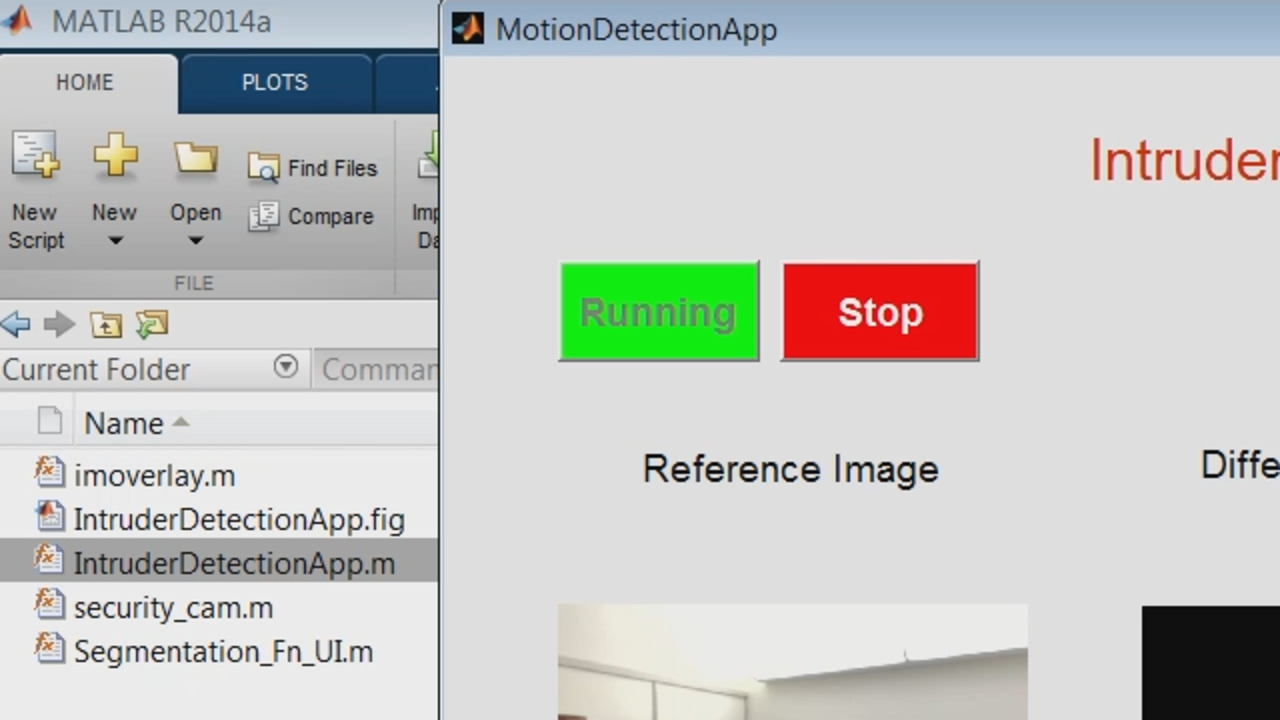
Credit: www.mathworks.com
Prerequisites For Installation
Before installing image processing tools for Matlab, ensure your system meets the prerequisites. This ensures smooth installation and optimal performance.
System Requirements
Check if your system meets the minimum requirements. This is crucial for proper tool functionality.
- Operating System: Windows, macOS, or Linux
- Processor: Minimum 2.0 GHz
- RAM: At least 4 GB
- Disk Space: Minimum 2 GB free
Matlab Compatibility
Ensure your Matlab version is compatible with the image processing tools. Incompatible versions may cause issues.
| Matlab Version | Compatible Image Processing Toolbox |
|---|---|
| R2021a | Image Processing Toolbox 11.2 |
| R2020b | Image Processing Toolbox 11.1 |
| R2020a | Image Processing Toolbox 11.0 |
Note: Always use the latest Matlab version for the best results. Older versions might lack certain features.
Getting Started With Matlab
Welcome to the world of Matlab, a powerful tool for image processing. In this guide, you will learn how to set up Matlab and install only the necessary image processing tools. Let’s dive into the basics to get you started on the right foot.
Basic Matlab Setup
First, ensure your system meets the requirements for Matlab. Visit the official Matlab website to download the installer. Follow these steps:
- Go to the MathWorks Downloads page.
- Select the version of Matlab you need.
- Click on the download button and save the installer.
After downloading, run the installer and follow the on-screen instructions. Make sure to install Matlab in a directory with sufficient space.
Account Creation And Licensing
Before using Matlab, you need a MathWorks account. Follow these steps to create one:
- Visit the MathWorks Registration page.
- Fill in the required information.
- Verify your email address.
Once your account is ready, you need to activate your Matlab license. Here’s how:
- Log in to your MathWorks account.
- Navigate to the License Center.
- Enter the license number provided with your purchase.
- Follow the prompts to complete the activation.
Now that you have Matlab installed and licensed, you are ready to explore its powerful image processing tools.

Credit: www.mathworks.com
Navigating Matlab’s Add-on Explorer
Matlab’s Add-On Explorer makes it easy to find and install tools. Especially, image processing tools. This guide will show you how to navigate this feature.
Accessing The Add-on Explorer
First, open Matlab on your computer. Look for the Add-Ons button on the top toolbar. Click on it. A drop-down menu will appear. Select Get Add-Ons. This will open the Add-On Explorer.
| Step | Action |
|---|---|
| 1 | Open Matlab |
| 2 | Click on Add-Ons |
| 3 | Select Get Add-Ons |
Searching For Image Processing Tools
In the Add-On Explorer, find the search bar at the top. Type “image processing” in the search bar. Press Enter. A list of tools will appear. Scroll through the list to find the tool you need.
- Click the search bar.
- Type “image processing”.
- Press Enter.
- Browse the results.
Once you find a tool, click on it. This will open a new page with more information. Click Add to install the tool. Follow the prompts to complete the installation.
- Click on the tool you want.
- Read the tool description.
- Click Add to install.
- Follow the installation prompts.
Now, you have installed an image processing tool. You can start using it in your projects.
Selective Installation Of Image Processing Tools
Installing only the necessary image processing tools for Matlab can save space and improve efficiency. This guide will help you choose the right tools and perform a custom installation.
Choosing The Right Tools
First, identify which image processing tasks you need to perform. Common tasks include:
- Image filtering
- Edge detection
- Image transformation
- Object recognition
Depending on your tasks, select the corresponding toolboxes. Matlab offers several toolboxes for image processing:
| Toolbox | Purpose |
|---|---|
| Image Processing Toolbox | Basic image manipulation and analysis |
| Computer Vision Toolbox | Advanced image analysis and object detection |
| Deep Learning Toolbox | Image classification using neural networks |
Choose only the toolboxes that match your needs. This ensures a lightweight and efficient Matlab setup.
Custom Installation Process
Begin the custom installation by opening Matlab’s installer. Follow these steps:
- Launch the Matlab installer.
- Select the option for a custom installation.
- Deselect all unnecessary toolboxes.
- Ensure only your chosen image processing toolboxes are selected.
- Proceed with the installation.
This selective installation method helps in optimizing your Matlab environment. It keeps your setup clean and focused on your specific needs.
Verifying The Installation
After installing the image processing tools for Matlab, it’s essential to verify the installation. This ensures that everything is set up correctly and ready to use. Follow these steps to confirm that the tools are installed and functioning properly.
Checking Installed Components
First, open Matlab and navigate to the Command Window. Type the following command:
verThis command lists all installed toolboxes and their versions. Look for the Image Processing Toolbox in the list. If it appears, the installation is successful.
Ensure the version matches the one you downloaded. If not, you may need to reinstall the toolbox.
Running A Simple Image Processing Test
Next, test the toolbox with a simple image processing task. Use the following code to read and display an image:
img = imread('example.jpg');
imshow(img);
If the image displays correctly, the toolbox is working. This basic test confirms that the main components are functioning.
Try a more advanced function to further verify the installation. Use the edge detection function:
edge_img = edge(img, 'Canny');
imshow(edge_img);
If the edges of the image appear, the toolbox is fully operational.
These simple steps help ensure that your Matlab image processing tools are correctly installed and ready for use.
Best Practices For Using Image Processing Tools
Using image processing tools in Matlab can boost your projects. Following best practices ensures you get the most out of these tools. This section will cover managing toolboxes and updating and maintaining tools.
Managing Toolboxes
Effective toolbox management keeps your workspace organized. Below are some tips:
- Install only needed toolboxes: Unnecessary toolboxes take up space.
- Use Matlab’s add-on manager: Simplifies adding and removing toolboxes.
- Create a toolbox checklist: Helps track installed tools and their versions.
| Action | Command |
|---|---|
| List installed toolboxes | ver |
| Check toolbox function | license('test', 'Image_Toolbox') |
| Install new toolbox | Use Matlab Add-On Explorer |
Updating And Maintaining Tools
Regular updates and maintenance keep your tools efficient. Here are some methods:
- Update regularly: Matlab frequently releases updates for toolboxes.
- Backup settings: Save your custom settings before updates.
- Monitor toolbox performance: Regular checks can prevent slowdowns.
Updating toolboxes ensures access to new features and bug fixes. Maintenance includes cleaning up old files and optimizing settings. Keeping your tools updated and maintained leads to better performance and accuracy.
Troubleshooting Common Installation Issues
Installing only image processing tools for Matlab can sometimes face issues. Here, we address common problems and their solutions to ensure smooth installation.
Solving Compatibility Problems
Compatibility issues can halt your installation process. To tackle this:
- Ensure your Matlab version supports the image processing tools.
- Check the system requirements for the tools.
- Update your Matlab to the latest version.
- Verify the operating system compatibility.
Updating and verifying these elements can solve many problems.
What To Do When Tools Don’t Install Correctly
If the tools fail to install correctly, try these steps:
- Restart Matlab and try the installation again.
- Check for any error messages during installation.
- Look up the error codes on the Matlab support site.
- Ensure you have administrative rights for installation.
- Disable any antivirus software temporarily.
These steps often resolve installation issues and help you get the tools running.
Resources For Learning Image Processing With Matlab
Learning image processing with Matlab can seem daunting at first. However, there are many resources available to make the process easier. From online tutorials to active community forums, you have plenty of help at your disposal. This section will cover some of the best resources to help you master image processing with Matlab.
Online Tutorials And Guides
Online tutorials offer step-by-step instructions for beginners. These tutorials cover basics and advanced topics. Here are some great places to start:
- MathWorks Documentation: The official Matlab documentation is a great resource. It includes detailed examples and code snippets.
- YouTube Channels: Many educational channels offer free video tutorials. Channels like “MATLAB” and “MATLAB Helper” are good options.
- Online Courses: Websites like Coursera and Udemy offer structured courses. These courses often include quizzes and assignments.
Community Forums And Support
Community forums are invaluable for solving specific problems. Users share their experiences and solutions. Here are some forums to consider:
- MathWorks Community: The official Matlab forum is very active. You can find answers to common questions and post your own queries.
- Stack Overflow: This popular platform has a large Matlab community. Many experts provide quick and accurate answers.
- Reddit: Subreddits like r/matlab offer discussions and advice. It’s a great place to learn from others’ experiences.
These resources provide the support you need to excel in image processing with Matlab. Utilize them to enhance your learning journey.

Credit: www.mathworks.com
Frequently Asked Questions
How To Install Image Processing Toolbox In Matlab?
Open MATLAB. Go to the “Home” tab. Click on “Add-Ons” and select “Get Add-Ons”. Search for “Image Processing Toolbox” and click install.
How To Install All Toolboxes In Matlab?
Open MATLAB. Go to the “Home” tab. Click on “Add-Ons” and select “Get Add-Ons”. Search for desired toolboxes and click “Install”.
How To Run Image Processing In Matlab?
Run image processing in MATLAB by using built-in functions like imread, imshow, and imfilter. Load the image, apply filters, and display results.
What Is The Image Processing Library In Matlab?
MATLAB’s image processing library is called the Image Processing Toolbox. It provides tools for image analysis, visualization, and algorithm development.
Conclusion
Installing only image processing tools for Matlab is straightforward with the right steps. Follow the outlined guide to streamline your setup. This approach saves time and resources, enhancing your Matlab experience. Ensure you download from official sources to avoid issues.
Enjoy efficient image processing with these essential tools.