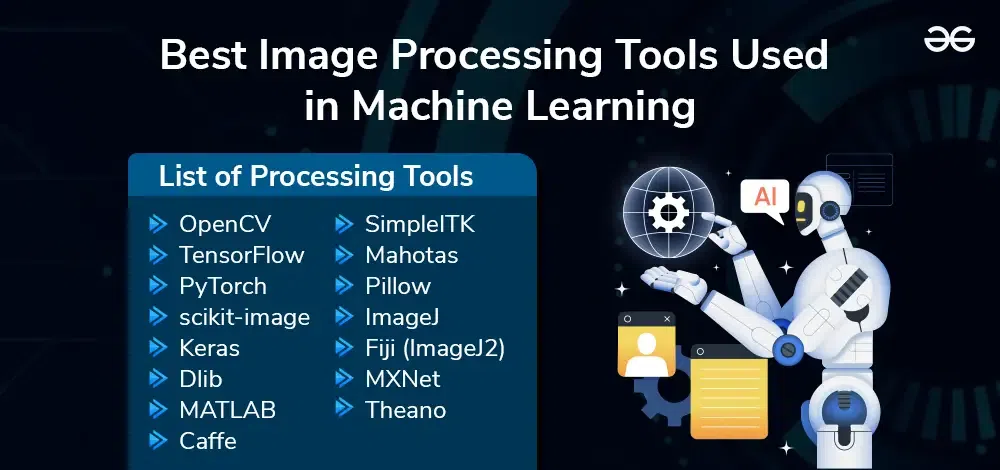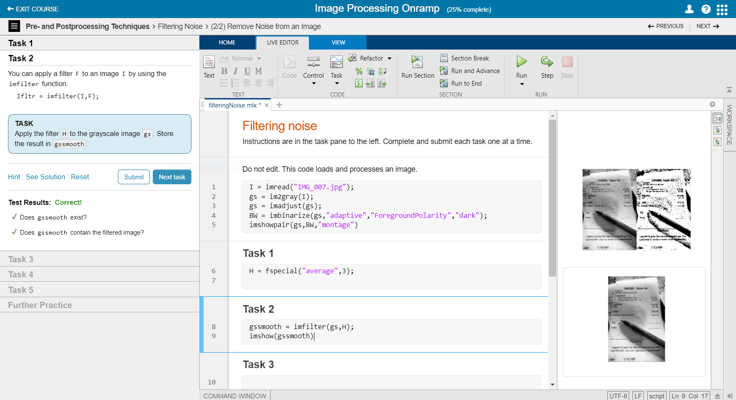
Matlab is a powerful tool for image processing tasks, offering various built-in functions and toolboxes. It simplifies complex image analysis and manipulation.
Matlab stands out in the field of image processing due to its comprehensive set of built-in functions and toolboxes. Researchers and engineers widely use it to perform tasks such as image enhancement, filtering, and segmentation with ease. Its intuitive interface and robust algorithms make it an ideal choice for both beginners and experts in the domain.
Matlab provides seamless integration with other software and hardware, facilitating efficient workflow management. Whether for medical imaging, computer vision, or industrial applications, Matlab offers versatile solutions that cater to diverse image processing needs.
Introduction To Image Processing With Matlab
Image processing is a critical field in many industries today. It involves the manipulation and analysis of images to extract valuable information. MATLAB is a powerful tool for this purpose. It provides an extensive range of functions for image processing.
The Role Of Matlab In Image Analysis
MATLAB plays a significant role in image analysis. It offers a comprehensive suite of tools. These tools help in the enhancement, segmentation, and transformation of images. Users can develop algorithms to analyze images effectively. MATLAB’s toolboxes simplify complex operations.
Its capabilities are vast. Here is a brief overview:
- Image Enhancement: Improve the quality of images.
- Segmentation: Separate objects within an image.
- Transformation: Convert images into different formats.
- Feature Extraction: Identify specific attributes in images.
Advantages Of Using Matlab For Image Processing
MATLAB offers several advantages for image processing. First, it is user-friendly. The interface is intuitive, making it easy to use. Second, it provides a wide range of built-in functions. These functions cover almost all aspects of image processing. Third, MATLAB supports integration with other tools.
Here are some key advantages:
- Comprehensive Toolboxes: Access to specialized toolboxes for different tasks.
- High-Quality Documentation: Extensive resources to help users.
- Community Support: Large user community for shared knowledge.
- Scalability: Handle large datasets efficiently.
Below is a simple code snippet to illustrate the ease of use:
% Read an image
image = imread('example.jpg');

% Convert to grayscale
grayImage = rgb2gray(image);

% Display the original and processed images
subplot(1,2,1), imshow(image), title('Original Image');
subplot(1,2,2), imshow(grayImage), title('Grayscale Image');
This snippet shows the simplicity of image processing with MATLAB. It reads an image, converts it to grayscale, and displays both images.
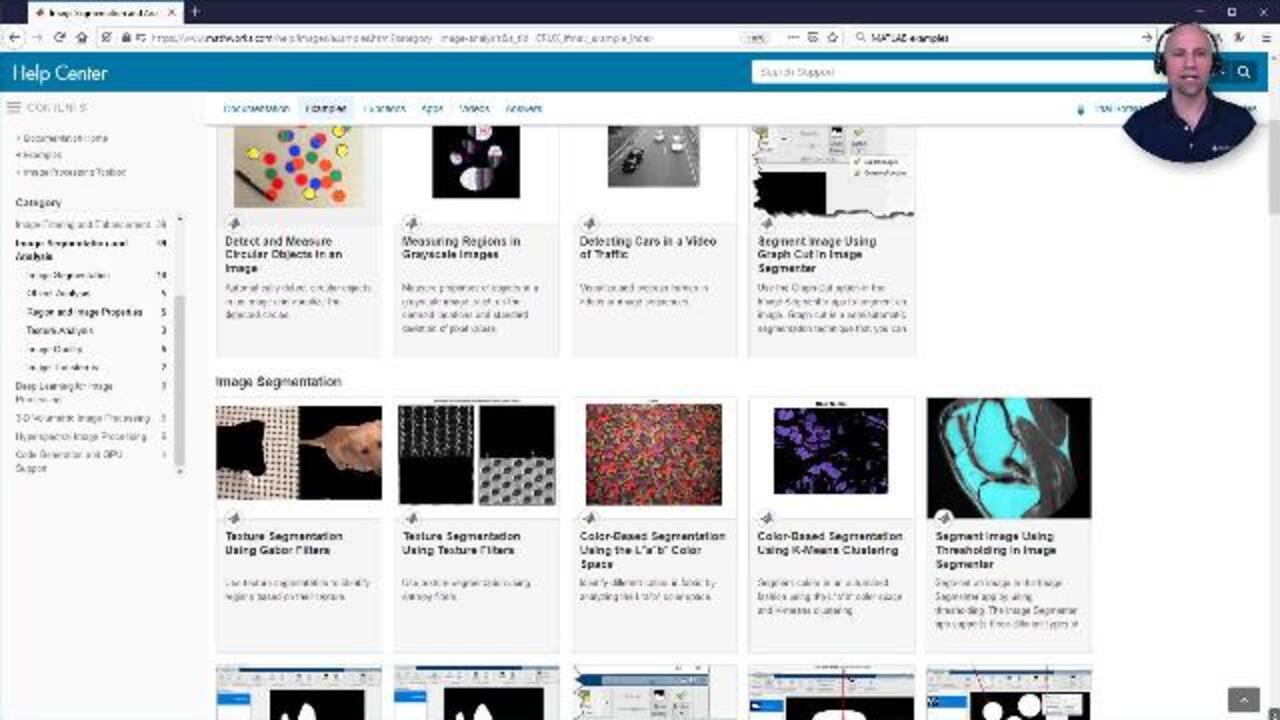
Credit: www.mathworks.com
Key Features Of Matlab For Image Processing
MATLAB is a powerful tool for image processing. It offers a wide range of features that make it a preferred choice for professionals and researchers.
In-built Functions And Toolboxes
MATLAB provides numerous in-built functions for image processing. These functions simplify complex image manipulation tasks. The Image Processing Toolbox in MATLAB is extensive. It includes tools for filtering, image segmentation, and enhancement.
- Filtering
- Segmentation
- Enhancement
Users can also perform morphological operations and geometric transformations with ease. The toolbox supports both grayscale and color image processing.
Customizable Algorithms And User Interface
MATLAB allows users to create customizable algorithms. This ensures the software can meet specific image processing needs. Users can write their own functions in MATLAB. They can also modify existing ones.
MATLAB’s user interface is highly customizable. Users can create custom GUIs (Graphical User Interfaces) for their applications. This makes the tool more user-friendly and tailored to individual requirements.
Here is a simple example of a custom function in MATLAB:
function output = customFunction(input)
    % Custom image processing function
    output = imadjust(input, stretchlim(input), []);
end
Custom algorithms and user interfaces enhance the flexibility of MATLAB for image processing tasks. They allow for greater creativity and innovation.
Getting Started With Matlab
MATLAB is a powerful tool for image processing tasks. With MATLAB, you can handle images, perform analysis, and create visual representations. This section will guide you on how to start using MATLAB for image processing.
Basic Matlab Commands For Image Processing
MATLAB has many commands for image processing. Below are some basic commands to get you started:
- imread: Reads an image file into MATLAB.
- imshow: Displays an image in a figure window.
- imwrite: Writes an image to a file.
- rgb2gray: Converts an RGB image to grayscale.
- imresize: Resizes an image to a specified size.
Importing And Displaying Images In Matlab
To import an image, use the imread command:
image = imread('example.jpg');This command reads the image file ‘example.jpg’ and stores it in the variable image.
To display the image, use the imshow command:
imshow(image);This command opens a new window and displays the image.
To convert the image to grayscale, use the rgb2gray command:
grayImage = rgb2gray(image);This command converts the RGB image to a grayscale image and stores it in grayImage.
To resize the image, use the imresize command:
resizedImage = imresize(image, [256, 256]);This command resizes the image to 256×256 pixels and stores it in resizedImage.
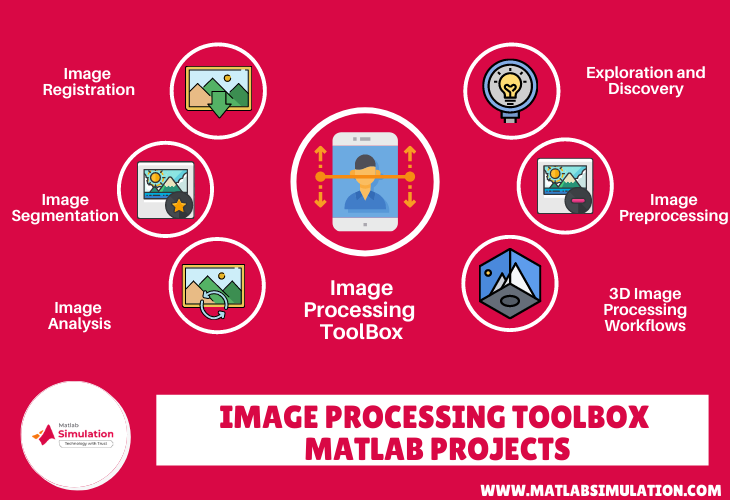
Credit: matlabsimulation.com
Image Enhancement Techniques In Matlab
Image enhancement techniques in MATLAB help improve image quality. These techniques are essential for better visual interpretation. They also assist in further image analysis tasks.
Contrast Adjustment And Histogram Equalization
Contrast adjustment is a simple but powerful technique. It modifies the image’s intensity values. This helps make details more visible. MATLAB offers several functions for this purpose.
imadjust(): Adjusts image intensity values.stretchlim(): Finds limits to adjust contrast.adapthisteq(): Applies adaptive histogram equalization.
Histogram equalization distributes intensity values more evenly. It enhances the contrast of the image. The histeq() function in MATLAB does this automatically.
Spatial Filtering And Noise Reduction
Spatial filtering helps improve image details. It involves the use of different filters. These filters can be applied using MATLAB’s imfilter() function.
| Filter Type | Function |
|---|---|
| Average Filter | fspecial('average') |
| Gaussian Filter | fspecial('gaussian') |
| Median Filter | medfilt2() |
Noise reduction is crucial for clear images. Noise can distort image details. MATLAB provides several functions to reduce noise.
wiener2(): Performs Wiener filtering.medfilt2(): Applies median filtering.nlfilter(): Applies custom non-linear filtering.
Color Image Processing
Color image processing is crucial in many applications. It involves manipulating color images to achieve desired results. MATLAB provides robust tools for color image processing.
Working With Rgb And Indexed Color Images
RGB images contain three color channels: red, green, and blue. Each channel stores color intensity values.
- RGB Images: Represented as a 3D matrix.
- Indexed Color Images: Use a colormap and an index matrix.
Indexed images save memory compared to RGB images. They are useful for images with limited colors.
Color Transformation And Adjustment
Transforming and adjusting colors can enhance image quality. MATLAB offers functions for various color transformations.
| Function | Description |
|---|---|
rgb2gray |
Converts RGB images to grayscale. |
imadjust |
Adjusts image intensity values. |
histeq |
Performs histogram equalization. |
Color transformation enhances image details. Adjustments improve visual appearance.
Feature Extraction And Analysis
Feature extraction and analysis are crucial in image processing. They help identify and analyze significant parts of an image. MATLAB provides powerful tools to perform these tasks efficiently.
Edge Detection And Shape Analysis
Edge detection helps highlight the boundaries within an image. MATLAB offers several methods for edge detection, including:
- Sobel – Detects edges using the Sobel operator.
- Canny – Uses the Canny method to find edges.
- Prewitt – Applies the Prewitt operator for edge detection.
Shape analysis involves identifying and measuring shapes in an image. MATLAB provides tools like:
- Regionprops – Measures properties of image regions.
- Bounding Box – Finds the smallest box containing a shape.
- Centroid – Locates the center of a shape.
Texture Analysis And Object Recognition
Texture analysis examines the surface patterns in an image. It helps distinguish different regions based on texture. MATLAB offers methods like:
- Gray-Level Co-occurrence Matrix (GLCM) – Analyzes texture through pixel pairs.
- Local Binary Patterns (LBP) – Describes texture using binary patterns.
- Gabor Filters – Extracts texture features using frequency and orientation.
Object recognition identifies and classifies objects within an image. MATLAB provides tools and functions such as:
- Convolutional Neural Networks (CNNs) – Uses deep learning for object classification.
- Bag of Features – Recognizes objects using feature descriptors.
- Template Matching – Finds objects using predefined templates.
| Method | Description |
|---|---|
| Sobel | Edge detection using Sobel operator |
| Canny | Edge detection using Canny method |
| Regionprops | Measures properties of image regions |
| GLCM | Texture analysis through pixel pairs |
| CNNs | Object classification using deep learning |
Advanced Image Processing Projects
Image processing tools in Matlab offer cutting-edge solutions for various fields. Advanced image processing projects help solve complex problems in medical and industrial sectors. These projects push the boundaries of technology and innovation.
Medical Image Analysis
Medical image analysis uses image processing to diagnose and treat diseases. Matlab provides powerful tools for analyzing medical images.
- Automated Tumor Detection: Identify and classify tumors in MRI scans.
- Organ Segmentation: Segment organs in CT scans for surgical planning.
- Blood Flow Analysis: Analyze blood flow in ultrasound images to detect blockages.
These applications improve accuracy and speed in medical diagnostics. Doctors can make informed decisions quickly.
Machine Vision Applications In Industry
Machine vision applications in industry enhance productivity and quality control. Matlab’s tools help automate inspection and measurement tasks.
- Quality Inspection: Inspect products for defects on assembly lines.
- Object Recognition: Recognize and classify objects for sorting and packaging.
- Dimensional Measurement: Measure dimensions of components with high precision.
Industries benefit from improved efficiency and reduced human error. Machine vision ensures consistent quality in manufacturing processes.

Credit: www.mathworks.com
Integrating Matlab With Other Tools
MATLAB is a powerful tool for image processing. Integrating it with other tools enhances its capabilities. This section explores how to combine MATLAB with external hardware and other programming languages.
Interfacing Matlab With External Hardware
MATLAB can communicate with many types of external hardware. This allows you to control devices directly from MATLAB. Here are some common examples:
- Arduino: Control and read data from sensors.
- Raspberry Pi: Execute scripts and control GPIO pins.
- Cameras: Capture images and videos for processing.
To interface with these devices, MATLAB offers dedicated toolboxes. For example, the MATLAB Support Package for Arduino allows seamless communication with Arduino boards. This is done using simple commands.
Below is a sample code snippet to read data from an Arduino sensor:
% Initialize connection
a = arduino();

% Read data from a sensor
sensorValue = readVoltage(a, 'A0');

% Display the sensor value
disp(sensorValue);
Combining Matlab With Other Programming Languages
MATLAB can also work with other programming languages. This offers more flexibility and extends its capabilities. Common languages integrated with MATLAB include Python, C/C++, and Java.
MATLAB provides a MATLAB Engine API for Python, which allows you to call MATLAB functions from Python scripts. This can be extremely useful. Here is a simple example:
import matlab.engine

# Start MATLAB engine
eng = matlab.engine.start_matlab()

# Call a MATLAB function
result = eng.sqrt(16.0)

print(result)
MATLAB also supports MEX functions for C/C++ integration. This allows you to run C/C++ code within MATLAB. Below is an example of a simple MEX function:
// Include MATLAB API headers
#include "mex.h"

void mexFunction(int nlhs, mxArray plhs[], int nrhs, const mxArray prhs[]) {
    double input = mxGetPr(prhs[0]);
    plhs[0] = mxCreateDoubleScalar(sqrt(input[0]));
}
Combining MATLAB with other tools enhances its power. This makes it an indispensable part of your image processing workflow.
Best Practices And Tips
Image processing using Matlab can be highly efficient and effective. Following best practices and tips can enhance your experience and productivity. This section will cover essential aspects to consider.
Code Optimization For Faster Processing
Efficient code is critical for image processing tasks in Matlab. Here are some tips:
- Preallocate arrays: Always preallocate arrays to avoid dynamic memory allocation.
- Vectorize operations: Use vectorized operations instead of loops for better performance.
- Use built-in functions: Matlab’s built-in functions are optimized for speed. Use them whenever possible.
- Profile your code: Use Matlab’s profiler tool to identify bottlenecks in your code.
Consider the following example for preallocating arrays:
n = 1000;
A = zeros(n, n); % Preallocate a 1000x1000 matrix
for i = 1:n
    for j = 1:n
        A(i, j) = i + j;
    end
end
Resources For Learning And Community Support
Learning and community support are essential for mastering Matlab. Here are some valuable resources:
| Resource | Description |
|---|---|
| MathWorks Documentation | Official Matlab documentation for tutorials and examples. |
| MATLAB Central | Community forums and file exchange for code sharing. |
| Online Courses | Platforms like Coursera and Udemy offer Matlab courses. |
| Books | Books like “Digital Image Processing Using Matlab” provide in-depth knowledge. |
Engage with these resources to improve your skills and solve problems effectively.
Future Of Image Processing In Matlab
MATLAB has become a cornerstone for image processing. Its future looks promising with continuous advancements. Let’s explore the future trends in image processing using MATLAB.
Emerging Trends In Algorithm Development
Algorithm development is evolving rapidly. Deep learning and machine learning are at the forefront. These technologies are transforming the landscape of image processing.
MATLAB provides tools for creating custom algorithms. These tools support real-time data processing. This is crucial for applications like autonomous vehicles and medical imaging.
- Deep Learning: Enhances image recognition and classification.
- Machine Learning: Improves predictive analysis and feature extraction.
- Real-time Processing: Essential for dynamic and interactive applications.
These trends are shaping the future of image processing. MATLAB stays at the cutting edge by integrating these advancements.
Matlab And The Future Of Image Processing Technology
MATLAB is set to play a significant role in future technologies. It supports AI-driven image processing which is crucial for various fields.
The integration of MATLAB with cloud computing allows for scalable processing. This is essential for handling large datasets efficiently.
| Future Technologies | MATLAB Features |
|---|---|
| AI-driven Image Processing | Deep Learning Toolbox |
| Cloud Computing | MATLAB Online Server |
| Real-time Data Processing | Simulink Integration |
These features make MATLAB a powerful tool for future image processing. The continuous updates ensure it remains relevant.
With its comprehensive toolset, MATLAB helps researchers and developers. They can create innovative solutions for complex image processing tasks.
Frequently Asked Questions
What Matlab Software Is Used For Image Processing?
MATLAB uses the Image Processing Toolbox for image processing tasks. This toolbox provides algorithms and functions for image analysis, visualization, and algorithm development.
What Is The Image Processing Toolbox In Matlab?
The Image Processing Toolbox in MATLAB provides tools for image analysis, visualization, and algorithm development. It includes functions for filtering, transforming, and processing images.
How To Image Process In Matlab?
Use MATLAB for image processing with these steps: Read the image using `imread()`, process it with functions like `imfilter()`, and display results using `imshow()`. Utilize toolboxes for advanced tasks.
What Is The Alternative To Matlab Image Processing?
Python with libraries like OpenCV and scikit-image is a popular alternative to MATLAB for image processing.
Conclusion
Matlab offers powerful image processing tools for various applications. Its versatility and ease of use make it a top choice. By mastering Matlab, you can enhance your projects with advanced image analysis. Start exploring Matlab today to unlock its full potential.
Happy coding and image processing!