Are you ready to take your email marketing to the next level? Sending newsletters with GetResponse is simpler than you might think, and it can dramatically boost your connection with your audience.
Whether you want to share updates, promote offers, or build stronger relationships, this step-by-step guide will show you exactly how to create and send effective newsletters using GetResponse. By the time you finish reading, you’ll know how to craft eye-catching emails that your subscribers will look forward to—and that means more engagement and better results for your business.
Let’s dive in and start turning your ideas into powerful newsletters!

Credit: www.getresponse.com
Setting Up Getresponse Account
Setting up your GetResponse account is the first step to sending effective newsletters. A well-configured account makes your email campaigns smooth and efficient. Follow these steps to get started quickly and easily. The process involves signing up, accessing your dashboard, and linking your contact lists.
Signing Up And Accessing Dashboard
Visit the GetResponse website and click the sign-up button. Enter your email, create a password, and fill in the basic details. After registration, verify your email to activate the account.
Log in to your new account. The dashboard is your control center. It shows campaign stats, tools, and options to create newsletters. Familiarize yourself with the menu to find features like email marketing, automation, and contacts.
Linking Contact Lists
Navigate to the Contacts section on your dashboard. Import your existing email lists using CSV files or connect with other apps to sync contacts automatically. Organize contacts by creating lists or segments based on your audience’s interests.
Linking contact lists ensures newsletters reach the right people. Keep your lists updated to improve engagement and reduce bounce rates. Clean lists improve your sender reputation and email deliverability.
Creating A Newsletter
Creating a newsletter in GetResponse is simple and efficient. The platform offers tools that help design emails that look professional. You can choose a template, edit the layout, and customize the content. This process helps you reach your audience with clear and attractive messages.
Choosing A Template
Start by selecting a template that fits your newsletter style. GetResponse provides many ready-made templates for different industries. Pick one that matches your brand colors and message. This saves time and ensures a clean design. You can change the template later if needed.
Using Drag-and-drop Editor
The drag-and-drop editor lets you build your newsletter easily. Add text blocks, images, buttons, and social links by dragging them into place. No coding skills are required. This editor gives full control over the layout. You can move elements around until the design feels right.
Customizing Content And Design
Personalize your newsletter by editing the text and images. Write clear headlines and short paragraphs. Use simple language for easy reading. Adjust colors and fonts to match your brand. Add links to your website or social media. Customizing helps your newsletter stand out and engage readers.
Configuring Newsletter Settings
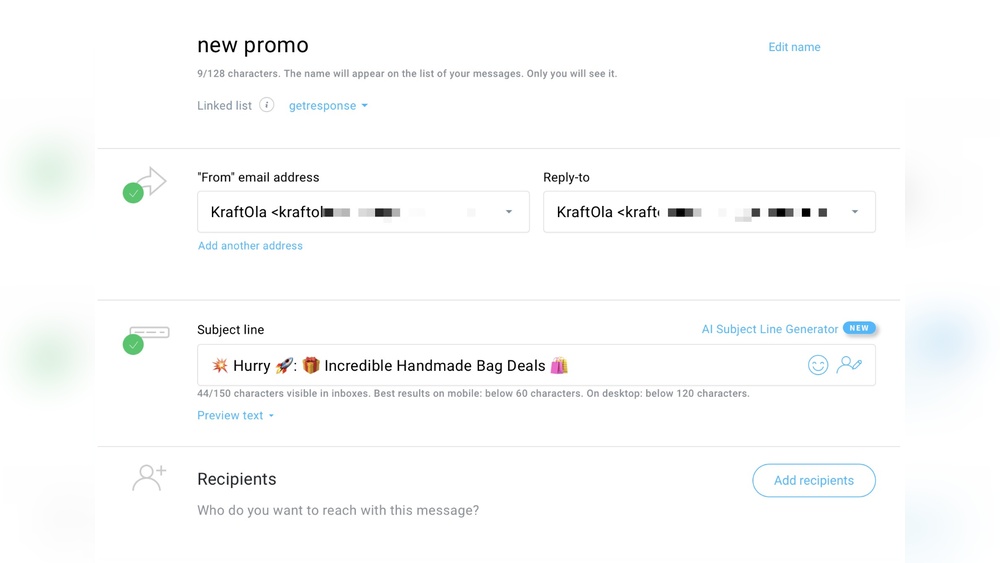
Configuring newsletter settings in GetResponse is a key step before sending your email campaign. Proper setup ensures your message reaches the right audience and looks professional. These settings help control who receives your newsletter and how it appears in recipients’ inboxes.
Setting up your newsletter correctly improves engagement and builds trust with subscribers. Focus on selecting the right recipients, setting clear sender details, and crafting a compelling subject line. These elements work together to maximize your email’s impact.
Selecting Recipients And Segments
Start by choosing who will get your newsletter. GetResponse lets you select entire lists or specific segments. Segments are smaller groups based on subscriber behavior or preferences. Targeting segments improves relevance and increases open rates.
Pick your list or segment carefully. Avoid sending to inactive contacts to keep your list healthy. Use filters to narrow down recipients by location, activity, or other criteria. This precision helps your message connect better with readers.
Setting From And Reply-to Addresses
Set your “From” address to a recognizable email. This builds trust and reduces chances of your email going to spam. Use a real name or company name in the sender field.
The “Reply-To” address should be one you check often. It allows recipients to respond easily. Make sure replies go to the right team or person. This keeps communication smooth and responsive.
Crafting Subject Lines
Your subject line is the first thing recipients see. It should be clear, short, and engaging. Avoid spammy words or all capital letters. Instead, use simple language that sparks interest.
Test different subject lines to find what works best. Personalize if possible by including the recipient’s name or location. A strong subject line increases the chance your newsletter will be opened and read.
Sending Your Newsletter
Sending your newsletter is a key step in reaching your audience effectively. GetResponse offers simple tools to deliver your message professionally. You can choose to send your newsletter immediately or schedule it for later. Testing and previewing ensure your email looks perfect before it goes out.
Taking time to review your newsletter improves engagement. It also reduces errors and broken links. Let’s explore how to send your newsletter using GetResponse with clear steps.
Scheduling Vs Immediate Send
GetResponse allows you to send your newsletter right away or schedule it. Scheduling helps you pick the best time to reach your audience. It is useful if you want your email to arrive at peak hours.
Immediate send works well for urgent news or last-minute updates. Both options are easy to use in the GetResponse dashboard. Choose the method that fits your campaign goal.
Previewing And Testing Emails
Always preview your newsletter before sending. GetResponse shows how your email looks on desktop and mobile. This helps you fix layout or design issues.
Send test emails to yourself or a colleague. Testing checks links, images, and spelling. It also confirms your email passes spam filters. This step avoids mistakes and improves reader experience.
Boosting Engagement
Boosting engagement is key to making your newsletters effective. Engaged readers open your emails, click links, and take action. Use GetResponse tools to connect with your audience better. Focus on delivering content that feels personal and relevant. This helps build trust and keeps subscribers interested.
Personalizing Content
Personalize your newsletters by using the subscriber’s name. Mention their location or past purchases. GetResponse allows easy insertion of custom fields. Personalized emails feel more human and less like spam. Tailored messages increase the chance readers will engage with your content.
Using Behavioral Triggers
Set up behavioral triggers to send emails based on user actions. For example, send a follow-up after someone clicks a link. Use GetResponse automation to create these triggers. This keeps your communication timely and relevant. Triggered emails often see higher open and click rates.
Segmenting Audience
Divide your list into smaller groups based on interests or behavior. Send different emails to each segment using GetResponse segmentation tools. This ensures content matches what each group wants. Segmented emails perform better because they target specific needs. Keep your audience engaged by respecting their preferences.
Analyzing Campaign Performance
Analyzing campaign performance is vital for any newsletter strategy. It helps to understand how subscribers interact with your emails. This insight guides better decision-making for future campaigns. GetResponse offers clear and detailed metrics to track your newsletter’s success. Use these tools to see what works and what needs change.
Tracking Open And Click Rates
Open rate shows how many people read your email. Click rate reveals how many clicked links inside. Both numbers indicate engagement levels. In GetResponse, you find these stats in the campaign dashboard. High open rates mean your subject line is strong. High click rates mean content interests your readers. Watch these rates closely to gauge your newsletter’s impact.
Using Reports To Improve
GetResponse provides easy-to-understand reports for each campaign. Reports include data on opens, clicks, bounces, and unsubscribes. Use this data to spot trends and patterns. Identify which topics or designs get better reactions. Adjust your content, timing, or audience based on report insights. Regular review helps you send newsletters that readers want. This leads to better engagement and results over time.
Automating Newsletters
Automating newsletters saves time and ensures consistent communication. It helps deliver emails at the right moment without manual effort. Automation also personalizes messages, making them more relevant to each subscriber. GetResponse offers powerful tools to automate your newsletter campaigns with ease.
Setting Up Autoresponders
Autoresponders send emails automatically after a subscriber joins your list. Start by choosing the list you want to target. Then create a welcome email or a series of emails to send over time. You can schedule these emails to go out at specific intervals, such as immediately, after one day, or after one week.
GetResponse allows you to customize each autoresponder message. Add your content, images, and links to engage readers. Autoresponders keep your audience connected without extra work. They are ideal for onboarding new subscribers or delivering educational content step-by-step.
Creating Email Workflows
Email workflows let you build complex automation based on user behavior. For example, you can send different emails depending on whether someone opens or clicks a link. Workflows can include multiple steps and conditions to target your audience effectively.
In GetResponse, use the drag-and-drop workflow builder. Add triggers like form submissions or link clicks. Then define actions such as sending emails, tagging contacts, or moving them to another list. This helps you create personalized journeys that match each subscriber’s interests.
Workflows improve engagement and increase conversions by sending timely and relevant messages. They free you from manual follow-ups and help grow your email marketing results.
Credit: www.getresponse.com
Mobile Optimization Tips
Mobile optimization is essential for newsletters today. Many readers open emails on phones. Poor mobile design can cause readers to lose interest. Optimizing your GetResponse newsletter for mobile improves user experience and engagement.
Use simple layouts and clear fonts. Ensure buttons and links are easy to tap. Keep images scaled for small screens. Mobile-friendly newsletters build trust and increase click rates.
Using Mobile-friendly Templates
GetResponse offers templates designed for mobile devices. Choose these templates to ensure your newsletter adapts well to smaller screens. Mobile-friendly templates automatically adjust text size and image placement.
These templates save time and avoid manual coding. They help create a clean, readable layout on any device. Using them makes your newsletter look professional and easy to navigate on phones.
Testing Responsive Design
Always preview your newsletter on different devices before sending. GetResponse allows you to test how emails look on mobiles and tablets. Check if text, images, and buttons display correctly.
Test your newsletter on multiple screen sizes and email apps. Fix any issues like overlapping text or broken links. Responsive testing ensures your message reaches readers clearly and attractively.
Comparing Getresponse With Alternatives
Comparing GetResponse with other email marketing tools helps you choose the right platform. Each tool has unique strengths in automation, design, and pricing. Understanding these differences saves time and money. This section covers key aspects to consider before starting your newsletter campaign.
Automation Features
GetResponse offers powerful automation tools that trigger actions based on user behavior. You can create complex workflows easily. Alternatives like Mailchimp have simpler automation, suitable for beginners. Some tools lack advanced segmentation options. GetResponse supports event-based triggers and detailed audience targeting. This helps send timely, personalized emails to subscribers.
Template Options
GetResponse provides a wide range of ready-made email templates. Templates are mobile-friendly and customizable with a drag-and-drop editor. Competitors may offer fewer templates or require coding skills. Some alternatives focus on minimal design, limiting creativity. GetResponse’s templates suit various industries and campaigns. This variety helps create professional newsletters without design experience.
Pricing And Limits
GetResponse pricing varies by subscriber count and features included. It offers a free trial but no permanent free plan. Competitors like Mailchimp provide free tiers with sending limits. Some alternatives charge extra for automation or advanced templates. GetResponse sets clear limits on emails sent per month. Consider your budget and list size before choosing a service.

Credit: www.youtube.com
Frequently Asked Questions
How To Create A Newsletter In Getresponse?
Log in to GetResponse and go to Email Marketing. Click “Create Newsletter,” select a template, and customize your content. Choose the recipient list, set subject and sender details, then send or schedule your newsletter.
What Is The Best Way To Send A Newsletter?
Use a reliable platform like GetResponse. Select a template, customize content, choose your audience, and schedule the send time. Test before sending to ensure accuracy and engagement.
How To Send An Email In Getresponse?
Click “Create Newsletter” in GetResponse’s Email Marketing menu. Choose a template, select recipients, set subject, and send your email.
What Is The Difference Between Mailchimp And Getresponse?
Mailchimp offers simpler setup with email and social tools but limits templates and sends on low tiers. GetResponse provides advanced automation, behavioral triggers, and detailed segmentation for better targeting and flexibility.
Conclusion
Sending newsletters with GetResponse is simple and effective. Follow the steps carefully to reach your audience. Choose the right template and personalize your message. Test your email before sending to avoid errors. Track your results to improve future campaigns. Consistent newsletters help build trust and keep readers informed.
Start sending your newsletters today and watch your communication grow.