

Yes, you can edit AI files in Photoshop. Open the AI file and Photoshop will rasterize it.
Photoshop is a versatile tool for graphic designers and digital artists. Editing AI files in Photoshop allows for easy manipulation of vector graphics within a raster-based environment. This capability enhances creative flexibility and ensures seamless integration of vector elements into your projects.
By opening AI files directly in Photoshop, you can leverage its robust suite of editing tools. This process enables detailed adjustments, color corrections, and layer management. Make sure to keep the resolution high during the rasterization process to maintain quality. This approach helps in creating visually appealing designs and high-quality prints.
Credit: pixel77.com
Introduction To Ai Files And Photoshop Compatibility
Editing AI files in Photoshop can be tricky. AI files, created by Adobe Illustrator, are vector graphics. Photoshop, on the other hand, mainly deals with raster graphics. Understanding this difference is key to effective editing.
What Are Ai Files?
AI files are vector graphic files. Adobe Illustrator creates these files. They are used for logos, illustrations, and print layouts. AI files retain quality at any size. They are perfect for professional designs.
Photoshop’s Capabilities With Vector Graphics
Photoshop can open AI files, but with limitations. It can rasterize the vector graphics. This means converting them into pixels. You can edit the rasterized image like any other in Photoshop.
Photoshop has some vector capabilities. You can use vector shapes and paths. But it is not as powerful as Illustrator for vector work.
| Feature | Illustrator | Photoshop |
|---|---|---|
| Vector Graphics | Yes | Limited |
| Raster Graphics | No | Yes |
| File Size Scaling | Yes | No |
- Photoshop can open AI files.
- AI files are vector graphics.
- Photoshop converts vectors to pixels.
- Illustrator is better for vector editing.
Use Photoshop for raster images. Use Illustrator for vector images. Both tools are powerful in their own ways.
Preparing Ai Files For Photoshop Editing
Editing AI files in Photoshop can be a smooth process. It requires some preparation. Ensuring the AI files are ready is key. Follow these steps to make the transition seamless.
Saving Ai Files For Photoshop
Before editing in Photoshop, save your AI files correctly. This ensures compatibility. Follow these steps:
- Open your AI file in Adobe Illustrator.
- Go to File > Export > Export As.
- Select PSD from the format dropdown menu.
- Click Export and choose your settings.
Best Practices For File Conversion
Converting AI files to PSD format is crucial. Follow these best practices:
| Best Practice | Explanation |
|---|---|
| Use High Resolution | Ensure the resolution is high. This maintains quality. |
| Keep Layers Intact | Preserve layers during export. This helps with detailed edits. |
| Check Color Modes | Match color modes between Illustrator and Photoshop. |
Opening And Importing Ai Files Into Photoshop
Opening and importing AI files into Photoshop might seem tricky. But with the right steps, it’s quite simple. This guide will help you through the process.
Step-by-step Guide To Open Ai Files
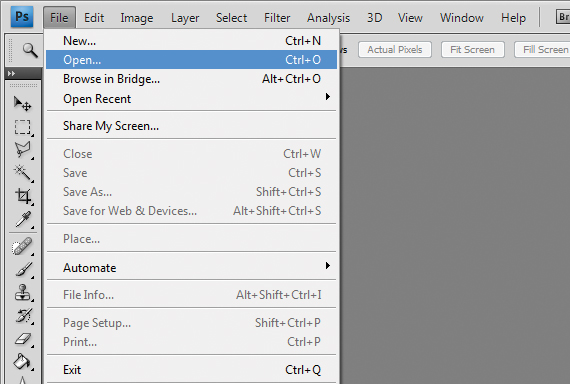
- Open Photoshop: Start by launching Photoshop on your computer.
- Go to File: Click on the “File” menu at the top left corner.
- Select Open: Choose the “Open” option from the dropdown menu.
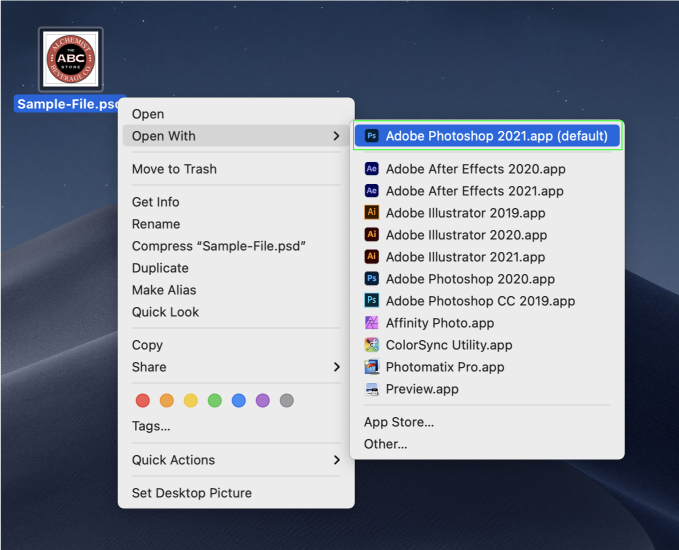
- Locate Your AI File: Browse and select the AI file you want to open.
- Click Open: Click the “Open” button to import the AI file.
- Rasterize the File: A dialog box will appear. Choose the resolution and click “OK”.
Troubleshooting Common Issues
| Issue | Solution |
|---|---|
| File Not Opening | Check if the AI file is corrupted. Try reopening. |
| Resolution Problems | Ensure you choose the correct resolution when rasterizing. |
| Missing Layers | AI files may flatten. Save in a compatible format. |
Credit: community.adobe.com
Editing Vector Graphics Within Photoshop
Can you edit AI files in Photoshop? Yes, you can! Photoshop is primarily a raster-based tool. But it also supports vector graphics. This means you can edit vector elements from AI files. Learn how to use Photoshop’s vector tools and maintain vector quality in a raster environment.
Using Photoshop’s Vector Tools
Photoshop has powerful vector tools. These include the Pen Tool, Shape Tool, and Path Selection Tool.
- Pen Tool: Create and edit paths with precision.
- Shape Tool: Draw basic shapes like rectangles and circles.
- Path Selection Tool: Move and modify paths easily.
These tools help you edit vector graphics. You can add new elements or modify existing ones. Photoshop also allows you to use vector masks. This helps in creating sharp, scalable designs.
Maintaining Vector Quality In Raster Environment
Vector graphics can lose quality when rasterized. To maintain quality, follow these tips:
- Keep vector elements as Smart Objects: This retains the vector data.
- Use high-resolution settings: This minimizes pixelation.
- Export in vector-friendly formats: Formats like PDF or SVG keep vector quality.
Another tip is to use adjustment layers. These don’t alter the original vector data. They allow non-destructive edits, preserving the vector quality.
Example: Editing Vector Shapes
Let’s take an example. You have an AI file with a logo. Open it in Photoshop.
| Step | Action |
|---|---|
| 1 | Import the AI file as a Smart Object. |
| 2 | Select the Shape Tool to modify the logo. |
| 3 | Use the Pen Tool for more detailed edits. |
| 4 | Save the file in a vector-friendly format. |
This method keeps the logo sharp and clean. Your edits remain scalable and high-quality.
Rasterizing Ai Layers For Advanced Editing
Editing AI files in Photoshop often means dealing with vector graphics. For advanced editing, rasterizing AI layers can be necessary. Rasterizing converts vector layers to raster images, allowing for pixel-level editing.
When And How To Rasterize
Rasterizing is useful when detailed pixel editing is needed. For instance, you might want to add texture, apply filters, or make color corrections. To rasterize a layer in Photoshop, follow these steps:
- Open the AI file in Photoshop.
- Select the vector layer you want to rasterize.
- Right-click on the layer and choose Rasterize Layer.
After rasterizing, the layer becomes a bitmap image. This allows for advanced editing, but also has some trade-offs.
Implications Of Rasterizing On Image Quality
Rasterizing can impact image quality. Vector graphics are resolution-independent, meaning they can scale without losing quality. Once rasterized, the image becomes resolution-dependent. This means scaling can result in pixelation.
| Vector (Before Rasterizing) | Raster (After Rasterizing) |
|---|---|
| Scalable without losing quality | Quality degrades when scaled |
| Editable as paths | Editable as pixels |
For high-resolution images, rasterizing at a high DPI (dots per inch) is recommended. This ensures better image quality when making detailed edits.
Tips For Preserving Ai File Integrity
Editing AI files in Photoshop requires careful techniques. This helps keep the file’s integrity intact. Below are tips for preserving AI file integrity.
Non-destructive Editing Techniques
Non-destructive editing techniques are essential. These methods allow changes without altering the original file. This way, you can always revert to the original version if needed.
- Use adjustment layers to change colors and brightness.
- Apply layer masks to hide or reveal parts of a layer.
- Utilize clipping masks to control which parts of a layer are visible.
These techniques ensure the AI file remains untouched. You can experiment without fear of permanent changes.
Using Smart Objects For Flexibility
Smart Objects provide flexibility in Photoshop. They allow you to edit a file while preserving its quality. Follow these steps to use Smart Objects:
- Open your AI file in Photoshop.
- Select the layers you want to convert.
- Right-click and choose ‘Convert to Smart Object’.
Smart Objects let you scale, rotate, and warp layers. They keep the original data intact. This is crucial for preserving AI file integrity.
These tips help keep AI files safe. You can edit without losing quality or data.
Exporting Edited Images Back To Ai Format
Editing AI files in Photoshop can be a game-changer. But exporting edited images back to AI format needs careful handling. This section will guide you through the process, ensuring compatibility and quality of your files.
Converting Photoshop Files To Ai
Once you’ve made your edits in Photoshop, you need to convert the file back to AI format. Follow these steps:
- Save your edited file in a suitable format like PSD or TIFF.
- Open Adobe Illustrator and import the saved file.
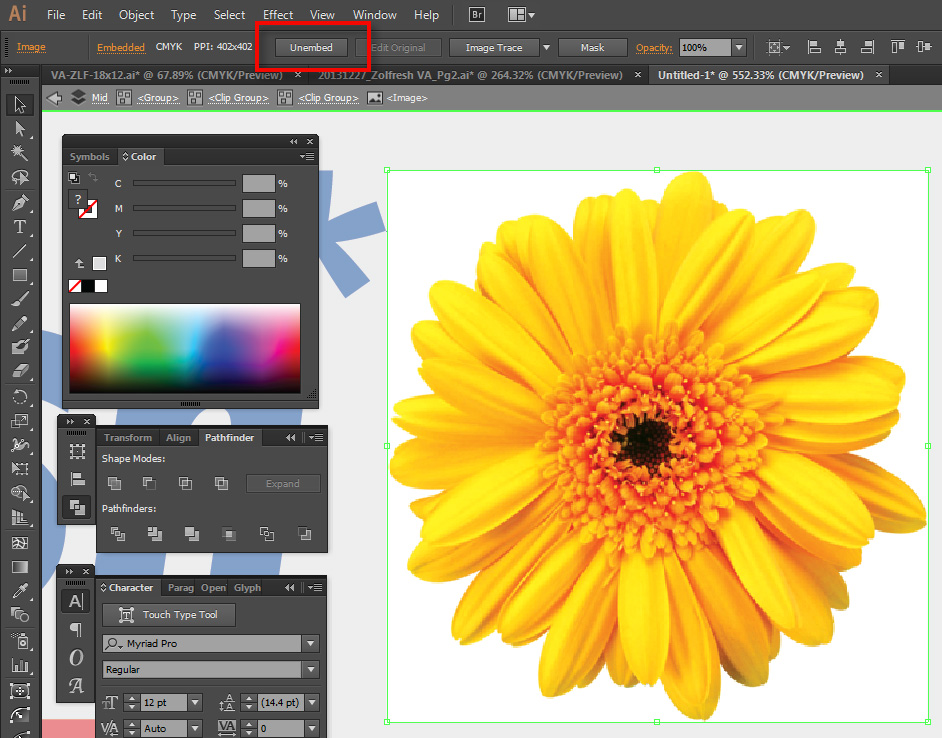
- Use the Image Trace feature to convert the raster image to a vector format.
- Adjust the settings in Image Trace to fine-tune your vector image.
- Once satisfied, save the file as an AI document.
Ensuring Compatibility And Quality
Compatibility and quality are crucial when exporting back to AI format. Here are some tips:
- Resolution: Ensure your Photoshop file has a high resolution.
- Color Profiles: Match color profiles between Photoshop and Illustrator.
- Layers: Organize layers in Photoshop to make vectorizing easier.
- File Size: Keep the file size manageable to avoid performance issues.
Following these steps ensures your files are compatible and of high quality. This process preserves the integrity of your designs.
Advanced Techniques And Third-party Tools
Editing AI files in Photoshop can be challenging. Using advanced techniques and third-party tools can make it easier. These tools provide enhanced functionality and flexibility.
Plug-ins For Enhanced Ai File Editing
Plug-ins offer additional features for AI file editing. They extend Photoshop’s capabilities. Here are some popular plug-ins:
- Astute Graphics: Known for vector editing tools.
- VectorScribe: Helps with precise vector editing.
- Phantasm: Provides color control and halftone effects.
These plug-ins simplify complex tasks. They save time and improve accuracy. You can download them from trusted sources.
Integrating Other Adobe Creative Suite Tools
Using other Adobe tools can enhance your workflow. Photoshop works well with Illustrator and InDesign. Integrate these tools for better results.
Follow these steps to integrate:
- Open the AI file in Illustrator.
- Make necessary edits.
- Save the file as a PSD.
- Open the PSD file in Photoshop.
This method ensures compatibility. It retains the quality of your AI file. You can also use Adobe Bridge to manage files.
| Tool | Function |
|---|---|
| Illustrator | Vector editing and creation |
| InDesign | Page layout and design |
| Adobe Bridge | File management and organization |
Combining these tools boosts your productivity. It makes AI file editing in Photoshop seamless and efficient.
Common Challenges And Solutions
Editing AI files in Photoshop can be tricky. You might face some challenges. This section will address common issues and provide solutions.
Handling Complex Vector Designs
Photoshop is great for raster images. But, it struggles with complex vector designs. AI files often contain intricate vector graphics. These can be hard to edit in Photoshop.
Solution: Simplify the vector design before importing. Use Adobe Illustrator to break down complex shapes. This makes them easier to handle in Photoshop.
- Open your AI file in Adobe Illustrator.
- Select the complex vector design.
- Use the “Simplify” tool to reduce points and paths.
- Save and import the simplified design into Photoshop.
Optimizing Workflow Between Ai And Photoshop
Switching between AI and Photoshop can disrupt your workflow. It’s crucial to optimize this process. This ensures you work efficiently.
Solution: Use smart objects and linked files. These features help maintain quality and editability.
- In Photoshop, go to File > Place Linked.
- Select your AI file and place it as a smart object.
- Double-click the smart object to edit it in Illustrator.
- Save changes in Illustrator, and they reflect in Photoshop.
Table for Quick Reference:
| Challenge | Solution |
|---|---|
| Complex Vector Designs | Simplify in Illustrator before importing to Photoshop. |
| Workflow Optimization | Use smart objects and linked files. |
Conclusion: Maximizing Efficiency And Quality
Editing AI files in Photoshop enhances efficiency and quality. With the right approach, you can achieve outstanding results. Let’s explore some best practices and future possibilities.
Best Practices Recap
- Prepare your AI files: Ensure the AI file is clean and organized.
- Use Smart Objects: Convert AI layers to Smart Objects for easy editing.
- Layer Management: Keep layers named and grouped logically.
- Resolution Settings: Set the correct resolution before starting your work.
- Color Profiles: Match color profiles between Illustrator and Photoshop.
Future Of Ai File Editing In Photoshop
The future holds exciting possibilities. AI integration in Photoshop will improve. Expect more tools and features to enhance workflows.
| Feature | Benefit |
|---|---|
| Advanced AI tools | Improve accuracy and speed |
| Better Compatibility | Seamless integration between Adobe apps |
| Enhanced Automation | Save time on repetitive tasks |
Stay updated with Adobe’s advancements to maximize your editing potential. The future looks bright for AI file editing in Photoshop.
Credit: community.adobe.com
Frequently Asked Questions
Can I Edit An Adobe Illustrator File In Photoshop?
Yes, you can edit an Adobe Illustrator file in Photoshop. Save the Illustrator file as a PSD format first.
How Do I Edit An Ai Image In Photoshop?
Open the AI image in Photoshop. Use tools like the Brush, Clone Stamp, and Healing Brush to edit. Adjust colors and filters as needed. Save the edited image.
Can An Ai File Be Edited?
Yes, an AI file can be edited. Use Adobe Illustrator or compatible vector graphics software to make changes.
Can I Open Ai Files In Photoshop?
Yes, you can open AI files in Photoshop. Use the “File > Open” option and select your AI file. Photoshop will rasterize the vector image.
Conclusion
Editing AI files in Photoshop is possible with the right steps. It’s essential for designers to know. Understanding these techniques can save time and enhance creativity. Photoshop offers versatile tools, making it a great choice. Keep experimenting and learning to master AI file editing in Photoshop.
Happy designing!


