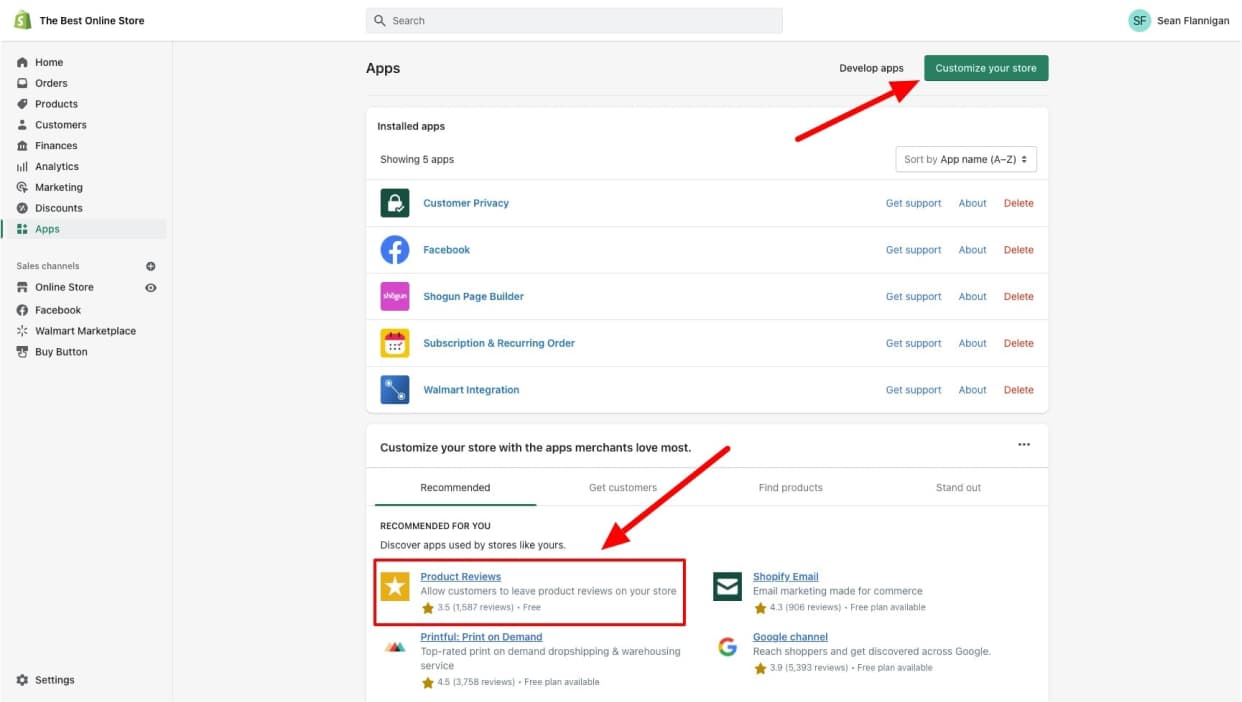
To add reviews to Shopify, install a review app from the Shopify App Store. Follow the app’s instructions to integrate it.
Adding customer reviews to your Shopify store can boost credibility and improve sales. Reviews provide social proof, showing potential customers that others have had positive experiences with your products. Positive feedback can also increase trust and encourage hesitant shoppers to make a purchase.
Installing a review app is straightforward and takes only a few minutes. Apps like Yotpo, Judge. me, and Loox are popular choices for collecting and displaying reviews. Once installed, these apps allow customers to leave reviews directly on your product pages. You can also moderate reviews to ensure quality and relevance. This simple addition can significantly enhance your store’s reputation and drive more sales.
Credit: getshogun.com
Why Reviews Matter For Your Shopify Store
Customer reviews play a crucial role in the success of your Shopify store. They offer social proof and can significantly influence purchasing decisions. By understanding the importance of reviews, you can leverage them to build trust and drive more sales.
Building Trust With Potential Customers
Reviews help establish credibility. When potential customers see positive feedback, they are more likely to trust your store. This trust can lead to increased sales and customer loyalty. Reviews act as testimonials from real users, making your store more trustworthy.
Influence On Buying Decisions
Customers often read reviews before making a purchase. Positive reviews can tip the balance in your favor. They provide valuable insights into product quality and customer service. Negative reviews, if managed well, show transparency and commitment to improvement.
| Benefit | Description |
|---|---|
| Trust | Reviews build trust with new customers. |
| Influence | They influence buying decisions positively. |
| Insight | Provide insights into products and services. |
- Trust: Reviews build a trustworthy image.
- Influence: They affect buying decisions.
- Insight: Offer valuable product insights.
Choosing The Right Review App
Adding reviews to your Shopify store can boost sales. Reviews build trust and show social proof. Choosing the right review app is crucial for success. A good app makes review collection easy and displays them attractively.
Key Features To Look For
Not all review apps are the same. Here are key features to consider:
- Ease of Use: The app should be simple to set up and use.
- Customization Options: You should be able to match the review display to your store’s design.
- Integration: The app must integrate well with Shopify and other tools.
- Automated Requests: The app should automatically request reviews from customers.
- Moderation Tools: Control which reviews appear on your store.
- Rich Snippets: Display star ratings in Google search results.
- Multi-language Support: Cater to customers in different languages.
These features ensure a smooth experience for both you and your customers.
Top Review Apps For Shopify
Here are some top review apps for Shopify:
| App Name | Key Features | Pricing |
|---|---|---|
| Yotpo |
| Free plan available, paid plans start at $29/month |
| Loox |
| Starts at $9.99/month |
| Judge.me |
| Free plan available, paid plan at $15/month |
These apps offer a variety of features and pricing options. Choose one that meets your needs and budget.
Setting Up Your Selected Review App
Adding reviews to your Shopify store can boost trust and increase sales. With the right review app, you can showcase customer feedback effortlessly. This guide will help you set up your selected review app for optimal performance.
Installing The App On Your Store
First, access the Shopify App Store from your admin dashboard. Search for the review app you want to install. Click the ‘Add app’ button to start the installation process.
After clicking, you’ll be redirected to a permissions page. Here, review the app’s permissions and click ‘Install app’. The app will now be added to your store.
Once installed, you can find the app under ‘Apps’ in your Shopify admin. Click on the app to open its settings and begin the configuration process.
Configuring Settings For Optimal Use
Proper configuration ensures you get the most out of your review app. Start by setting up your review collection preferences. You can enable automatic review requests after a purchase.
Next, customize the appearance of the review section. Choose the color, layout, and position that matches your store’s design. Most apps offer a preview mode to see changes in real time.
Create a table to organize your settings:
| Setting | Description | Recommendation |
|---|---|---|
| Automatic Review Requests | Send emails to customers asking for reviews after purchase. | Enable for timely feedback. |
| Review Display Layout | Choose how reviews appear on your product pages. | Grid layout for better readability. |
| Review Moderation | Option to approve or reject reviews before they go live. | Enable to filter out spam. |
Enable notification settings to get alerts for new reviews. This helps you respond promptly to customer feedback.
Lastly, integrate the app with other marketing tools. Sync reviews with your email campaigns and social media to maximize visibility.

Credit: www.reconvert.io
Collecting Your First Reviews
Getting your first reviews on Shopify is crucial for building trust. Reviews help potential customers make informed decisions. They also improve your store’s credibility. Let’s explore how to gather your first reviews effectively.
Encouraging Customers To Leave Reviews
Encouraging customers to leave reviews can be challenging. Here are some tips to make it easier:
- Offer incentives: Provide small discounts or freebies for reviews.
- Make it simple: Use easy-to-follow instructions for leaving reviews.
- Ask at the right time: Request reviews shortly after purchase.
- Show appreciation: Thank customers for their feedback.
These methods can significantly increase your review count. Incentives work particularly well. People love getting something in return. Ensure the review process is straightforward. Complicated steps can discourage users. Timing also matters. Ask for reviews when the purchase is still fresh in their minds.
Automating Review Requests Post-purchase
Automating review requests can save you time. It also ensures consistency. Shopify offers various apps to automate this process.
| App Name | Features |
|---|---|
| Loox | Photo reviews, automated emails, customizable requests. |
| Judge.me | Unlimited reviews, email requests, social proof integration. |
| Stamped.io | Review requests, loyalty rewards, social sharing. |
Using these apps simplifies the review collection process. They send automatic emails after a purchase. Customize these emails to match your brand. Include a direct link to the review page. Make the process as easy as possible.
Automation ensures every customer gets a review request. This increases the chances of receiving feedback. It also frees up your time for other tasks.
Displaying Reviews On Your Product Pages
Displaying reviews on your product pages can boost customer trust. It also enhances your store’s credibility. Reviews provide social proof that influences buying decisions. Here’s how to display them effectively on Shopify.
Customizing The Review Display Layout
Customizing the review display layout can improve readability. Start by navigating to your theme settings. Look for the section dedicated to product reviews.
You can choose to display reviews in various styles. Some themes offer grid or list views. Select the style that fits your website’s design.
| Layout Style | Description |
|---|---|
| Grid View | Displays reviews in a compact, side-by-side format. |
| List View | Shows reviews in a vertical, full-width format. |
Use CSS to further customize the layout. Adjust font size, color, and spacing. This ensures your reviews match the rest of your site.
Integrating Review Stars In Product Listings
Integrating review stars in product listings offers quick visual feedback. Shoppers can see ratings without clicking through. This helps them make faster decisions.
- Install a review app from Shopify’s app store.
- Configure the app settings to show review stars.
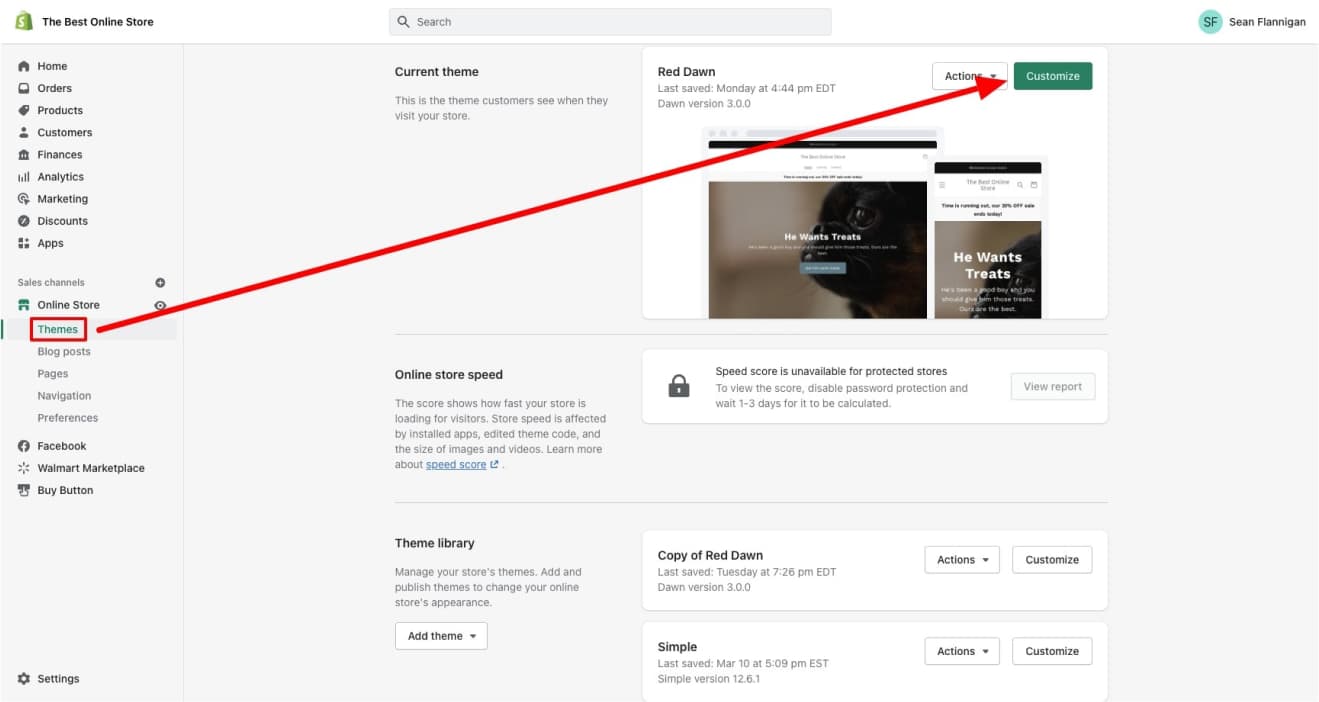
- Navigate to your theme editor.
- Find the product listing section.
- Add the review star code snippet provided by the app.
Most review apps offer easy integration. They provide step-by-step instructions. Ensure the stars are visible on both desktop and mobile views.
Review stars can also be customized. Change the color to match your brand. Adjust their size for better visibility.
By following these steps, you can display reviews effectively. This helps build trust and increases sales.
Managing Negative Reviews
Negative reviews can impact your Shopify store’s reputation. Handling them properly shows your commitment to customer satisfaction. Here is how to manage negative reviews effectively:
Responding To Negative Feedback
Responding quickly to negative feedback is crucial. It shows that you care about your customers. Follow these steps:
- Acknowledge the Review: Thank the customer for their feedback.
- Apologize Sincerely: Offer a genuine apology for their experience.
- Provide a Solution: Suggest a way to resolve their issue.
- Take the Conversation Offline: Provide contact details for further discussion.
Use a polite and friendly tone. Avoid being defensive or argumentative.
Turning Negative Reviews Into Positive Outcomes
Negative reviews can be opportunities for improvement. Follow these tips to turn them around:
- Analyze the Feedback: Identify common issues and address them.
- Implement Changes: Make necessary changes to improve your products or services.
- Follow-Up: Reach out to the customer after resolving their issue. Ask if they are satisfied with the solution.
- Showcase Resolution: Share stories of resolved complaints on your website.
By addressing negative reviews effectively, you can build trust and improve customer loyalty.
Leveraging Reviews For Marketing
Leveraging customer reviews for marketing can elevate your Shopify store’s credibility. Reviews act as social proof, helping to build trust. By showcasing positive experiences, you can attract more customers.
Showcasing Testimonials On Social Media
Sharing testimonials on social media platforms can enhance your brand’s visibility. It provides a direct, engaging way to reach potential customers.
Steps to share testimonials:
- Choose the best reviews from your Shopify store.
- Create visually appealing graphics or videos.
- Post these on platforms like Facebook, Instagram, and Twitter.
- Use relevant hashtags and tag the reviewers.
Engage with users who comment or share your posts. This boosts interaction and reach.
Using Reviews In Email Campaigns
Incorporating reviews in email campaigns can increase open and click-through rates. Emails with testimonials can encourage customers to make purchases.
How to include reviews in emails:
- Select impactful reviews from your Shopify store.
- Embed these reviews within your email template.
- Add a call-to-action button linking to your store.
Personalize your emails by addressing customers by name. This makes the email more engaging and effective.
Analyzing Review Data For Business Insights
Analyzing review data can transform your Shopify store’s performance. Reviews offer valuable insights into customer experiences, preferences, and pain points. By examining this data, you can make informed decisions to enhance your products and services.
Tracking Review Trends
Tracking review trends helps identify common themes and patterns. This can reveal customer preferences and areas needing improvement. Use graphs and charts to visualize these trends.
| Month | Positive Reviews | Negative Reviews |
|---|---|---|
| January | 120 | 30 |
| February | 150 | 25 |
| March | 180 | 20 |
Regularly update your review data to stay current with customer feedback. This helps in identifying seasonal trends and potential issues early.
Using Feedback For Product Improvement
Customer feedback is crucial for product improvement. It provides direct insights into what customers like or dislike.
- Identify recurring issues: Look for common complaints or suggestions.
- Prioritize fixes: Address the most frequent issues first.
- Enhance popular features: Focus on improving features that customers love.
Consider organizing feedback into categories. This makes it easier to address specific aspects of your products.
Category: Shipping
- Positive: Fast delivery
- Negative: Packaging issues

Category: Product Quality
- Positive: Durable materials
- Negative: Color fades quickly
Use this structured approach to systematically improve your products based on real customer experiences.
Staying Compliant With Review Guidelines
Adding reviews to your Shopify store can boost trust and sales. But it is crucial to stay compliant with review guidelines. This ensures fairness and credibility. Here, you will learn about Shopify’s review policy and how to avoid fake reviews.
Understanding Shopify’s Review Policy
Shopify has a strict review policy. This ensures reviews are genuine and fair. Violating this policy can result in penalties.
- No fake reviews: All reviews must be from actual customers.
- No incentives: Do not offer gifts for reviews.
- Transparency: Clearly state if a review is incentivized.
- No manipulation: Do not edit or remove negative reviews.
| Policy | Description |
|---|---|
| No Fake Reviews | Only genuine customer reviews are allowed. |
| No Incentives | Do not offer rewards for positive reviews. |
| Transparency | Declare if a review is incentivized. |
| No Manipulation | Do not alter or delete negative reviews. |
Avoiding Fake Reviews
Fake reviews can damage your store’s reputation. Here are some tips to avoid them:
- Verify customers: Ensure reviews come from actual buyers.
- Monitor patterns: Watch for unusual review patterns.
- Use third-party apps: Use apps that verify reviews.
Fake reviews can lead to penalties. Always stay honest and transparent.
Credit: getshogun.com
Advanced Strategies For Review Optimization
Adding reviews to your Shopify store boosts credibility. Advanced strategies can help you maximize their impact. Optimized reviews can increase engagement and sales.
Incentivizing Repeat Reviews
Encourage customers to leave multiple reviews. Offer rewards like discounts, loyalty points, or exclusive deals. This makes them more likely to share their experiences.
Here are some ways to incentivize repeat reviews:
- Discount Codes: Offer a discount for their next purchase.
- Loyalty Points: Add points to their loyalty account.
- Exclusive Access: Provide early access to new products.
Make it easy for customers to leave reviews. Send follow-up emails with a direct link to the review page.
Cross-selling Based On Customer Feedback
Use reviews to identify cross-selling opportunities. Customer feedback can reveal common preferences and needs.
Here are steps to optimize cross-selling:
- Analyze reviews for common themes.
- Identify products often bought together.
- Create bundles based on customer feedback.
Consider adding a table to highlight product bundles:
| Customer Feedback | Suggested Bundle |
|---|---|
| “I love the shampoo and conditioner together!” | Shampoo + Conditioner Bundle |
| “The case and screen protector are great.” | Phone Case + Screen Protector Bundle |
These strategies can enhance customer satisfaction and boost sales.
Frequently Asked Questions
How To Add Reviews To Shopify?
To add reviews to Shopify, use the Shopify App Store. Install a review app like Judge. me, Yotpo, or Loox. Follow the setup instructions provided by the app. Customize the reviews section to match your store’s design.
Can I Add Reviews Manually On Shopify?
Yes, you can add reviews manually on Shopify. Use the Product Reviews app by Shopify. Enter customer reviews directly into the app. Display them on your product pages.
Are Shopify Review Apps Free?
Many Shopify review apps offer free plans. These plans often include basic features. For advanced features, you may need a paid plan. Check the app’s pricing details in the Shopify App Store.
How Do I Customize Review Widgets On Shopify?
To customize review widgets, access the settings of your review app. Most apps allow customization of widget appearance. Adjust colors, layout, and text to match your store’s branding.
Conclusion
Boosting customer trust is crucial. Adding reviews to Shopify can significantly enhance your store’s credibility. Follow the steps outlined in this guide to integrate reviews seamlessly. Happy customers lead to higher sales and better brand loyalty. Start adding reviews today and watch your business grow.