Twitter Advanced Search not working can result from browser issues or Twitter’s own technical problems. Clear cache, update the browser, or check Twitter’s status.
Experiencing issues with Twitter Advanced Search can be frustrating, especially when you rely on it for precise information. Often, browser-related problems or Twitter’s system glitches are the culprits. Simple fixes like clearing your cache, updating your browser, or checking Twitter’s status page can resolve these issues.
Regular maintenance of your browser, such as updating it and clearing cookies, can prevent these problems. Additionally, keeping an eye on Twitter’s official status updates can help you stay informed about any ongoing technical issues. Knowing these quick troubleshooting steps ensures you won’t be left in the dark when you need to perform advanced searches on Twitter.
Credit: buffer.com
Introduction To Twitter Advanced Search Issues
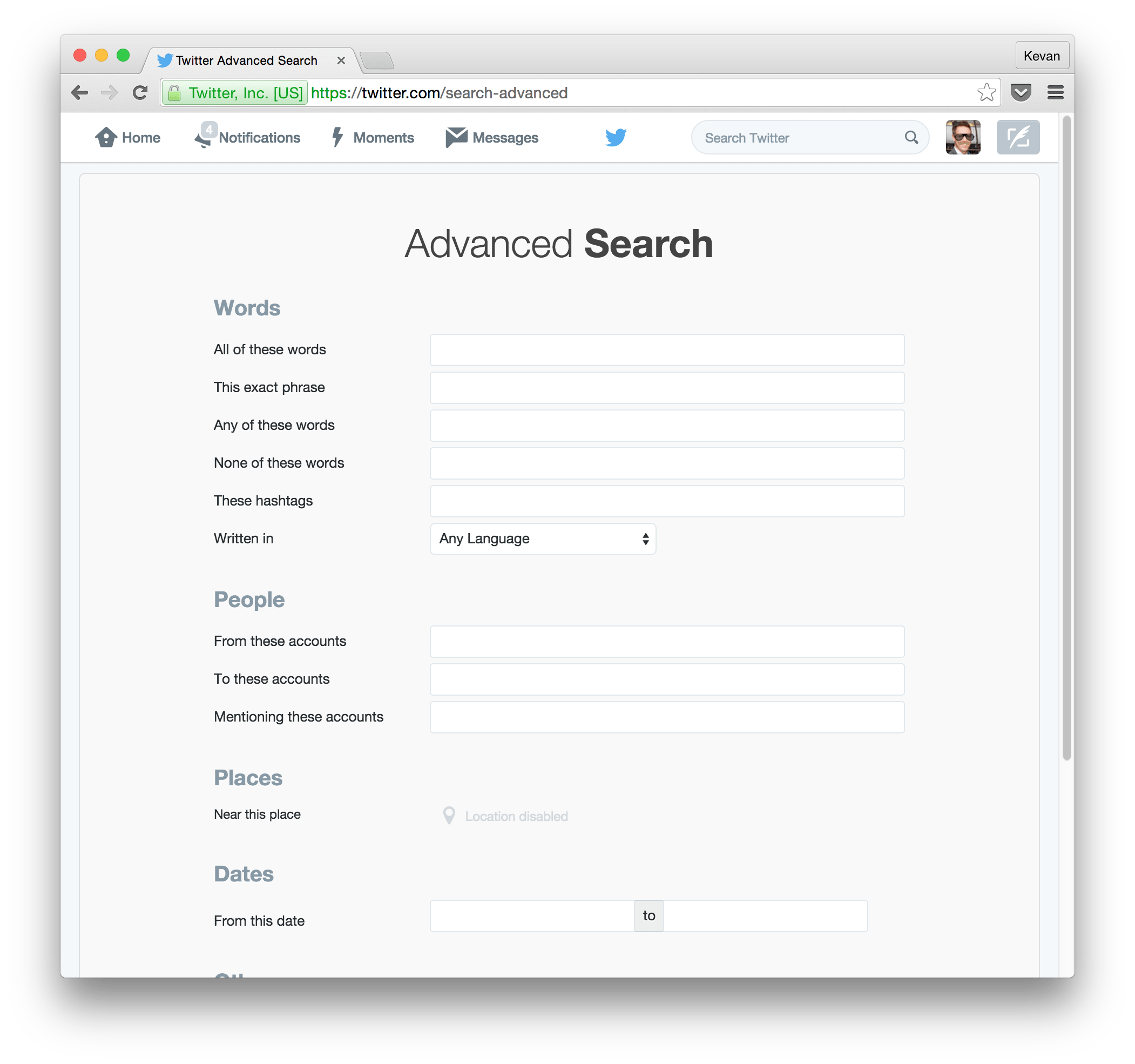
Twitter’s Advanced Search is a powerful tool for finding specific tweets. It helps users discover content quickly. But sometimes, it faces issues. These issues can frustrate users. Understanding these problems is key.
The Importance Of Twitter’s Advanced Search
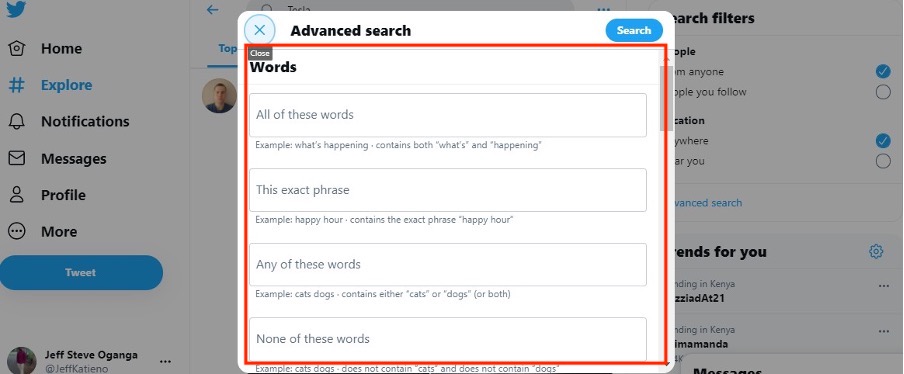
Twitter’s Advanced Search allows users to filter tweets. They can find tweets by date, user, and keywords. This feature is helpful for research. It also helps track trends and conversations.
Businesses use it to monitor brand mentions. Journalists use it to find news stories. Regular users enjoy finding old tweets. It’s a valuable tool for many.
Common Problems Users Encounter
- Search Results Not Loading: Sometimes, search results don’t appear.
- Incomplete Results: Users may not see all relevant tweets.
- Slow Performance: The tool can be slow to respond.
- Incorrect Filters: Filters might not work as expected.
These problems can disrupt the user experience. They make it hard to find needed information. Understanding the common issues can help users troubleshoot.
Credit: buffer.com
Checking Twitter’s Server Status
Experiencing issues with Twitter’s Advanced Search can be frustrating. Often, the problem lies with Twitter’s servers. Before diving into complex troubleshooting, it’s wise to check if Twitter’s servers are down. This can save time and effort.
How To Verify Server Downtime
To see if Twitter’s servers are down, there are several reliable methods:
- Visit DownDetector: DownDetector provides real-time updates on Twitter’s status.
- Twitter’s Status Page: Check the official Twitter status page for any service disruptions.
- Social Media: Search for hashtags like #TwitterDown on other social platforms.
Alternative Ways To Stay Updated
If you’re still unsure about Twitter’s server status, try these alternatives:
- Third-party Apps: Use apps like IsItDownRightNow to get updates.
- Browser Extensions: Install browser extensions that notify you of server outages.
- Community Forums: Visit forums like Reddit’s Twitter community for user reports.
Staying informed about server status helps diagnose issues faster. It can save you from unnecessary troubleshooting steps.
Ensuring Compatibility With Your Device
Experiencing issues with Twitter Advanced Search not working? The problem might be due to device compatibility. Ensuring your device and browser are properly configured can solve many common issues. Let’s dive into the key aspects you need to consider.
Supported Devices And Browsers
Twitter Advanced Search works best on specific devices and browsers. Below is a table showing the supported options:
| Device | Supported Browsers |
|---|---|
| Desktop | Google Chrome, Mozilla Firefox, Safari, Microsoft Edge |
| Mobile | Google Chrome, Safari |
| Tablet | Google Chrome, Safari |
Make sure you are using one of these supported browsers on your device. Using unsupported browsers may cause issues with Twitter Advanced Search.
Updating Your Browser For Optimal Performance
Using an outdated browser can lead to problems. Follow these steps to update your browser:
- Google Chrome: Open Chrome and click the three dots in the top-right corner. Select “Settings,” then “About Chrome,” and click “Update Google Chrome.”
- Mozilla Firefox: Open Firefox and click the three lines in the top-right corner. Select “Help,” then “About Firefox,” and click “Restart to update Firefox.”
- Safari: Open the App Store on your Mac. Click “Updates” and install any updates available for Safari.
- Microsoft Edge: Open Edge and click the three dots in the top-right corner. Select “Settings,” then “About Microsoft Edge,” and click “Update.”
Keeping your browser updated ensures you have the latest features and security updates. This can help resolve issues with Twitter Advanced Search.
Correcting Search Syntax Errors
Have you ever faced issues with Twitter Advanced Search? It can be frustrating when your search doesn’t yield the right results. Many times, the problem lies in search syntax errors. Understanding and correcting these errors can greatly improve your Twitter search experience.
Common Syntax Mistakes
Search syntax errors are common and can disrupt your search results. Here are some of the most frequent mistakes:
- Incorrect Operators: Using the wrong search operators can lead to poor results.
- Misspellings: Typos in keywords or operators can hinder your search.
- Improper Quotation Marks: Forgetting to use quotation marks for exact phrases can mislead your search.
- Case Sensitivity: Twitter search is case-sensitive, so be careful with capital letters.
- Spacing Errors: Extra spaces between words or operators can affect the search.
Tips For Crafting Effective Searches
To craft effective searches, follow these tips:
- Use Correct Operators: Ensure you use the right search operators like
from:,to:, and#. - Check Spelling: Double-check your keywords and operators for any spelling errors.
- Use Quotation Marks: Enclose exact phrases in quotation marks for precise results.
- Mind the Case: Use the correct case for keywords and handles.
- Remove Extra Spaces: Ensure there are no extra spaces between keywords and operators.
Implementing these tips can significantly enhance your Twitter search results. Correcting syntax errors is key to getting the information you need efficiently.
Clearing Cache And Cookies
Having trouble with Twitter Advanced Search not working? Clearing your browser’s cache and cookies may help. Sometimes, cached data and cookies can interfere with how websites function. This can lead to various issues, including problems with Twitter’s advanced search feature. Let’s go through a step-by-step guide for clearing cache and cookies in different browsers.
Step-by-step Guide For Various Browsers
Google Chrome
- Open Chrome.
- Click the three dots in the top-right corner.
- Hover over More tools.
- Select Clear browsing data.
- Choose a time range; select All time for a full clear.
- Check the boxes for Cookies and other site data and Cached images and files.
- Click Clear data.
Mozilla Firefox
- Open Firefox.
- Click the three horizontal lines in the top-right corner.
- Select Options.
- Go to the Privacy & Security tab.
- Scroll to Cookies and Site Data.
- Click Clear Data.
- Check the boxes for Cookies and Site Data and Cached Web Content.
- Click Clear.
Microsoft Edge
- Open Edge.
- Click the three dots in the top-right corner.
- Select Settings.
- Go to Privacy, search, and services.
- Under Clear browsing data, click Choose what to clear.
- Select a time range; choose All time for a full clear.
- Check the boxes for Cookies and other site data and Cached images and files.
- Click Clear now.
Safari
- Open Safari.
- Click Safari in the top menu.
- Select Preferences.
- Go to the Privacy tab.
- Click Manage Website Data.
- Click Remove All.
- Confirm by clicking Remove Now.
Why This Can Solve Many Issues
Clearing cache and cookies can solve many issues because these files store data from websites. Over time, this data can become outdated or corrupted. This can cause websites, like Twitter, to not function properly. By clearing these files, you give the website a fresh start. This often resolves functionality problems.
Additionally, clearing cache and cookies can improve browser speed and performance. This helps ensure a smoother browsing experience. It also helps maintain your online privacy by removing stored data.
Using Twitter Search Operators
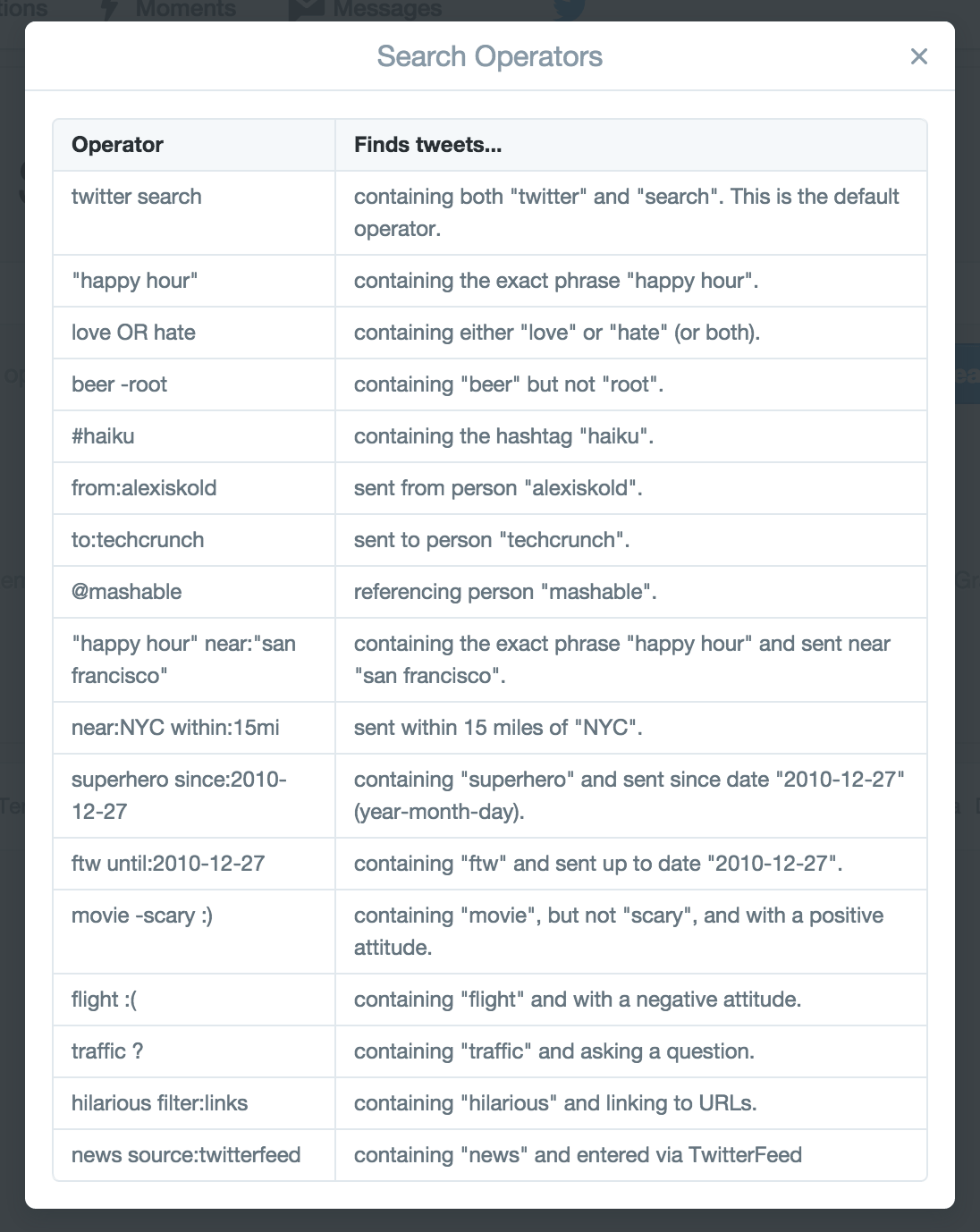
Twitter’s advanced search can be tricky. Using Twitter search operators can help. These operators refine your search results. You can find specific tweets or users faster. This guide will teach you how.
List Of Useful Operators
Here are some useful operators to enhance your search:
- from: – Find tweets from a specific user. Example:
from:Twitter - to: – Find tweets sent to a specific user. Example:
to:Twitter - since: – Find tweets from a specific date. Example:
since:2023-01-01 - until: – Find tweets before a specific date. Example:
until:2023-12-31 - min_retweets: – Find tweets with a minimum number of retweets. Example:
min_retweets:100 - min_faves: – Find tweets with a minimum number of likes. Example:
min_faves:50 - filter:links – Find tweets containing links. Example:
filter:links - filter:media – Find tweets containing media. Example:
filter:media
Combining Operators For Precise Results
Combining operators can yield precise results. Here are some examples:
- Find tweets from a user within a date range:
from:Twitter since:2023-01-01 until:2023-12-31 - Find popular tweets with a hashtag:
#SEO min_retweets:500 - Find tweets to a user with media:
to:Twitter filter:media
Using these operators together narrows down your search. This makes finding specific tweets easier. You can use multiple operators in one search query. This helps to get the most accurate results.
When To Use Twitter’s Support
Twitter Advanced Search is a powerful tool. It helps you find specific tweets and information. But sometimes, it doesn’t work as expected. This can be frustrating. You may try quick fixes, but they may not solve the problem. In such cases, it is best to contact Twitter Support.
Identifying Issues Beyond Quick Fixes
You tried all quick fixes. The search still doesn’t work. Here are some signs you need Twitter Support:
- Advanced Search not loading
- Search results are incomplete
- Filters not working properly
- Search settings not saving
If you see these issues, Twitter Support can help.
How To Contact Twitter Support
Contacting Twitter Support is easy. Follow these steps:
- Log into your Twitter account.
- Go to the Help Center.
- Click on Contact Us.
- Choose the issue related to Advanced Search.
- Fill out the form with details of your problem.
- Submit the form and wait for a response.
Twitter Support will get back to you soon. They will provide a solution or ask for more details.
Use the table below for a quick reference:
| Step | Action |
|---|---|
| 1 | Log into Twitter |
| 2 | Go to Help Center |
| 3 | Click Contact Us |
| 4 | Select Advanced Search issue |
| 5 | Fill out the form |
| 6 | Submit the form |
Twitter Support is there to help. Don’t hesitate to contact them.
Alternative Tools And Platforms
When Twitter Advanced Search isn’t working, finding alternative tools can help. There are several options available, each with unique features. Below, we explore some effective alternatives.
Third-party Twitter Search Tools
Several third-party tools offer advanced Twitter search functionalities. These tools can help you locate the tweets and data you need.
| Tool | Features |
|---|---|
| TweetDeck | Manage multiple accounts, schedule tweets, advanced search filters. |
| Hootsuite | Monitor keywords, track mentions, detailed analytics. |
| Social Searcher | Real-time search, sentiment analysis, social media monitoring. |
These tools offer more than just search capabilities. You can also manage and schedule your social media activities.
Other Social Media Platforms With Advanced Search
Explore other social media platforms if Twitter’s search isn’t working. Many platforms have advanced search features.
- Facebook: Search posts, pages, groups, and events.
- Instagram: Hashtag search, location search, user mentions.
- LinkedIn: Search jobs, companies, content, and profiles.
These platforms can also provide valuable insights. Use them to find specific content and trends.
Credit: www.searchenginejournal.com
Frequently Asked Questions
Why Is Twitter Advanced Search Not Working?
Twitter Advanced Search may not work due to browser issues, cache problems, or temporary service disruptions. Ensure your browser is updated and clear your cache. Try accessing Twitter from a different browser or device to see if the issue persists.
How Do I Fix Twitter Advanced Search Problems?
To fix Twitter Advanced Search problems, clear your browser cache, update your browser, and disable any browser extensions. If the issue continues, try accessing Twitter from another device or contact Twitter support for help.
Is Twitter Advanced Search Down?
Twitter Advanced Search can be temporarily down due to server issues or updates. Check Twitter’s official status page or social media channels for any service disruptions. If there are no reported issues, the problem might be local to your device or connection.
Can Browser Extensions Affect Twitter Advanced Search?
Yes, browser extensions can interfere with Twitter Advanced Search functionality. Disable all extensions and try again. Some ad blockers or privacy-focused extensions might disrupt how Twitter loads and operates. Re-enable extensions one by one to identify the culprit.
Conclusion
Experiencing issues with Twitter Advanced Search can be frustrating. Troubleshoot with our tips to regain functionality. Effective search enhances your Twitter experience. Stay updated with our blog for more solutions. Happy tweeting!