

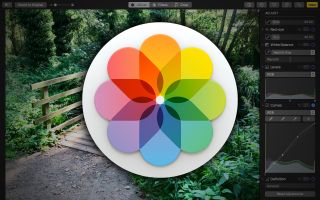
Apple’s photo editing software is called Photos. It comes pre-installed on all Apple devices.
Photos offers a range of user-friendly editing tools. Users can enhance images, apply filters, and adjust lighting. The software integrates seamlessly with iCloud, allowing easy access across devices. With its intuitive interface, Photos makes editing accessible for beginners and professionals alike.
The app supports various file formats and includes advanced features like retouching and noise reduction. It also allows for organizing and sharing photos effortlessly. This makes Photos a versatile and convenient tool for anyone looking to manage and edit their photo collection efficiently. Whether on a Mac, iPhone, or iPad, Photos provides a comprehensive solution for all your photo editing needs.

Credit: www.dpreview.com
Introduction To Apple’s Photo Editing Software
Apple’s photo editing software is a powerful tool. It helps you enhance your photos. It is user-friendly and offers many features. Let’s explore its history and key features.
Brief History
Apple’s photo editing software has a rich history. It started with iPhoto in 2002. It was simple but effective. In 2015, Apple introduced Photos. This new app replaced iPhoto and Aperture. Photos offered more advanced features and better integration.
Key Features
| Feature | Description |
|---|---|
| Auto-Enhance | Automatically improves your photo with one click. |
| Filters | Apply various filters to change the look of your photo. |
| Crop and Rotate | Adjust the size and angle of your photo. |
| Retouch | Remove blemishes and imperfections. |
| Light and Color Adjustments | Fine-tune exposure, brightness, and color balance. |
Apple’s photo editing software also supports iCloud integration. This allows you to access your photos on all your devices. You can also organize your photos using albums and smart albums.
- Face recognition helps you tag and find people easily.
- Memories feature creates collections of your best moments.
These features make Apple’s photo editing software a top choice. It is suitable for both beginners and professionals. Explore its potential and enhance your photo editing experience.
Photos For Macos
Apple’s Photos for macOS is a powerful photo editing tool. It helps users organize, edit, and share their photos seamlessly. This software comes pre-installed on all Mac devices. It combines simplicity with advanced editing features. Let’s dive into how you can get started and organize your gallery with Photos for macOS.
Getting Started
To begin using Photos for macOS, open the app from your Applications folder. Once launched, you can import your photos.
- Click on File in the top menu.
- Select Import and choose your photos.
- Your photos will appear in the Library tab.
Photos for macOS supports many image formats. You can import JPEG, PNG, HEIF, and even RAW files.
Organizing Your Gallery
Keeping your photos organized is essential. Photos for macOS makes it easy with several features.
- Albums: Create albums to group related photos.
- Smart Albums: Automatically group photos by criteria.
- Tags: Add keywords to find photos quickly.
To create an album, follow these steps:
- Click on the + button next to My Albums.
- Select Album and name it.
- Drag and drop photos into the new album.
For Smart Albums, use the File menu to set criteria. The app will then auto-populate the album based on your settings.
Tags make searching easy. Add tags by selecting a photo, pressing Command-I, and entering keywords.
With these features, Photos for macOS helps you manage your photo library efficiently.
Editing Tools Overview
Apple’s photo editing software offers a wide range of tools. These tools help users enhance their photos easily. Whether you need basic adjustments or advanced edits, Apple’s software covers it all.
Basic Adjustments
Basic adjustments are the foundation of photo editing. These tools are easy to use and very effective. Here are some of the basic adjustments available:
- Brightness: Adjust the overall light of the photo.
- Contrast: Enhance the difference between light and dark areas.
- Saturation: Increase or decrease the intensity of colors.
- Sharpness: Make the image clearer and more detailed.
- Exposure: Correct the light levels in the entire photo.
Advanced Edits
For users needing more control, advanced edits are available. These tools allow for more detailed adjustments. Here are some of the advanced editing options:
- Curves: Fine-tune the tones in your photo.
- Levels: Adjust the brightness and contrast with precision.
- Selective Color: Change colors in specific areas of the photo.
- Healing Brush: Remove unwanted elements from the image.
- Filters: Apply various effects to enhance your photo’s look.
These tools provide greater flexibility and creativity. They allow users to transform their photos into stunning works of art.

Credit: www.apple.com
Using Filters And Effects
Apple’s photo editing software offers a range of filters and effects. These tools help transform your photos. You can make quick adjustments or get creative. This section will guide you through applying presets and customizing effects.
Applying Presets
Presets are ready-made filters. They provide a quick way to enhance photos. Apple offers several built-in presets. Each preset has a unique look. Here’s how you can apply them:
- Open the photo you want to edit.
- Click on the Filters icon.
- Browse through the available presets.
- Click on a preset to apply it to your photo.
Presets can give your photos a new feel. They are perfect for quick edits. You don’t need to be an expert to use them.
Customizing Effects
Customizing effects allows for more control. You can tweak each aspect of the photo. This makes your photos unique. Here is how you can customize effects:
- Select the photo you want to edit.
- Click on the Edit button.
- Navigate to the Adjust section.
- Use sliders to modify Brightness, Contrast, and Saturation.
- Experiment with different settings until you are satisfied.
Customizing effects can be fun. It allows you to bring your vision to life. You can achieve professional results with practice.
| Feature | Description |
|---|---|
| Presets | Quick, ready-made filters for fast edits. |
| Custom Effects | Detailed adjustments for unique results. |
Retouching Photos
Apple’s photo editing software offers powerful tools for retouching photos. These tools help you make your photos look perfect. Retouching photos involves removing imperfections and enhancing details. Let’s explore these features in detail.
Removing Imperfections
Apple’s software provides amazing tools for removing imperfections. You can easily remove blemishes, spots, and unwanted objects. The Retouch tool is simple to use and very effective.
- Select the Retouch tool from the toolbar.
- Click on the area you want to fix.
- Adjust the size of the brush if needed.
With these steps, your photo will look flawless. The software uses advanced algorithms to blend the changes naturally.
Enhancing Details
Enhancing details can make your photos look more vibrant. Apple’s software offers various tools for enhancing details. You can adjust brightness, contrast, and sharpness.
| Feature | Description |
|---|---|
| Brightness | Adjust the light in your photo. |
| Contrast | Make colors stand out more. |
| Sharpness | Make the details clearer. |
To enhance details:
- Select the photo you want to edit.
- Use the sliders to adjust brightness, contrast, and sharpness.
- Preview the changes in real-time.
These tools help you make your photos pop. Even small adjustments can make a big difference.
Sharing And Exporting
Apple’s photo editing software is packed with powerful features. One of these features is sharing and exporting. This allows users to share their edited photos easily.
Sharing On Social Media
Sharing your edited photos on social media is simple. Apple’s photo editing software integrates with popular platforms. You can share directly to Facebook, Instagram, and Twitter. This saves time and ensures your photos look great. You can also add captions and hashtags before sharing.
Export Options
Exporting your photos in different formats is essential. Apple’s software offers various export options to suit your needs. Here are some of the available options:
- JPEG: Ideal for everyday use and sharing.
- PNG: Perfect for maintaining high quality with transparency.
- TIFF: Best for professional printing and editing.
You can also choose the quality and resolution of your exported photos. This flexibility ensures your photos meet specific requirements. Whether you need high-resolution images or smaller files, Apple’s software has you covered.
Exporting your photos to external drives is also easy. Simply select the destination folder and click export. This process is fast and efficient, ensuring your photos are ready when needed.
With these sharing and exporting options, Apple’s photo editing software becomes a versatile tool. It helps you share your creativity with the world effortlessly.
Integration With Icloud
Apple’s photo editing software seamlessly integrates with iCloud. This integration offers many benefits. You can access and edit photos from any device. The changes you make are instantly updated across all your Apple devices.
Syncing Across Devices
With iCloud, your photos are always within reach. Open the Photos app on your iPhone, iPad, or Mac. You will find the same pictures and edits everywhere. iCloud ensures your edits stay consistent. You can start editing on one device and continue on another.
Here are some benefits of syncing across devices:
- Consistency in photo edits
- Access to the latest versions of your photos
- Seamless transitions between devices
Storage Solutions
iCloud offers various storage options. You can choose the plan that fits your needs. The basic plan offers 5GB of free storage. You can upgrade to more storage if needed. All your photos and edits are stored securely in iCloud.
Here’s a table showing iCloud storage plans:
| Plan | Storage | Price |
|---|---|---|
| Basic | 5GB | Free |
| 50GB | 50GB | $0.99/month |
| 200GB | 200GB | $2.99/month |
| 2TB | 2TB | $9.99/month |
With these storage solutions, your photos are safe and accessible. No need to worry about losing your precious memories. iCloud handles everything for you.
Credit: www.creativebloq.com
Tips And Tricks
Apple’s photo editing software offers many features. These tips and tricks will help you make the most of it.
Keyboard Shortcuts
Keyboard shortcuts can make editing faster and more efficient. Here are some useful ones:
- Command + Z: Undo the last action.
- Command + Shift + Z: Redo the last action.
- Command + C: Copy the selected photo.
- Command + V: Paste the copied photo.
- Command + R: Rotate the selected photo.
- Command + E: Edit the selected photo.
Hidden Features
Discover hidden features to enhance your photo editing experience. Here are a few:
- Live Photos: Convert live photos to still images or videos.
- Markup Tool: Use the markup tool to draw on photos.
- Auto-Enhance: Tap the magic wand to auto-enhance your photos.
- Filters: Apply filters to change the look of your photos.
- Adjustments: Use adjustments to fine-tune brightness, contrast, and more.
Frequently Asked Questions
Does Apple Have Its Own Photo Editing Software?
Yes, Apple offers its own photo editing software called Photos. It is pre-installed on macOS and iOS devices.
Does Apple Have A Photo Editor Like Photoshop?
Yes, Apple offers a photo editor called Photos. It includes various editing tools and features similar to Photoshop.
What Is The Apple App For Editing Photos?
The Apple app for editing photos is called “Photos. ” It offers various editing tools and features for enhancing images.
What Editing Software Does Apple Have?
Apple offers iMovie for basic video editing and Final Cut Pro for professional video editing. Both are user-friendly and powerful.
Conclusion
Apple’s photo editing software offers powerful tools for both beginners and professionals. It simplifies complex editing tasks, ensuring stunning results. With seamless integration across Apple devices, it enhances your creative workflow. Explore its features and elevate your photo editing experience today.
Dive into Apple’s ecosystem and transform your photography effortlessly.


