GIMP, Paint.NET, and Pixlr are free image processing tools. They offer a wide range of functionalities for editing images.
Image processing tools are essential for photographers, designers, and digital artists. GIMP is a powerful, open-source tool comparable to Adobe Photoshop. Paint. NET offers simplicity with advanced features suitable for beginners and professionals. Pixlr provides a web-based solution, accessible from any device with internet access.
These tools enable users to manipulate images, adjust colors, and apply filters without any cost. They support various file formats, ensuring compatibility with most projects. Users can enhance photos, create graphics, and execute detailed edits efficiently. Free tools like these democratize image editing, making it accessible to everyone.
Introduction To Free Image Processing Tools
Image processing tools help enhance, edit, and transform images. These tools are essential for creating visually appealing content. Many free options are available today. They offer powerful features without any cost. Let’s explore some key aspects of these tools.
The Rise Of Visual Content
Visual content is now more important than ever. Social media platforms prioritize images and videos. People engage more with visual content. Businesses use images to attract customers. High-quality images can boost your brand’s visibility.
Benefits Of Using Image Processing Tools
Free image processing tools offer many benefits. They help improve image quality. You can remove backgrounds easily. Editing tools allow you to adjust colors and brightness. You can add text and effects quickly.
- Cost-effective: No need to spend money on expensive software.
- User-friendly: Most tools are easy to use, even for beginners.
- Versatility: Suitable for various tasks like cropping, resizing, and more.
- Accessibility: Many tools are available online. No need for downloads.
Popular Free Image Processing Tools
| Tool Name | Key Features | Platform |
|---|---|---|
| GIMP | Advanced editing, layers, plugins | Windows, macOS, Linux |
| Canva | Templates, easy to use, online | Web-based |
| Paint.NET | Simple interface, essential tools | Windows |
Credit: www.aliexpress.com
Navigating The Options
In the world of image processing, there are countless tools available. Navigating the options can be overwhelming. Let’s explore how to choose the right tool for your needs.
Criteria For Choosing The Right Tool
When selecting a free image processing tool, consider these criteria:
- User Interface: Is it easy to navigate?
- Features: Does it offer essential features like cropping and filtering?
- Compatibility: Is it compatible with your operating system?
- Support: Are there tutorials or forums for help?
Open Source Vs. Proprietary Software
Understanding the difference between open source and proprietary software is crucial.
| Open Source Software | Proprietary Software |
|---|---|
| Free to use | May require payment |
| Community-driven support | Official customer support |
| Customizable | Limited customization |
| Examples: GIMP, Inkscape | Examples: Adobe Photoshop Express |
Choosing between open source and proprietary software depends on your needs. Open source tools offer flexibility and are cost-free. Proprietary tools often provide robust support and additional features.
Gimp: The Photoshop Alternative
GIMP stands for GNU Image Manipulation Program. It is a powerful, free image processing tool. Many consider it the best alternative to Adobe Photoshop. GIMP offers robust features, making it ideal for beginners and pros alike. This tool can help with photo retouching, image composition, and image authoring.
Key Features Of Gimp
GIMP is packed with many features. Here are some of the most notable ones:
- Customizable Interface: GIMP allows you to customize the layout to your liking.
- Photo Enhancement: Tools for removing imperfections and enhancing images.
- Digital Retouching: Advanced tools for retouching photos.
- Hardware Support: Supports a wide range of input devices.
- File Formats: Supports various file formats like JPEG, PNG, and TIFF.
Getting Started With Gimp
Starting with GIMP is easy. Follow these steps:
- Download: Visit the official GIMP website to download the software.
- Installation: Follow the instructions to install GIMP on your computer.
- Launch: Open GIMP and explore the interface.
- Tutorials: Use online tutorials to learn the basics.
Here is a simple example to get you started:
Step 1: Open GIMP and load an image.
    Step 2: Use the 'Crop Tool' to trim your image.
    Step 3: Apply filters to enhance the image.
    Step 4: Save your work in the desired format.
GIMP offers a wealth of resources to help you. Explore its features and unleash your creativity.
Paint.net: User-friendly Interface
Paint.NET is a free image processing tool. It offers a user-friendly interface that is perfect for beginners. The layout is simple and easy to understand. You can quickly learn how to use all of its features.
Exploring Paint.net Capabilities
Paint.NET comes with a wide range of tools. These include basic image editing functions like cropping, resizing, and rotating. You can also use advanced features like layers and special effects.
- Layers: Work with multiple layers to create complex images.
- Special Effects: Add artistic effects like blurs, sharpen, and distortions.
- Unlimited Undo: Go back as many steps as you need.
The software also supports plugins. You can download and install additional features created by the community.
Why Beginners Love Paint.net
Beginners love Paint.NET because it is easy to use. The interface is intuitive, making it simple to learn. It doesn’t have a steep learning curve.
- Simple Interface: The layout is straightforward with easy-to-find tools.
- Quick Learning: Tutorials and guides are readily available.
- Community Support: Many users share tips and tricks online.
Paint.NET also runs smoothly on most computers. It doesn’t require a lot of system resources. This makes it ideal for users with older machines.
Inkscape: Vector Graphics Editor
Inkscape is a powerful vector graphics editor that is available for free. It is perfect for creating professional-quality graphics and illustrations. Inkscape is a favorite among many graphic designers and artists.
Vector Vs. Raster Images
Understanding the difference between vector and raster images is essential. This knowledge helps in choosing the right tool for your project.
| Vector Images | Raster Images |
|---|---|
| Made of paths and shapes | Made of pixels |
| Scalable without losing quality | Quality decreases when scaled |
| Ideal for logos and icons | Ideal for photos and detailed images |
| Smaller file sizes | Larger file sizes |
Mastering Inkscape
To start with Inkscape, download and install it from the official website. The interface can be overwhelming at first. Here are some tips to get started:
- Familiarize yourself with the toolbar on the left.
- Use the selection tool to select and move objects.
- Try the pen tool to create custom shapes.
- Learn to use layers for better organization.
- Utilize the fill and stroke menu for color adjustments.
To create a simple vector graphic, follow these steps:
- Select the rectangle tool from the toolbar.
- Draw a rectangle on the canvas.
- Use the fill and stroke menu to change its color.
- Select the circle tool and draw a circle.
- Overlap the circle on the rectangle for a combined shape.
Inkscape also supports various file formats. Export your artwork as SVG for web use or PDF for print.
Krita: For Digital Artists
Krita is a powerful, free image processing tool designed for digital artists. It offers a range of features that cater to both beginners and professionals. Let’s dive into some of Krita’s standout features.
Krita’s Brush Engine
Krita’s Brush Engine is a game-changer for digital artists. It offers a variety of brushes.
- Customizable Brushes: Users can customize brushes to fit their needs.
- Brush Presets: Krita offers presets for quick use.
- Dynamic Textures: Add textures dynamically to your brush strokes.
These features make it easy to create unique artwork.
Creating Artwork With Krita
Creating artwork with Krita is straightforward. The interface is user-friendly.
- Choose a Canvas: Start by selecting your canvas size.
- Select a Brush: Pick a brush from the Brush Engine.
- Start Drawing: Use the brush to create your masterpiece.
Krita also supports layers, making complex designs easier to manage.
| Feature | Description |
|---|---|
| Brush Engine | Highly customizable brushes |
| Layer Support | Manage complex designs |
| User-Friendly Interface | Easy to navigate |
Pixlr: Online Editing Simplified
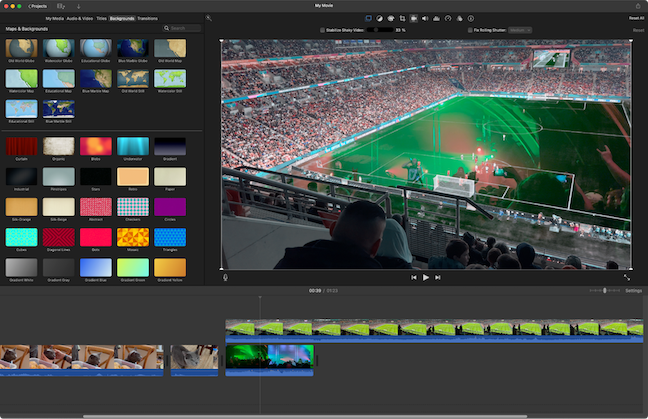
Pixlr is a popular free image processing tool. It offers powerful editing features. Pixlr is user-friendly and accessible online. No need for software installation. Perfect for quick edits on the go.
The Convenience Of Cloud-based Editing
Pixlr operates entirely in the cloud. This means your edits are saved online. You can access your projects from any device. No need to worry about storage space. Your work is safe and backed up.
| Feature | Benefit |
|---|---|
| Cloud Storage | Access projects anywhere |
| Cross-Device Compatibility | Edit on phone, tablet, or computer |
| Auto-Save | Never lose your work |
Pixlr’s Advanced Features
Despite being free, Pixlr offers advanced editing tools. These tools are perfect for professional results. You can adjust colors and brightness with ease. Use layers to create complex images.
- Color Correction
- Brightness and Contrast Adjustment
- Layer Management
- Filters and Effects
- Text and Sticker Tools
Pixlr also supports various file formats. You can work with JPEG, PNG, and more. Export your images in high resolution. Share directly to social media platforms.
Pixlr makes image editing easy and fun. Its features are powerful yet simple to use. Try Pixlr for your next image project.
Credit: zapier.com
Canva: Design Made Easy
Canva is a powerful, user-friendly image processing tool. It is perfect for both beginners and professionals. With Canva, you can create stunning visuals without extensive design skills. The platform offers a wide range of features that make design easy and fun.
Design Templates And Elements
Canva provides a vast library of design templates. These templates cover various categories such as social media posts, presentations, and flyers. Templates are fully customizable, allowing you to tweak every element to suit your needs.
In addition to templates, Canva offers numerous design elements. You can find icons, shapes, illustrations, and photos. These elements help you create unique and engaging designs quickly.
- Icons: Enhance your design with thousands of icons.
- Shapes: Add shapes to create structure in your layouts.
- Illustrations: Use illustrations to make your design visually appealing.
- Photos: Access a library of high-quality, free photos.
Collaborative Features In Canva
Canva excels in collaborative features. You can invite team members to work on a design together. This feature is great for group projects and team workflows.
Here is what you can do with Canva’s collaborative tools:
- Share Designs: Share your design with a link.
- Real-Time Collaboration: Work on designs simultaneously with team members.
- Comment and Feedback: Leave comments and feedback directly on the design.
- Version History: Track changes and revert to previous versions if needed.
These features ensure everyone stays on the same page and the design process is smooth and efficient.
Fotor: Quick Edits And Effects
Fotor is a free image processing tool. It is perfect for quick edits and adding effects. Fotor offers a range of features, making image editing simple and fun.
One-click Enhancements
Fotor’s one-click enhancements are time-savers. These tools instantly improve your photos. With a single click, you can adjust brightness, contrast, and saturation. This feature is handy for beginners who need quick fixes.
- Auto Enhance: Boosts overall photo quality.
- Scene Options: Choose from different lighting conditions.
- Basic Adjustments: Includes crop, rotate, and resize.
Creative Features In Fotor
Fotor also offers creative features. These tools help you add artistic touches to your photos. From filters to frames, you can make your photos stand out.
| Feature | Description |
|---|---|
| Filters | Adds unique styles to your photos. |
| Frames | Provides various border designs. |
| Text | Allows you to add text overlays. |
| Stickers | Includes fun and creative stickers. |
Fotor’s creative features are fun to use. They add personality to your photos. These tools make Fotor a great choice for quick and easy photo edits.
Using Tools In Combination
Using multiple free image processing tools together can enhance your workflow. Combining tools allows you to leverage each tool’s strengths. This results in better and faster image processing.
Integrating Multiple Platforms
Integration of multiple platforms enables a seamless workflow. For example:
- Use GIMP for advanced editing.
- Utilize ImageMagick for batch processing.
- Employ Canva for quick designs.
Each platform has unique features. Combining them maximizes efficiency. For instance, GIMP offers powerful editing tools. ImageMagick excels in automating repetitive tasks. Canva is perfect for creating visually appealing designs quickly.
Workflow Optimization Tips
Optimizing your workflow with multiple tools can save time. Here are some tips:
- Plan your tasks: Identify which tool is best for each task.
- Create templates: Use Canva to create reusable design templates.
- Batch process images: Use ImageMagick to handle bulk images.
- Layer editing: Use GIMP to work on complex image layers.
By planning your workflow, you can focus on creative tasks. This reduces time spent on repetitive actions. For example, create a standard template in Canva. Then batch process images in ImageMagick. Finally, fine-tune details in GIMP.
Learning And Community Support
Using free image processing tools can be overwhelming. But, with the right resources and community support, you can master these tools quickly. This section covers how to find tutorials and join communities.
Online Tutorials And Resources
Many platforms offer online tutorials for free image processing tools. Websites like YouTube have countless videos. They explain step-by-step how to use these tools. You can also find written guides and blogs. These resources often provide screenshots and code snippets.
Here are some popular websites:
- Codecademy: Offers interactive lessons on image processing.
- Coursera: Provides free courses from top universities.
- Khan Academy: Includes video tutorials on various image editing techniques.
Make sure to bookmark these sites. They will be very useful for your learning journey.
Joining Communities For Feedback
Joining online communities can greatly enhance your learning experience. Many forums and groups exist where you can ask questions and get feedback.
Here are some communities you can join:
- Reddit: Subreddits like r/photoshop and r/GIMP offer valuable advice.
- Stack Overflow: You can ask specific questions and get answers.
- Discord: Many servers are dedicated to image processing.
Being part of a community allows you to share your work. You can get constructive criticism and improve your skills.
Here’s a quick comparison of the communities:
| Community | Type | Best For |
|---|---|---|
| Forum | General advice and tips | |
| Stack Overflow | QA | Specific technical questions |
| Discord | Chat | Real-time feedback |
Unleashing Creativity
Free image processing tools can open up a world of possibilities. These tools empower both beginners and experts. They help in transforming simple images into stunning visuals. Let’s explore how these tools unleash creativity.
Case Studies Of Creative Projects
Many artists and designers use free tools for their projects. Here are some inspiring examples:
- Digital Collages: Artists mix various images to create unique collages. Tools like GIMP and Paint.NET are popular for this.
- Photo Enhancements: Photographers enhance their photos using free tools. Programs like Darktable and RawTherapee are great for photo editing.
- Graphic Design: Designers create logos and posters with tools like Inkscape and Krita.
Pushing The Boundaries With Free Tools
Free image processing tools offer advanced features. These tools help push creative boundaries. Here are some ways they do it:
- Layer Management: Tools like GIMP provide layer support. This allows for complex edits and compositions.
- Custom Brushes: Krita offers custom brush options. Artists can create unique textures and effects.
- Filters and Effects: Many tools include various filters. These filters can dramatically change the look of an image.
Below is a table comparing some popular free tools:
| Tool | Special Features |
|---|---|
| GIMP | Layer management, plugins, customizable interface |
| Krita | Custom brushes, animation support |
| Inkscape | Vector graphics, SVG support |
| Darktable | Photo editing, non-destructive editing |
| RawTherapee | Advanced color correction, batch processing |
These tools provide endless possibilities. They help bring your creative visions to life. Try them out and unleash your creativity today!
Future Of Image Processing
The future of image processing is full of exciting possibilities. Rapid advancements in technology are shaping this field. Free image processing tools are becoming more powerful. They offer features once exclusive to paid software. Let’s explore some emerging trends and how to stay updated with new tools.
Emerging Trends
Several trends are emerging in image processing. These trends are transforming how we work with images.
- Artificial Intelligence: AI is revolutionizing image processing. It enables automatic enhancements and smart editing.
- Cloud-based Tools: Cloud tools provide accessibility and collaboration. They allow you to work from anywhere.
- Augmented Reality: AR is merging real and virtual worlds. It offers new ways to interact with images.
- Real-time Processing: Real-time tools offer instant results. They save time and improve productivity.
- 3D Imaging: 3D technology is expanding. It allows for more detailed and immersive visuals.
Staying Updated With New Tools
It’s essential to stay updated with the latest image processing tools. Here are some ways to keep up:
- Follow Tech Blogs: Tech blogs often review new tools. They provide insights and comparisons.
- Join Online Communities: Online communities like forums and groups share updates. They discuss new tools and features.
- Subscribe to Newsletters: Newsletters from tech companies offer updates. They inform you about new releases and tutorials.
- Attend Webinars: Webinars provide live demonstrations. They showcase new tools and techniques.
- Try Free Demos: Many tools offer free demos. Testing them helps understand their capabilities.
Staying updated ensures you make the most of these powerful tools. It helps you stay ahead in the evolving field of image processing.
Credit: www.knowledgeleader.com
Frequently Asked Questions
Which Is The Free Image Editing Software?
GIMP is a popular free image editing software. It offers a range of powerful tools and features. Another good option is Paint. NET, which is user-friendly and suitable for beginners. Both programs are available for download at no cost.
Is There Anything Like Photoshop But Free?
Yes, GIMP is a free alternative to Photoshop. It offers many similar features and is open-source.
Which Photo Editor Is 100% Free?
GIMP is a 100% free photo editor. It offers powerful features for image editing and graphic design.
Is Gimp Really Free?
Yes, GIMP is completely free. You can download and use it without any cost. It’s open-source software.
Conclusion
Exploring free image processing tools can enhance your creativity. These tools offer diverse features without costing a dime. They help both beginners and professionals in their tasks. Download and experiment with different tools to find the best fit for your needs.
Embrace these resources to elevate your image editing skills.