Popular tools for image processing include Adobe Photoshop and GIMP. Both offer robust features for editing and enhancing images.
Image processing plays a vital role in various fields such as photography, medical imaging, and computer vision. Adobe Photoshop, a widely-used software, provides extensive tools for tasks like retouching, compositing, and color correction. GIMP, an open-source alternative, offers many similar features and is highly customizable.
These tools help professionals and hobbyists enhance image quality, remove imperfections, and create visually appealing graphics. Effective image processing can significantly impact the final output, making these tools indispensable. Whether for professional projects or personal use, mastering these applications can elevate your visual content to new heights.
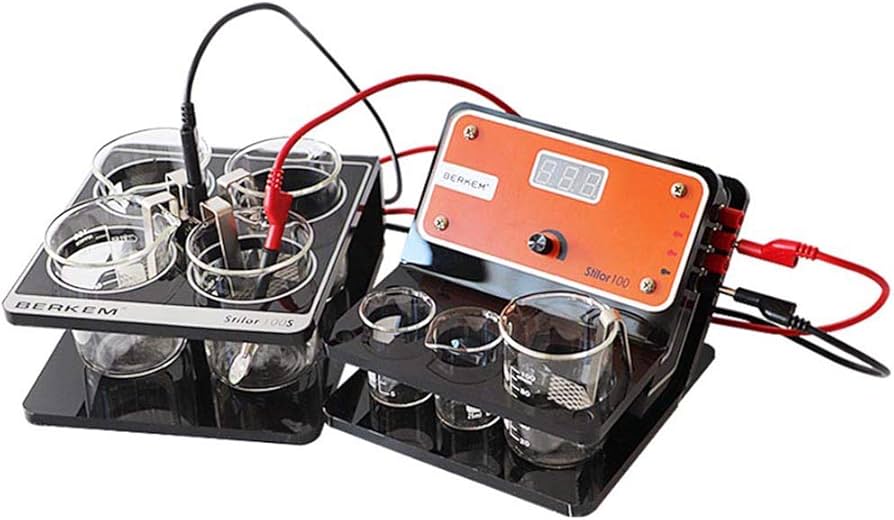
Credit: www.amazon.com
Introduction To Image Processing
Image processing involves transforming and manipulating images. It enhances images for better analysis. This field has grown with technology advances. It helps in various applications, such as medical imaging and facial recognition.
Essential Qualities Of Image Processing Tools
Good image processing tools need several key qualities:
- User-Friendly Interface: Easy to navigate and use.
- High Processing Speed: Fast image processing saves time.
- Accuracy: Precise results are crucial in many fields.
- Scalability: Handles large volumes of images efficiently.
- Compatibility: Works well with various file formats and software.
Scope Of Image Processing In Various Industries
Image processing is used in many industries. Each industry has unique needs and applications.
| Industry | Applications |
|---|---|
| Healthcare | Medical imaging, tumor detection, and X-ray analysis. |
| Automotive | Autonomous driving, object recognition, and lane detection. |
| Retail | Visual search, inventory management, and customer analytics. |
| Security | Facial recognition, surveillance, and threat detection. |
| Entertainment | Video editing, animation, and special effects. |
Popular Software For Professional Photographers
Professional photographers need powerful tools for image processing. Two popular choices are Adobe Photoshop and Capture One. Both offer unique features and advantages.
Adobe Photoshop: The Industry Standard
Adobe Photoshop is a versatile tool for photographers. It provides a wide range of editing options. You can adjust colors, add filters, and remove imperfections.
Photoshop supports various file formats, making it flexible. It also includes advanced features like layers and masks. These features help create complex edits with ease.
Below is a brief overview of key features:
| Feature | Description |
|---|---|
| Layers | Organize different elements of your image separately. |
| Masks | Control the visibility of different parts of your image. |
| Filters | Add effects to enhance your photos. |
| Brush Tools | Create custom edits and designs. |
Capture One: The Raw Advantage
Capture One is another top choice for photographers. It is known for its excellent RAW processing capabilities. Capture One offers precise control over image adjustments.
The software excels in color grading and tethered shooting. These features are essential for studio photographers. You can also create custom presets to streamline your workflow.
Here are some key features:
- Advanced Color Editing
- High-Quality RAW Processing
- Tethered Capture
- Customizable Workspaces
Open Source Alternatives
Image processing can be expensive with proprietary software. Open source tools offer powerful, free alternatives. They provide robust features for all levels of users. Here are two leading open source image processing tools.
Gimp: Free And Feature-rich
GIMP stands for GNU Image Manipulation Program. It’s a powerful, free image editor. GIMP offers many features found in paid software. These include:
- Photo retouching
- Image composition
- Image authoring
Users can customize GIMP with plugins. This extends its capabilities further. GIMP supports various file formats. This includes JPEG, PNG, GIF, TIFF, and more.
| Feature | Description |
|---|---|
| Layers | Supports multiple layers for complex edits |
| Brushes | Customizable brushes for detailed work |
| Filters | Various filters to enhance images |
GIMP works on Windows, Mac, and Linux. It’s an excellent alternative to Photoshop. Best of all, it’s completely free.
Krita: Beyond Painting
Krita is often seen as a painting tool. Yet, it’s much more than that. Krita excels in digital painting and image editing. It offers features like:
- Brush stabilizers
- Pop-up palette
- Wrap-around mode
Krita’s interface is user-friendly. It supports layers, masks, and filters. Krita is great for concept artists, illustrators, and photographers.
Like GIMP, Krita is available on multiple platforms. This includes Windows, Mac, and Linux. Krita is also open source and free to use. It offers powerful tools without the price tag.
Both GIMP and Krita provide excellent image processing capabilities. They are free, open source, and rich in features. Perfect for users seeking cost-effective solutions.
Web-based Tools For Quick Edits
Sometimes, you need to edit images quickly. Web-based tools can be a lifesaver. They are easy to use and often free. Here are some great options for making quick edits online.
Canva: For Non-designers
Canva is perfect for those with no design skills. The interface is user-friendly. You can create stunning images in minutes. Canva offers many templates. These templates are ready to use. You can drag and drop elements with ease.
Here are some features of Canva:
- Drag-and-drop functionality
- Thousands of free templates
- Stock photos and icons
- Text overlay options
- Free and premium versions
Canva is ideal for social media posts, presentations, and more. It requires no prior design knowledge.
Pixlr: Accessibility Meets Power
Pixlr offers a balance between ease of use and powerful features. It is accessible from any browser. Pixlr provides two versions: Pixlr X and Pixlr E. Pixlr X is for quick edits. Pixlr E offers more advanced tools.
Here is a comparison table of Pixlr X and Pixlr E:
| Feature | Pixlr X | Pixlr E |
|---|---|---|
| User Level | Beginner | Intermediate/Advanced |
| Basic Editing Tools | Yes | Yes |
| Advanced Editing Tools | No | Yes |
| Layer Support | Limited | Full |
Pixlr supports many file formats. You can save your work in JPEG, PNG, and more. It also offers cloud storage options. This makes it easy to access your work from anywhere.
Advanced Tools For Image Analysis
Image analysis requires advanced tools to extract meaningful information. These tools help in various domains like science and biology. MATLAB and ImageJ are two popular choices.
Matlab: The Scientific Approach
MATLAB is a powerful tool for scientific image analysis. It offers many functions for image processing.
Key features of MATLAB include:
- High-level Language: Easy to write scripts.
- Extensive Libraries: Includes many pre-built functions.
- Visualization Tools: Helps in visualizing data.
MATLAB is used in research and academia. Scientists prefer it for its accuracy and flexibility.
Imagej: For Biological Image Processing
ImageJ is an open-source tool for biological image analysis. It is widely used in labs and research centers.
Key features of ImageJ include:
- Free and Open-Source: No cost for use.
- Plugins: Extend functionality easily.
- User Community: Strong support and shared resources.
ImageJ supports many image formats. It is ideal for processing biological images.
Mobile Apps For On-the-go Editing
In today’s fast-paced world, editing images on-the-go is essential. Mobile apps offer powerful tools for quick, professional edits. You don’t need a computer to make stunning images.
Snapseed: Professional Edits In Your Pocket
Snapseed is a free app from Google. It offers a range of tools for professional-quality edits. The app supports both JPEG and RAW files.
- 29 tools and filters
- Selective adjustments
- Healing tool
- Brush tool
Snapseed’s interface is user-friendly. You can easily navigate through tools and options. The app also offers tutorials for beginners. This makes learning easy and fun.
Vsco: Community And Filters
VSCO combines editing tools with a social platform. You can edit photos and share them within the app. VSCO is famous for its filters.
| Feature | Description |
|---|---|
| Filters | Over 200 preset filters |
| Editing Tools | Adjustments like exposure, contrast, and saturation |
| Community | Share photos and follow other creators |
VSCO is great for those who love filters. The app also has a subscription service for extra features. This includes advanced editing tools and exclusive filters.
Batch Processing Software
Batch processing software helps in editing multiple images at once. It saves time and ensures consistency. This is especially useful for photographers and designers who handle large volumes of images.
Adobe Lightroom: Workflow Efficiency
Adobe Lightroom is a powerful tool for batch processing. It allows users to apply edits to multiple photos simultaneously. This improves workflow efficiency and keeps edits consistent.
- Apply presets to multiple images
- Sync edits across a batch of photos
- Use keyboard shortcuts for faster editing
- Organize photos using tags and collections
Lightroom’s intuitive interface makes it easy for beginners. It also offers advanced tools for seasoned professionals.
Acdsee: Manage And Edit In Bulk
ACDSee offers robust features for managing and editing images in bulk. It supports a wide range of file formats and provides powerful editing tools.
| Feature | Description |
|---|---|
| Batch Rename | Rename multiple files at once |
| Batch Resize | Resize images without losing quality |
| Batch Export | Export files in different formats |
ACDSee also offers metadata management. This helps in organizing and searching for images easily. It supports batch labeling and rating of photos.
Specialized Software For Graphic Design
Graphic design needs powerful tools. Specialized software helps create stunning images. These tools offer many features for professionals and beginners.
Coreldraw: Versatile Graphic Suite
CorelDRAW is a well-known graphic design software. It offers a complete suite of tools. These tools help with vector illustration, photo editing, and layout design.
Key features of CorelDRAW include:
- Vector illustration tools
- Advanced photo editing
- Professional layout design
- Typography tools
- Color management
Users love its intuitive interface. It is easy to learn and use. CorelDRAW supports many file formats, making it versatile.
Affinity Photo: A Modern Contender
Affinity Photo is a modern graphic design tool. It is known for its speed and performance. It offers many features similar to Adobe Photoshop.
Key features of Affinity Photo include:
- Advanced photo editing tools
- RAW image processing
- HDR merge
- Panorama stitching
- Batch processing
Affinity Photo is affordable and powerful. It is a great choice for both beginners and professionals.
Conclusion: Choosing The Right Tool
Selecting the right image processing tool can be challenging. Each tool has its unique features and capabilities. Your choice depends on your specific needs and goals. Below, we break down how to match tools to your requirements. We also explore the future of image processing software.
Matching Tools To Your Needs
Different tools serve different purposes. Some are great for basic edits, while others offer advanced features. Here’s a breakdown of popular tools based on their strengths:
| Tool | Best For | Features |
|---|---|---|
| Adobe Photoshop | Advanced Editing | Layers, Filters, Brushes |
| GIMP | Free and Open Source | Customizable Interface, Plugins |
| Canva | Quick Edits | Templates, Drag-and-Drop |
| Affinity Photo | Professional Use | High-Resolution, RAW Editing |
| Pixlr | Online Editing | Web-Based, Easy to Use |
The Future Of Image Processing Software
Image processing is always evolving. New tools and features are constantly being developed. Here are some trends to watch for:
- AI Integration: Tools are getting smarter with AI. They can now identify objects, suggest edits, and automate tasks.
- Cloud-Based Solutions: More tools are moving to the cloud. This means you can access your projects from anywhere.
- Mobile Editing: Powerful mobile apps are being developed. They allow for on-the-go editing with professional features.
- 3D Capabilities: Some tools now offer 3D modeling and editing. This opens up new possibilities for creativity.
Staying updated with these trends will help you choose the right tool. Your needs may evolve, so your tools should too.
Credit: twitter.com

Credit: www.amazon.com
Frequently Asked Questions
What Are The Tools Used In Digital Image Processing?
Popular tools for digital image processing include Adobe Photoshop, GIMP, MATLAB, and OpenCV. These tools offer various features for editing, analyzing, and enhancing images.
Which Software Is Used In Image Processing?
Popular image processing software includes Adobe Photoshop, GIMP, and MATLAB. These tools offer powerful editing and analysis features.
What Is Needed For Image Processing?
For image processing, you need a computer, specialized software, and a good quality image. Skills in programming and mathematics enhance the process.
What Are Four Different Types Of Image Processing Methods?
The four types of image processing methods are:1. Analog Image Processing 2. Digital Image Processing 3. Real-time Image Processing 4. Remote Sensing Image Processing
Conclusion
Choosing the right image processing tools can significantly enhance your projects. Various software options cater to different needs. Experiment with these tools to find the best fit. Embracing these technologies will streamline your workflow and elevate your visual content. Start exploring today and transform your image processing capabilities.