
Are you looking to boost your business with powerful email marketing? Creating a marketing email in Word could be your secret weapon.
Imagine crafting an email that not only grabs attention but also compels your readers to take action. With Word’s user-friendly tools, you can design captivating emails that resonate with your audience. You might be wondering, “Why Word? ” It’s simple.
Word provides the flexibility and ease you need to create stunning emails without complex software. Whether you’re a seasoned marketer or just starting out, mastering this skill can elevate your campaigns and grow your business. Stick with me, and you’ll learn how to create marketing emails that get results.
Setting Up Your Word Document
Creating a marketing email in Word can be efficient and effective. Setting up your Word document correctly is crucial. It ensures your email looks professional and is easy to read.
Choosing The Right Template
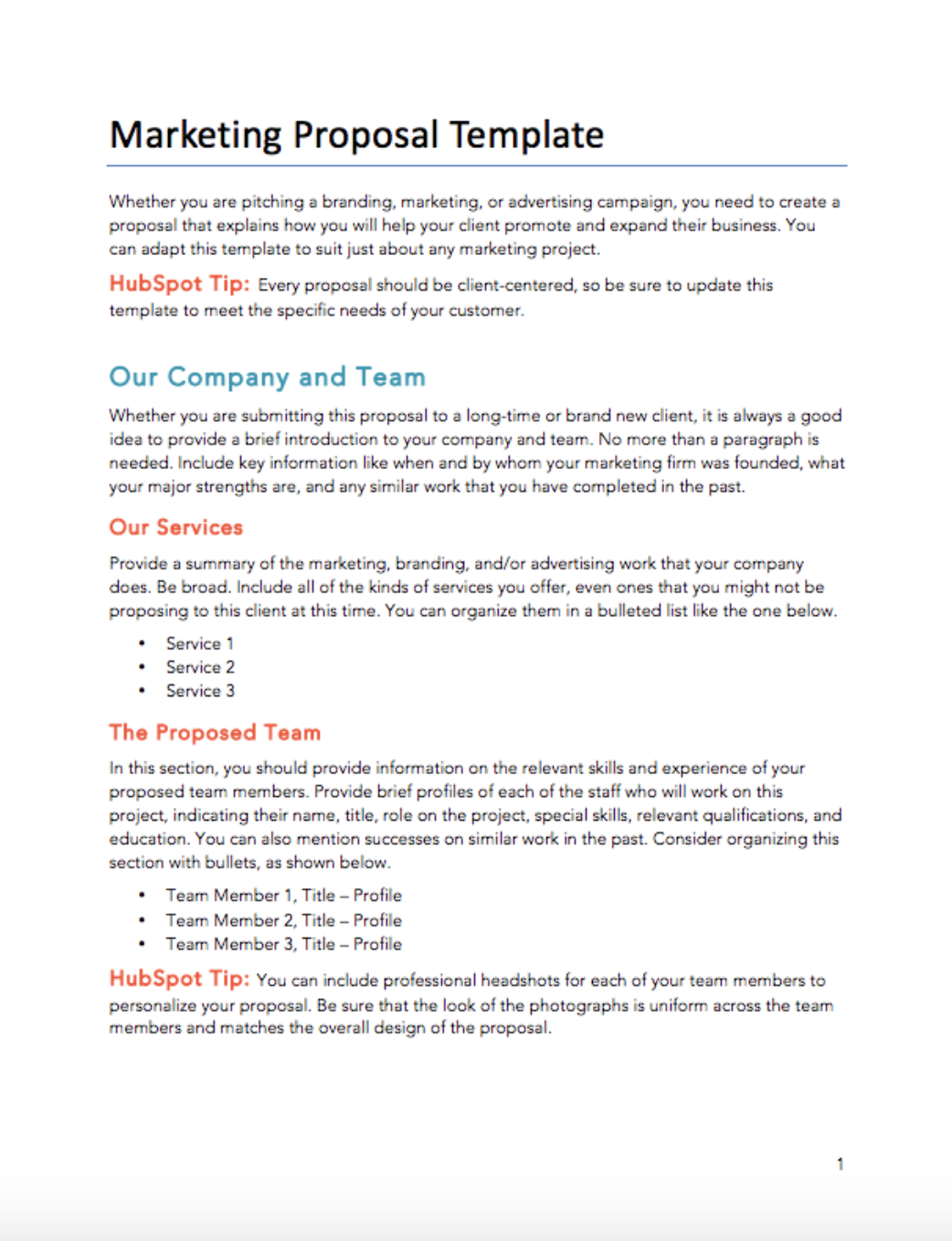
Begin by selecting a suitable template. Word offers various templates for different needs. Choose one that matches your brand’s style. A good template saves time. It also provides a professional look.
Customizing Page Layout
Adjust the page layout to fit your content. Set margins to create a clean look. Use columns for organized sections. Ensure your layout is mobile-friendly. Many readers use phones to check emails.
Utilize fonts and colors that reflect your brand. Keep fonts simple for readability. Avoid too many colors; stick to your brand’s palette. This makes your email visually appealing and consistent.
Credit: www.hubspot.com
Designing The Email Header
Designing the email header is a key part of creating a marketing email in Word. The email header is the first thing your audience will see. It sets the tone for the rest of your message. A well-designed header can grab attention and boost engagement. It should be clear, simple, and aligned with your brand. Let’s explore how to design an effective email header.
Incorporating Brand Logo
Your brand logo is essential in the email header. It helps recipients recognize your email instantly. Place the logo in a prominent position, usually at the top. Ensure the logo is clear and not pixelated. A high-quality image makes your brand look professional. The logo should be clickable, directing users to your website.
Adding Contact Information
Contact information is crucial in building trust with your audience. Include a phone number and email address in the header. This allows recipients to reach out easily. Make sure the contact details are up-to-date and easy to read. A clear font and size will enhance readability. This simple step increases credibility and engagement.
Crafting The Email Body
Creating a marketing email in Word involves crafting an engaging message. Focus on clear, concise language. Keep sentences short and direct. Use simple words to ensure easy understanding for all readers.
Crafting the email body in Word requires a focus on clarity and engagement. A well-crafted email body keeps readers interested. It’s essential to convey your message clearly and concisely. Let’s explore how to make your email body effective.Writing Compelling Content
Start with a strong opening line. Capture attention immediately. Use simple words. Short sentences work best. Be direct. Tell your readers what to expect. Share valuable information. Keep your tone friendly. Avoid jargon.Using Bullet Points For Clarity
Bullet points help organize content. They make information easy to digest. Highlight key points. Readers can scan quickly. Each bullet should cover one idea. Use simple language. Keep it concise.Integrating Visual Elements
Visuals enhance your email. They break text monotony. Use relevant images. Ensure high quality. Insert charts for data. Visuals should support your message. Use them sparingly. Balance is key.Creating A Call To Action
Crafting a compelling call to action is crucial for effective marketing emails created in Word. A clear and engaging message encourages recipients to click, boosting interaction and conversion. Keep it simple, direct, and easy to understand for best results.
Creating a compelling call to action (CTA) is crucial. It guides your reader towards the next steps. An effective CTA can significantly boost engagement. It encourages readers to act. Whether you want them to subscribe, buy, or explore, a well-crafted CTA makes a difference. Here, we’ll explore how to create CTAs that convert. We’ll focus on designing buttons and links. Let’s dive in.Designing Buttons And Links
Buttons and links should stand out. They must be easy to spot. Use contrasting colors for your buttons. This draws attention. Keep the text concise. “Buy Now” or “Learn More” are clear examples. Ensure the font is readable. Large enough to see, but not overwhelming. Make links descriptive. “Click here for details” is better than “Click here.” Consistency matters. Use similar designs for all buttons. This builds familiarity.Effective Ctas For Conversion
The language of your CTA is key. Be direct and clear. Use action words like “Join,” “Start,” or “Discover.” These words encourage movement. Personalize your CTA if possible. “Get Your Free Guide” feels exclusive. Limit choices to one action. Too many options confuse the reader. Place CTAs strategically. Early in the email and after key points. Always test your CTAs. See what works best. Adjust for better results.Finalizing The Email Design
Finalizing the design of your marketing email is crucial. It ensures your message is clear, polished, and ready for your audience. This step involves careful attention to detail and thoughtful review. An effective email design combines aesthetics with functionality. You want it to grab attention and be easy to read. Let’s explore how to make your email perfect before sending it out.
Proofreading And Editing
Proofreading is essential for a professional look. Check for spelling errors and grammar mistakes. Look at the flow of your sentences. Ensure clarity and conciseness. Edit with an eye for detail. Make your language engaging and straightforward. Read your email aloud to catch awkward phrasing. Fine-tune your message until it sounds natural and smooth.
Testing For Compatibility
Testing ensures your email displays correctly on all devices. Check the layout on phones, tablets, and computers. Ensure images load properly and links work. Use email testing tools to preview how your email appears in different inboxes. Compatibility testing prevents display issues that could confuse recipients. Double-check every element for consistency and functionality.

Credit: www.instagram.com
Exporting And Sending Your Email
Crafting a marketing email in Word involves writing clear, engaging content. Export your finished email and send it easily. Use Word’s features to format and design your email for a professional look.
Creating a marketing email in Word is just the beginning. Once your email is crafted, the next crucial step is exporting and sending it to your audience. How you manage this process can significantly impact your campaign’s success. Let’s dive into the details.Saving As Pdf Or Html
Saving your marketing email as a PDF or HTML file offers flexibility. A PDF format preserves your design, ensuring that it appears exactly as intended. This is ideal if your email includes intricate graphics or branding elements.HTML, on the other hand, is more interactive and is the backbone of most marketing emails. Exporting your email as HTML allows you to maintain links and dynamic content. This is useful if you’re planning to send it through various email platforms that support HTML.Sending Through Email Platforms
Once your email is saved in the desired format, the next step is sending it through an email platform. Platforms like Mailchimp or Constant Contact are user-friendly and offer robust features. They allow you to import your HTML email seamlessly, maintaining your design and layout.These platforms also provide analytics to track your email’s performance. You can monitor open rates, click-through rates, and even A/B test different versions of your email. This data is invaluable in refining your marketing strategy.Have you ever wondered how some emails end up in the junk folder? Ensuring your email is optimized for deliverability is crucial. Use these platforms to check for spam triggers and improve your email’s chances of landing in the inbox.Exporting and sending your email doesn’t have to be overwhelming. With a few strategic choices, you can ensure your marketing message reaches your audience effectively. How will you leverage these tools to enhance your next email campaign?
Credit: create.microsoft.com
Frequently Asked Questions
Does Microsoft Have An Email Marketing Tool?
Microsoft offers Dynamics 365 Marketing, an email marketing tool. It helps businesses create personalized campaigns and automate customer journeys. The platform integrates with other Microsoft products for seamless functionality. Dynamics 365 Marketing provides analytics and insights to optimize marketing strategies and improve engagement.
Can I Create An Email Template In Word?
Yes, you can create an email template in Word. Design your template, then save it as an HTML file. Import the HTML file into your email client to use it. This method allows customization and professional appearance for emails.
How Do I Create A Marketing Email?
Start by defining your email’s goal and target audience. Craft a compelling subject line and personalize the content. Use clear, concise language and include a strong call-to-action. Ensure mobile-friendly design and test before sending.
Conclusion
Creating a marketing email in Word is straightforward and efficient. Start with a clear subject line. Use simple, engaging language. Keep your message concise. Highlight key points with bullet points or bold text. Add images to make your email visually appealing.
Always include a call to action. Proofread to avoid errors. Test the email before sending. This ensures it looks good on all devices. With these tips, you can create effective marketing emails. Your audience will appreciate the clear, direct communication.
Happy emailing!


