Are you looking to capture leads and grow your email list effortlessly? Creating a form in GetResponse might be the solution you need.
Picture this: a seamless way to engage with your audience, gather valuable information, and nurture potential customers—all through a simple form. You don’t need to be a tech wizard to set it up. In fact, with GetResponse, it’s surprisingly easy.
This article will guide you step-by-step on how to create a form that not only looks professional but also boosts your marketing strategy. Imagine the possibilities: a well-crafted form can be the gateway to understanding your audience better and tailoring your content to their needs. Stick around and discover how you can transform your approach to lead generation with GetResponse.
Setting Up Your Getresponse Account
Creating a form in Getresponse starts with accessing the dashboard. Choose the ‘Forms’ tab, then select ‘Create Form’ to begin. Customize by adding fields and adjusting design elements to match your needs.
Setting up your Getresponse account is straightforward and simple. This platform is popular for its user-friendly features. Let’s dive into how you can start creating forms with Getresponse. It begins with setting up your account and accessing the form builder.Creating A Getresponse Account
First, visit the Getresponse website. Look for the sign-up button. Click it to begin. You’ll need to provide your email address. Choose a strong password. Ensure it is unique. Follow the instructions. Verify your email address. This confirms your account. Once verified, log in. You’re ready to explore Getresponse.Accessing The Form Builder
After logging in, find the dashboard. Look for the “Create” option. Click it to proceed. Select “Forms” from the menu. This opens the form builder tool. Explore the templates available. Choose one that fits your needs. Use the drag-and-drop interface. Customize your form easily. Add fields, text, and images. The form builder is intuitive. Enjoy crafting forms with ease.
Credit: www.youtube.com
Choosing The Right Form Type
Creating a form in Getresponse involves selecting the right type to match your needs. Different forms serve various purposes, from collecting emails to gathering detailed survey responses. Choose wisely to ensure you capture the information needed effectively.
Choosing the right form type in GetResponse can significantly impact how effectively you engage with your audience. The type of form you choose will depend on your goals and how you want to interact with your visitors. Whether it’s capturing email addresses, gathering feedback, or offering discounts, understanding the form types available can help you make the best choice.###Inline Forms
Inline forms are embedded directly into your webpage content. They’re perfect for maintaining a seamless user experience. Imagine reading an article and seeing a form at the end inviting you to subscribe to a newsletter. Inline forms are ideal for situations where you want the form to be part of the natural flow of your content. They don’t interrupt the user, which can lead to higher completion rates.###Pop-up Forms
Pop-up forms are attention-grabbing. They appear as separate windows on your screen, often triggered by user actions like scrolling or time spent on the page. These forms are highly effective at capturing attention quickly. However, use them wisely—too many pop-ups can annoy users. Think about your own experience: do you engage with pop-ups that offer value, like a discount or exclusive content? If yes, consider how you can use pop-ups to offer something your audience will appreciate.###Floating Bar Forms
Floating bar forms stay visible as users scroll through a webpage. They’re usually placed at the top or bottom of the screen. These forms are less intrusive than pop-ups but still ensure visibility. Imagine browsing a site and noticing a floating bar encouraging you to sign up for alerts. It’s always there, but it doesn’t block your view. Floating bars are great for persistent but polite engagement, making sure your offer is always in sight without being overwhelming.When selecting a form type, think about what you want to achieve. Are you aiming for high visibility or a seamless user experience? Your choice can make a significant difference in how your audience interacts with your site. Which form type do you think will engage your audience the most?Customizing Your Form Design
Create a form in GetResponse by selecting a template that fits your needs. Customize the design with simple tools. Adjust colors, fonts, and layout to match your brand.
Creating a form in GetResponse is a straightforward process. Customizing its design can make it more engaging. A well-designed form can attract more subscribers. Personalizing the design enhances user experience. It also aligns with your brand identity. Dive into the customization options below.Selecting Templates
GetResponse offers a variety of templates. These templates suit different needs and styles. Choose one that matches your brand’s vibe. A clean, simple template works well. It keeps the focus on the form fields. Experiment with different layouts. Find one that fits your purpose.Adjusting Colors And Fonts
Colors play a big role in design. They evoke emotions and set the tone. Pick colors that complement your brand palette. Consistent colors build brand recognition. Fonts should be easy to read. Simple fonts make the form user-friendly. Adjust font size for clarity. Ensure text is legible on all devices.Adding Images And Logos
Images can enhance your form design. They make it visually appealing. Use relevant images that relate to your message. Logos reinforce brand identity. Place your logo strategically. It should be visible but not overpowering. Images and logos should have high resolution. Low-quality visuals can deter users.Customizing your form design in GetResponse is simple and impactful. Engage visitors with a design that speaks for your brand.Configuring Form Fields
Creating a form in Getresponse involves configuring fields to capture essential data. Choose field types like text, dropdown, or checkbox. Customize field labels and order to match your needs.
Configuring form fields in Getresponse is like setting the foundation for effective communication with your audience. You want your form to be intuitive and easy to fill out, ensuring you capture the right information without overwhelming the user. This section will guide you through the essentials of configuring form fields, so you can create a form that’s both functional and appealing.Adding Basic Fields
Start by adding basic fields to your form. These are the standard fields like Name, Email, and Phone Number. They’re essential for collecting primary contact details.Think about what information you absolutely need. Too many fields can deter users from completing the form.Consider your own experiences—how many times have you abandoned a form because it asked for too much information? Keep it simple and straightforward.Using Custom Fields
Sometimes, basic fields aren’t enough. You might need more specific information, and that’s where custom fields come into play.Custom fields allow you to tailor the form to your needs. Maybe you want to know a user’s preferred contact time or their interests.Creating a custom field is easy in Getresponse. You just define what you need, and it fits right into your form.Setting Field Validations
Field validations ensure the information you collect is accurate and usable. They check that the data entered is in the correct format.For instance, an email field should only accept a valid email format. This prevents errors and ensures you can reach your audience later.Think of validations as a safety net—they help maintain the quality of your data. Imagine the frustration of trying to contact someone with an invalid email address! By setting validations, you prevent such issues.Configuring these fields correctly can significantly impact the effectiveness of your communication. How will you ensure your forms are both user-friendly and effective?Integrating With Email Lists
Creating a form in Getresponse is just the beginning. Integrating it with your email lists is crucial for effective communication. It ensures your subscribers receive timely updates and information. This integration helps organize and target your audience better. Let’s explore how to connect these forms to your existing and new email lists.
Connecting To Existing Lists
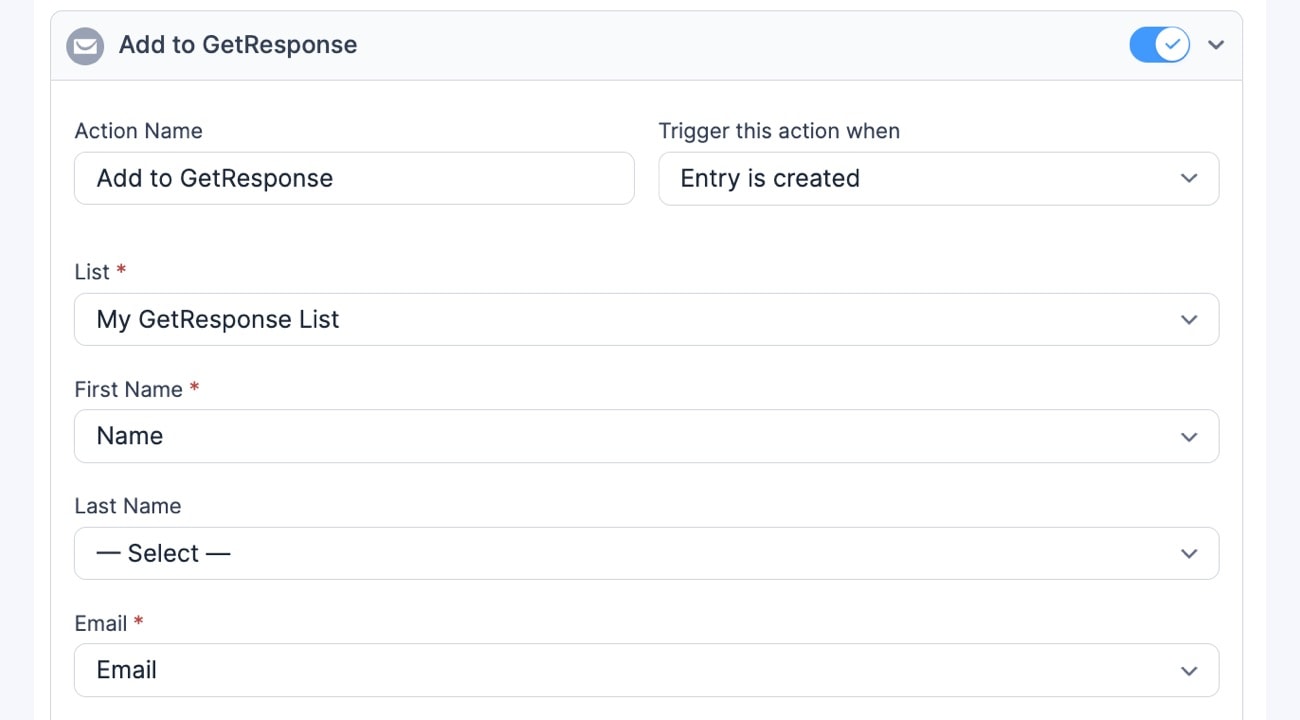
Connecting your form to existing lists is straightforward. First, open the Getresponse dashboard. Find the integration section. Choose the form you want to connect. Select the list from your existing options. This links your form directly to the chosen list. Subscribers who fill out the form will be added automatically. This keeps your communication streamlined and organized.
Creating New Subscriber Lists
Creating a new subscriber list is simple. Start by navigating to the Lists section in Getresponse. Click on “Create List.” Name your list clearly. This helps identify the audience easily later. After naming, save the list. Then go back to your form settings. Select the newly created list for integration. This connects new subscribers directly to your fresh list. It offers a clean slate for targeted messaging.
Setting Up Form Confirmation
Setting up form confirmation in GetResponse is a key step. It ensures your audience receives a seamless experience. With proper confirmation, users know their submission was successful. This process involves creating thank you pages and configuring email confirmations. Both elements reassure and engage your subscribers effectively.
Creating Thank You Pages
Thank you pages serve as a way to acknowledge users. They confirm that their form submission was successful. Start by designing a page that matches your brand style. Keep it simple and clear. Add a friendly message to thank users for their submission. Consider including a call-to-action. Encourage users to explore more of your website. This can enhance user engagement and retention.
Configuring Email Confirmations
Email confirmations provide reassurance to your users. They receive an email after submitting the form. This email confirms their action was successful. Begin by crafting a concise email subject line. Make sure it’s clear and direct. In the email body, include a personalized message. Address the user by name for a personal touch. Reiterate the purpose of their form submission. This helps in building trust and loyalty.
Ensure the email design aligns with your brand. Use your brand colors and logo. This consistency strengthens your brand identity. Always include a contact option. This allows users to reach you easily if needed.
Testing Your Form
Creating a form in Getresponse is easy. Choose a template, customize fields, and adjust settings to fit your needs. Once finished, integrate the form on your website to start collecting responses effortlessly.
Testing your form in GetResponse is a crucial step to ensure everything works perfectly before going live. You wouldn’t want to miss out on capturing leads because of a simple oversight. By testing, you ensure that your form functions correctly and looks appealing on every device your audience might use.Previewing Your Form
Before you launch, take a moment to preview your form. This gives you a chance to see exactly what your visitors will experience.Click on the “Preview” option in GetResponse to view your form in action. Check all fields, buttons, and links to ensure they work as expected. Pay attention to the form’s aesthetics and layout. Does it align with your brand’s look and feel?Testing in preview mode helps you catch any typos or design errors. Imagine the embarrassment of a misspelled word on a live form!Checking Mobile Responsiveness
Mobile responsiveness is non-negotiable today. Your form must look good and function well on mobile devices.Use GetResponse’s mobile preview feature to check how your form displays on different screen sizes. Try filling out the form on a smartphone and tablet. Are the fields easy to access? Is the text readable without zooming in?Consider the user experience. A clunky mobile form could turn potential leads away. Would you fill out a form if it was frustrating to use on your phone?Testing ensures that your form is user-friendly across all devices. Remember, a seamless mobile experience can significantly boost conversions.Publishing Your Form
Publishing your form in GetResponse is a crucial step. After creating a form, sharing it with your audience is next. This guide will help you publish your form effectively. Engage your audience through various platforms. Choose the method that suits your needs.
Embedding Forms On Websites
Embedding a form on your website is simple. First, log into your GetResponse account. Navigate to the ‘Forms and Surveys’ section. Select the form you want to publish. Click on ‘Get Code’ to generate your embed code. Copy the code to your clipboard.
Next, access your website’s HTML editor. Paste the embed code where you want the form to appear. Ensure the form’s placement enhances user experience. Test the form to ensure it functions correctly. This method integrates your form seamlessly into your site.
Sharing Forms Via Social Media
Social media is a powerful tool for form sharing. First, generate a shareable link from GetResponse. Go to the ‘Forms and Surveys’ section. Choose the form you wish to share. Click ‘Share’ to create a unique link.
Copy the link and paste it into your social media post. Write a compelling caption to attract attention. Use direct language and clear calls-to-action. Share the post on platforms like Facebook, Twitter, and LinkedIn. Monitor engagement and interactions regularly. This approach broadens your reach effectively.
Analyzing Form Performance
Creating forms in Getresponse involves selecting form templates and customizing fields. Analyze form performance by tracking submissions and user interaction. Adjust design and content based on insights for better engagement and conversion rates.
Analyzing the performance of your forms in Getresponse is vital. It allows you to understand how well your forms are doing. You can see which forms attract more visitors and convert them into subscribers. This helps you make informed decisions to enhance your marketing strategy.Tracking Submissions
Tracking submissions is crucial for understanding form performance. Getresponse provides detailed insights into how many people fill out your forms. You can check the number of submissions daily, weekly, or monthly. This data helps identify trends in user behavior. Find out which forms are most effective. Use this information to adjust your forms accordingly.Improving Conversion Rates
Improving conversion rates is a key goal. Start by analyzing the data you collect. See which forms perform best. Identify elements that contribute to higher conversions. It could be the form’s design or the call-to-action text. Try different versions of your form. Test variations to see which one gets better results. A/B testing is a useful method for this. Make small changes and track their impact. Always aim for clarity and simplicity in your forms. This increases the likelihood of conversions.
Credit: www.youtube.com
Credit: formidableforms.com
Frequently Asked Questions
How Do I Create A Fillable Form?
Use a program like Adobe Acrobat or Microsoft Word to create fillable forms. Choose a template, insert form fields, and save. Customize fields for text, checkboxes, or dropdowns. Ensure the form is user-friendly and test it before distribution. Save as a fillable PDF for easy sharing.
How Do I Create My Own Form?
To create a form, choose a platform like Google Forms or Microsoft Forms. Customize fields by adding questions and options. Set privacy settings and share the form link. Test the form for functionality before distributing it to your audience. Save responses for analysis and follow up if necessary.
What Is The Difference Between A Landing Page And A Form Page?
A landing page attracts visitors, showcasing a product or service. A form page collects user information, often for lead generation. Landing pages focus on conversions through persuasive content, while form pages prioritize data collection. Both aim to engage users but serve different purposes in the marketing funnel.
How Do I Create A Survey In Getresponse?
Log into GetResponse and select “Surveys” from the dashboard. Click “Create Survey” and customize your questions. Save and publish your survey. Share the link with your audience.
Conclusion
Creating forms in Getresponse is simple and effective. Follow the steps outlined here. You’ll gather valuable data and engage users easily. Start by choosing a template. Customize it to match your brand. Add fields that suit your needs. Preview your form before publishing.
Ensure it’s mobile-friendly for better reach. Use the form link or embed code to share. Track responses and analyze results. This helps improve your strategy. With practice, you’ll master form creation. It’s a tool to enhance your email marketing efforts.
Keep experimenting and refining your approach for success.