Are you looking to enhance your landing page in Angular CLI by adding a signup form that captures visitor information seamlessly? You’re in the right place.
Imagine transforming your landing page into a powerful tool that not only attracts visitors but also converts them into valuable leads. This article is designed to guide you through the process of adding signup forms to your Angular CLI landing page, making it more interactive and user-friendly.
Picture this: a user-friendly form that encourages your visitors to engage with your content and share their information willingly. This is not just about adding a form; it’s about creating an experience that compels your visitors to take action. You’ll learn how to implement signup forms effectively, ensuring they are visually appealing and technically robust. Your landing page is the gateway to your brand’s world, and a well-crafted signup form is the key to unlocking its full potential. Dive in to discover how you can leverage Angular CLI to create a seamless signup process that boosts your conversion rates and drives your business forward. Ready to transform your landing page? Let’s get started!

Credit: colorlib.com
Setting Up Angular Cli
First, install Node.js on your computer. It is the base for Angular CLI. Download it from the Node.js website. After that, open your command line tool. Type npm install -g @angular/cli and press enter. This command installs the Angular CLI globally. Now, you have Angular CLI ready to use.
Creating a project is easy. First, open your command line tool. Then, type ng new my-app. Replace “my-app” with your project name. Press enter. Angular CLI will create a new folder. This folder contains all files you need. Now, enter the folder using cd my-app. Finally, start the project with ng serve. Your new project is now running. Open a web browser and visit http://localhost:4200. You will see your first Angular app!

Credit: learndjango.com
Designing The Landing Page
Select a simple layout. It should be easy to navigate. Keep it clean. Too much clutter confuses users. A clear path helps users find the signup form. Place the form in a prominent position. The top of the page works well. Or near the center. This draws attention quickly. Use contrasting colors. Make the form stand out.
Use your brand colors. They should be consistent throughout. Add your logo. Place it where users can see. Use fonts that match your brand style. Keep text short and clear. Users should know what the signup form offers. Add images that represent your brand. They help create a visual connection. Aim for a balanced look. Too many elements can be distracting.
Creating Signup Form Component
Building a signup form component in Angular CLI involves creating a user-friendly interface for capturing essential details. Implementing this form on your landing page enhances user engagement and simplifies data collection. Follow Angular’s best practices to integrate seamless signup functionality.
Using Angular Cli Commands
Angular CLI makes it easy to create components. First, open your terminal. Type ng generate component signup-form. This command creates a new component. It includes HTML, CSS, and TypeScript files. These files are in the src/app/signup-form directory. You can now customize these files.
Structuring The Component
The signup-form component has three main parts. The HTML file is for the layout. It contains form fields like username and email. The CSS file styles the form. You can change colors and fonts. The TypeScript file controls logic. It handles form submission. Also, it checks input values.
Remember to import your component. Add it to the app.module.ts file. This ensures the component works properly. Now your signup form is ready for use.
Building Form Elements
Input fields are the boxes where users type information. They should be easy to use. Clear labels help users know what to enter. Always make labels visible. An example is a label saying “Name.” This tells the user to type their name. Use simple text for labels. Avoid using complex words. Keep it short and clear.
Validation checks if the information is correct. It helps keep data clean. For example, an email field needs an email format. If the format is wrong, it shows an error. This helps users know what to fix. Validation improves user experience. It guides users to enter correct information. Always add validation to forms. It prevents mistakes.
Integrating Form With Landing Page
Adding signup forms to an Angular CLI landing page boosts user engagement. Use Angular’s tools to effortlessly integrate forms. Enhance functionality and streamline user interaction with simple form setup techniques.
Embedding The Component
First, make a new Angular component for your form. Use the Angular CLI to create it. After creation, add it to the landing page. Import the component in your app.module.ts file. Ensure the form component shows correctly on the page. Check for any errors. Debug if needed.
Styling The Form
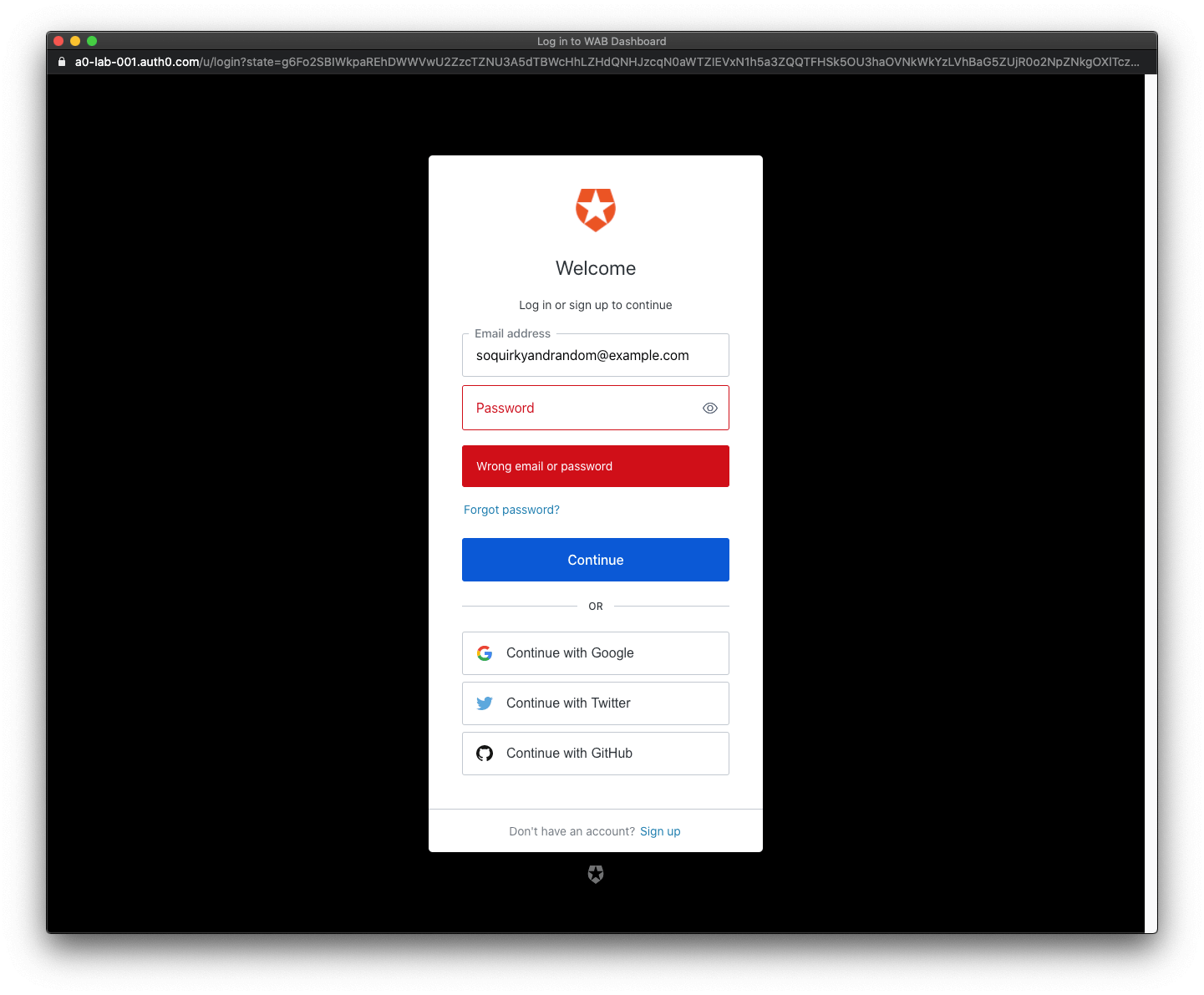
Use CSS to make the form look nice. Add colors and fonts that match the landing page. Make sure the form is easy to use. Responsive design is important. It should look good on all devices. Use simple styles for a clean look. Ensure labels and buttons are clear.
Credit: auth0.com
Handling Form Submission
First, you need to import HttpClientModule in your app module. This helps to send data to your server. Use Angular’s HttpClient to make requests. It is simple and fast. Create a service to handle these requests. In the service, use the post method to send form data. Ensure your server is ready to accept the data.
After sending data, you need to handle the response. Use the subscribe method to get the response. Check if the response is successful. If it is, show a thank you message. If not, show an error message. Always let users know what happens. This keeps them informed and happy.
Testing And Debugging
Integrating signup forms into an Angular CLI landing page demands effective testing and debugging. Ensure each form field functions correctly and captures user data seamlessly. Debugging helps identify and fix issues, enhancing user experience and boosting conversion rates.
Ensuring Form Functionality
Test each part of the form carefully. Check if fields accept the right input. Make sure the submit button works. Look for any errors. Keep the form easy to use. Use simple words and clear instructions. This helps users understand what to do. Check if data saves correctly. Make sure the form looks good on all screens. Test on phones and computers. Fix any problems quickly. A good form means happy users.
Troubleshooting Common Issues
Common issues can be tricky. Sometimes the form does not load. Check the code for mistakes. Look for missing files. Make sure all links work. Sometimes data does not save. Check the server. Make sure it is active. If fields do not accept input, check the settings. Make sure each field is correct. Debugging helps find and fix problems. Keep notes of what changes you make. This helps later if problems return.
Deploying The Landing Page
Deploying your landing page is simple. First, create a production build. Use the command ng build --prod. This command prepares your app for the web. Next, choose a hosting service. It can be services like Netlify or Firebase. These platforms help you share your work online. Once you upload, your landing page is live. Tell people about it. Sharing is easy with a short link.
Optimizing For Performance
Fast websites make users happy. To improve speed, use lazy loading. This means loading parts only when needed. Also, compress images. Smaller images load faster. Lastly, clean your code. Remove unused parts. This keeps your site light and quick. Happy users visit again. And they bring friends.
Publishing The Project
Publishing your project needs a few steps. First, ensure everything works fine. Test your site on different devices. Next, upload files to your chosen host. Follow their guide for help. After uploading, check the live site. Make sure everything looks correct. Finally, share your site. Use social media or email to spread the word.
Frequently Asked Questions
How To Add Forms In Angular?
Use Angular’s Reactive Forms or Template-driven Forms module. Import `FormsModule` or `ReactiveFormsModule`. Create form controls in TypeScript, bind them in HTML. Use `ngSubmit` for submission handling. Implement validation using built-in validators or custom ones. Display validation messages using Angular directives.
How To Create A Login And Registration Page In Angular?
Begin by setting up a new Angular project using Angular CLI. Install Angular Material for UI components. Create components for login and registration forms. Implement form validation and HTTP service for API interaction. Use Angular Router for navigation between login and registration pages.
Secure the pages with authentication guards.
How To Use Mongodb With Angular?
Connect Angular to MongoDB via a backend, typically using Node. js. Build RESTful APIs with Express. js to interact with MongoDB. Use Angular’s HttpClient module to make HTTP requests to your backend. Ensure proper data handling and synchronization between your Angular app and the MongoDB database for optimal functionality.
How To Make Signup Api?
Create a signup API by setting up server-side endpoints. Use frameworks like Node. js or Django. Validate user input for security. Store user data in a database like MySQL or MongoDB. Implement hashing for passwords. Test the API thoroughly for functionality and security.
Conclusion
Adding signup forms to your Angular CLI landing page is straightforward. Follow the steps outlined to ensure a smooth integration. Remember to keep your form simple and user-friendly. This encourages more signups and engagement. Test your form thoroughly to catch any errors early.
A well-functioning form can boost your website’s performance. Keep refining your approach based on user feedback. This helps in maintaining an effective landing page. With practice, creating efficient signup forms becomes easier. Keep learning and improving your skills. Happy coding!