To use Hostinger Website Builder, log into your Hostinger account and select the Website Builder option. Follow the intuitive prompts to customize your site.
Hostinger Website Builder is an excellent tool for creating a professional website quickly and easily. It offers a user-friendly interface that requires no prior web development experience. You can choose from a variety of templates to suit your business or personal needs.
The drag-and-drop functionality makes customization a breeze, enabling you to add text, images, and other elements effortlessly. Hostinger also provides essential features like SEO tools, mobile optimization, and e-commerce capabilities. This ensures your website performs well in search engine rankings and offers a seamless user experience. Start building your dream website with Hostinger today and take your online presence to the next level.

Credit: www.youtube.com
Getting Started
Welcome to our guide on getting started with the Hostinger Website Builder. This powerful tool simplifies website creation for beginners and experts alike. Let’s dive into the essential steps to set up your Hostinger account and choose the right plan for your needs.
Creating An Account
To begin, visit the Hostinger website and click on the “Get Started” button. You’ll be prompted to create a new account. Follow these simple steps:
- Enter your email address.
- Create a strong password.
- Click on “Sign Up”.
After signing up, you will receive a verification email. Click the link in the email to verify your account. Now, you have access to the Hostinger dashboard.
Choosing A Plan
Hostinger offers several plans tailored to different needs. Choose a plan that fits your requirements. Here’s a quick overview:
| Plan | Features | Best For |
|---|---|---|
| Basic | Single website, 10GB storage, 100GB bandwidth | Personal blogs |
| Premium | Unlimited websites, 20GB storage, unlimited bandwidth | Small businesses |
| Business | Unlimited websites, 30GB storage, daily backups | Online stores |
After selecting your plan, proceed to checkout. Provide your payment details and complete the purchase. Once done, you are ready to start building your website.
Navigating The Dashboard
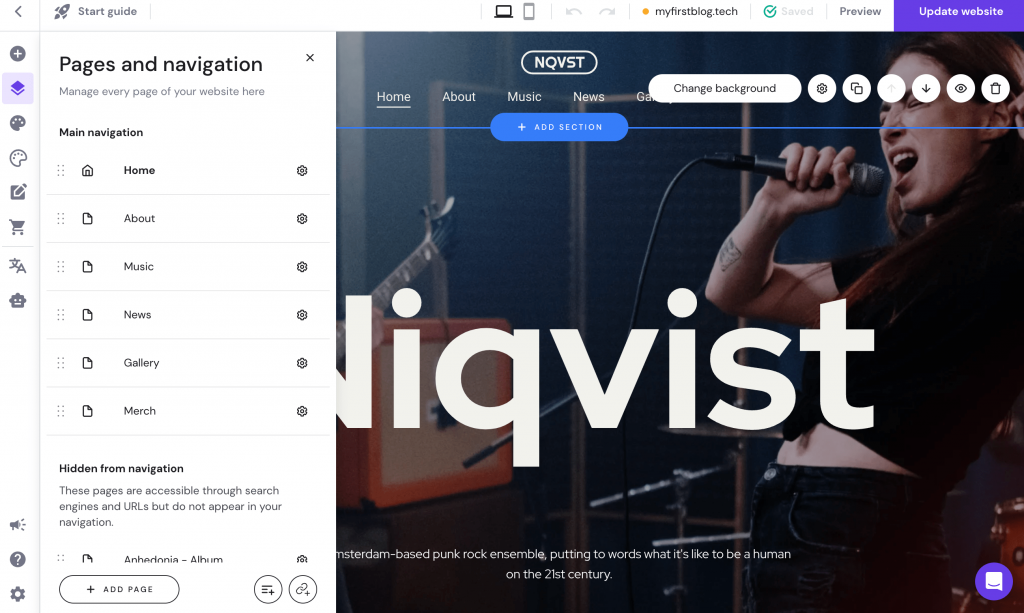
Using the Hostinger Website Builder dashboard is easy and intuitive. This section will guide you through the Dashboard Overview and highlight the Key Features. Mastering these basics helps you create a stunning website effortlessly.
Dashboard Overview
The dashboard is your control center. It offers a clean and organized interface. Here’s a quick look at what you’ll find:
| Section | Description |
|---|---|
| Menu Bar | Access various tools and settings. |
| Site Preview | See real-time changes to your website. |
| Drag-and-Drop Editor | Customize your site with ease. |
| Help Section | Get support and tutorials. |
Key Features
The dashboard is packed with features to help you build a stunning website. Here are some of the most important ones:
- Templates: Choose from a variety of pre-designed templates.
- SEO Tools: Optimize your site for search engines.
- Media Library: Easily manage your images and videos.
- Analytics: Track your website’s performance.
- Blog Integration: Add and manage blog posts effortlessly.
Using these features, you can create a professional website quickly. The dashboard is designed to be user-friendly, even for beginners. Explore each section to get the most out of Hostinger Website Builder.
Designing Your Website
Creating a website with Hostinger Website Builder is simple and fun. Designing your website is a crucial step. It will determine how your visitors perceive your brand. Let’s dive into how to make your site stand out.
Selecting A Template
Hostinger offers a wide range of templates. These templates cater to various industries and styles. Follow these steps to select a template:
- Log in to your Hostinger account.
- Navigate to the Website Builder section.
- Browse through the available templates.
- Click on a template to preview it.
- Select the template that fits your needs.
Choose a template that aligns with your brand’s personality. Make sure it is easy to navigate and visually appealing.
Customizing Layout And Design
Once you have selected a template, it’s time to customize your layout and design. Tailor it to reflect your unique brand. Follow these steps to get started:
- Access the layout editor in the Website Builder.
- Drag and drop elements to rearrange sections.
- Use the text editor to modify headings and paragraphs.
- Upload images and videos to enhance visual appeal.
- Select colors that match your brand’s theme.
Pay attention to the following elements:
| Element | Tips |
|---|---|
| Header | Make it clear and engaging. |
| Navigation | Ensure it is simple and intuitive. |
| Content Sections | Keep them organized and relevant. |
| Footer | Include essential links and contact info. |
Remember to preview your website regularly. Check how it looks on different devices. Ensure everything is responsive and user-friendly.
Adding Content
Adding content to your website is crucial for engaging visitors. Hostinger Website Builder makes this process simple and intuitive. You can add text, images, videos, and other media effortlessly.
Text And Images
To add text to your website, select the text block. Drag it to your desired location. Click on the text block to edit. You can change the font, size, and color. Use the toolbar to format your text.
Adding images is just as simple. Click on the image block and drag it to your website. Choose your image from the media library or upload a new one. You can resize and align your images as needed.
Videos And Other Media
Want to embed a video? Click on the video block. Drag it to your desired location. You can add YouTube or Vimeo links. The video will appear on your site.
To add other media, click on the respective block. You can add audio, galleries, and more. Customize their placement and size to fit your design.
| Media Type | How to Add |
|---|---|
| Text | Drag text block, click to edit |
| Images | Drag image block, upload or choose from library |
| Videos | Drag video block, add YouTube or Vimeo link |
| Other Media | Drag respective block, customize placement |
Follow these steps to make your website visually appealing. Use the Hostinger Website Builder to add engaging content easily.
Setting Up Functionality
Setting up functionality on your Hostinger website is easy. This step ensures your site is interactive and user-friendly. Below, we cover how to add essential features like contact forms and social media integration.
Adding Contact Forms
Contact forms are vital for communication. They help visitors reach out directly from your website.
- Log in to your Hostinger dashboard.
- Navigate to the Website Builder section.
- Select the page where you want the form.
- Click on the Add Element button.
- Choose Contact Form from the list.
- Customize the form fields as needed.
- Save and publish your changes.
For added functionality, you can include fields like name, email, and message. This makes it easy for users to submit their queries.
Integrating Social Media
Social media integration boosts your website’s reach. It allows visitors to share content easily.
- Go to your Hostinger dashboard.
- Select the Website Builder option.
- Choose the page for social media icons.
- Click on Add Element.
- Pick Social Media from the options.
- Drag and drop the icons to your desired location.
- Link each icon to your social media profiles.
- Save and publish the updates.
Popular platforms include Facebook, Twitter, and Instagram. Use clear icons to enhance user experience.
Seo Optimization
Optimizing your website for search engines is crucial. It helps your site rank higher on search engine results pages (SERPs). Using Hostinger Website Builder, you can easily implement SEO strategies. Below, we break down the essential steps for effective SEO optimization.
Seo Basics
Understanding the basics of SEO is the first step. SEO stands for Search Engine Optimization. It involves improving your website to increase its visibility for relevant searches.
- Keywords: Use relevant keywords throughout your content. This helps search engines understand your topic.
- Meta Titles and Descriptions: These are snippets that describe your page. They appear in search results.
- Alt Text for Images: Describe your images using alt text. This helps search engines and improves accessibility.
Using Seo Tools
Hostinger Website Builder offers built-in SEO tools. These tools assist in optimizing your site efficiently.
| Tool | Description |
|---|---|
| SEO Assistant | Guides you through optimization steps. It provides suggestions for improvement. |
| Keyword Planner | Helps you find relevant keywords. It shows you search volume and competition. |
To use these tools:
- Open the Hostinger Website Builder dashboard.
- Navigate to the SEO section.
- Select the tool you want to use.
- Follow the prompts to complete the optimization steps.
By following these steps, you can improve your website’s SEO. This will help you attract more visitors and grow your online presence.
Publishing And Maintenance
Once you create your website with Hostinger, the next step is crucial. Publishing and maintaining your site ensures it runs smoothly. Let’s explore how to publish your site and keep it updated.
Publishing Your Site
Publishing your site is simple with Hostinger. First, click on the “Publish” button in the top-right corner. This action makes your site live on the internet. Ensure all content is ready before you publish.
Use the preview feature to check your site. This helps catch any errors. Once satisfied, proceed with publishing. Your site is now accessible to everyone.
Regular Updates And Backups
Regular updates keep your site relevant. Frequently add new content and update existing pages. This improves your site’s SEO ranking. Fresh content attracts more visitors.
Backups are vital for website safety. Hostinger provides an easy backup option. Go to the “Settings” tab and select “Backup”. This ensures you have a copy of your site. Restore your site easily if any issues arise.
| Task | Frequency |
|---|---|
| Update Content | Weekly |
| Backup Site | Monthly |
Keep your site secure by updating plugins and themes. Hostinger notifies you of any updates. Apply these updates promptly to avoid security risks.

Credit: cybernews.com
Troubleshooting
Even the best tools can sometimes face issues. Hostinger Website Builder is no exception. Knowing how to troubleshoot common problems can save you time and stress.
Common Issues
Understanding common issues helps you fix problems quickly. Here are some frequent issues users face:
- Slow Loading Pages: Check your internet connection. Clear your browser cache.
- Website Not Publishing: Ensure you have clicked the ‘Publish’ button. Double-check your domain settings.
- Images Not Displaying: Confirm the images are correctly uploaded. Verify file formats are supported.
- Broken Links: Check the URL paths. Make sure they are correct and live.
Customer Support Options
Hostinger offers multiple support options to resolve your issues:
- Live Chat: Available 24/7. Quick responses to your queries.
- Email Support: Send detailed queries to support@hostinger.com.
- Knowledge Base: Explore articles and guides for self-help.
- Community Forum: Engage with other users. Share tips and solutions.
For immediate help, use the live chat. For detailed issues, email support is best. The knowledge base and community forum are great for learning and sharing.
Credit: www.hostinger.com
Frequently Asked Questions
How Does Hostinger Website Builder Work?
Hostinger website builder offers a drag-and-drop interface. Users can easily design and customize their websites. No coding needed. It provides templates, SEO tools, and responsive design. Create professional websites quickly.
How To Set A Website In Hostinger?
To set a website in Hostinger, log in to your account. Choose a hosting plan. Register a domain or use an existing one. Upload website files via File Manager or FTP. Install WordPress or any other CMS using Auto Installer.
Configure DNS settings. Your website is live.
How Do I Access The Website Builder In Hostinger?
Log in to your Hostinger account. Go to the “Website” section. Select “Website Builder”. Follow the prompts to start.
Is Hostinger A Good Website Builder?
Yes, Hostinger is a good website builder. It offers an easy-to-use interface, affordable pricing, and reliable performance. Many users appreciate its variety of templates and customer support.
Conclusion
Mastering the Hostinger Website Builder is simple and efficient. With its user-friendly interface, creating a professional website is easy. Follow the steps, customize your design, and publish your site effortlessly. Start building your online presence today with Hostinger’s powerful tools.
Happy website building!



