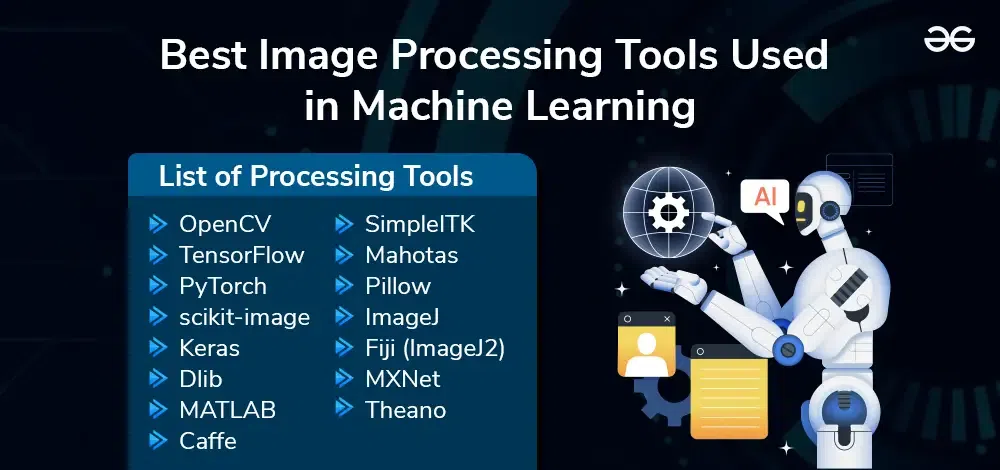
Linux offers a variety of powerful image processing tools. These tools are ideal for editing, converting, and manipulating images.
Linux image processing tools provide robust functionalities for both beginners and professionals. GIMP stands out as a versatile, open-source alternative to Photoshop. ImageMagick excels in command-line operations, perfect for batch processing and automation. Darktable is a favorite among photographers for raw image editing.
Krita caters to digital artists with its advanced painting features. These tools are free and regularly updated by active communities. Their compatibility with various file formats and customization options makes them highly efficient. Linux users can leverage these tools to achieve precise and high-quality image processing results.
Credit: www.yumpu.com
Introduction To Linux Image Processing
Linux offers many tools for image processing. These tools help creatives work with images. You can edit, transform, and analyze images easily. This introduction will guide you through the key points.
Importance Of Image Processing
Image processing is crucial in many fields. It helps in medical imaging, photography, and security. Here are some key benefits:
- Enhances image quality: Makes images clearer and more detailed.
- Detects features: Helps find objects or patterns in images.
- Automates tasks: Speeds up repetitive image tasks.
Advantages Of Linux For Creatives
Linux is a great choice for creatives. It offers many advantages:
| Advantage | Description |
|---|---|
| Open Source | You can modify and share the software freely. |
| Cost-Effective | Most Linux tools are free. |
| High Performance | Linux systems are fast and efficient. |
Linux supports many image processing libraries. Some popular ones include:
- GIMP: A powerful image editor.
- ImageMagick: Used for converting, editing, and composing images.
- OpenCV: Great for computer vision tasks.
Using Linux for image processing gives you flexibility and power. You can handle complex tasks easily. Linux tools are reliable and trusted by professionals.
Getting Started With Linux
Getting started with Linux can be exciting and rewarding. Linux offers powerful tools for image processing. Whether you’re a beginner or a pro, Linux can help you. This guide will help you choose the right Linux distribution and understand essential commands.
Choosing A Linux Distribution
Choosing the right Linux distribution is the first step. Here are some popular options:
- Ubuntu: User-friendly and great for beginners.
- Fedora: Cutting-edge features and strong community support.
- Debian: Stable and secure, ideal for servers.
- Arch Linux: Highly customizable but requires more knowledge.
Consider your needs and skill level before making a choice.
Essential Linux Commands
Learning essential Linux commands is important. These commands will help you navigate and use Linux effectively.
| Command | Description |
|---|---|
ls |
Lists files and directories. |
cd |
Changes directory. |
cp |
Copies files and directories. |
mv |
Moves or renames files and directories. |
rm |
Removes files and directories. |
mkdir |
Creates a new directory. |
chmod |
Changes file permissions. |
nano |
Opens a text editor. |
Practice these commands to become proficient. They form the foundation of Linux usage.
Open-source Image Processing Tools
Open-source image processing tools offer powerful features for free. These tools are user-friendly and versatile. They cater to both beginners and professionals.
Gimp: The Photoshop Alternative
GIMP stands for GNU Image Manipulation Program. It is a free and open-source image editor. GIMP is often called the Photoshop alternative due to its rich features.
Key features of GIMP:
- Photo retouching
- Image composition
- Image authoring
GIMP supports various file formats. These include JPEG, PNG, GIF, and TIFF.
GIMP offers a customizable interface. Users can arrange toolboxes and panels as they prefer. This flexibility makes it a favorite among designers.
GIMP also supports plugins. These plugins add extra features and enhance functionality. Users can download and install these plugins easily.
| Feature | Description |
|---|---|
| Layers | Manage images with layers for complex edits. |
| Brushes | Use a variety of brushes for detailed work. |
| Filters | Apply various filters to enhance images. |
Inkscape For Vector Graphics
Inkscape is a powerful tool for creating vector graphics. It is also an open-source software. Inkscape is known for its versatility and precision.
With Inkscape, you can:
- Create logos
- Design icons
- Make illustrations
Inkscape supports SVG format by default. SVG stands for Scalable Vector Graphics. This format allows images to scale without losing quality.
Key features of Inkscape include:
- Drawing tools
- Path operations
- Text manipulation
Inkscape’s interface is user-friendly. It offers various toolbars and panels. Users can customize the workspace to suit their needs.
Inkscape also supports extensions. These extensions can add new features. Users can create their own extensions using Python.
| Feature | Description |
|---|---|
| Node editing | Manipulate nodes for precise control. |
| Gradient tools | Create smooth color transitions. |
| Pattern fills | Apply patterns to fills for unique designs. |
Command-line Tools For Efficiency
Using command-line tools for image processing can save time. These tools are powerful and efficient. They help you process images quickly and in bulk. Below, we explore two fantastic tools: ImageMagick and FFmpeg.
Imagemagick: Manipulate Images In Bulk
ImageMagick is a robust tool for image manipulation. It supports many formats like JPEG, PNG, and TIFF. You can use it to resize, flip, and rotate images. ImageMagick is perfect for batch processing.
To install ImageMagick, use the following command:
sudo apt-get install imagemagickHere are some common tasks you can perform:
- Resize images:
convert input.jpg -resize 800x600 output.jpg - Convert formats:
convert input.png output.jpg - Rotate images:
convert input.jpg -rotate 90 output.jpg
Ffmpeg For Video Processing
FFmpeg is a command-line tool for video and audio processing. It supports many formats, including MP4, AVI, and MOV. FFmpeg is highly efficient for video editing and conversion.
To install FFmpeg, use this command:
sudo apt-get install ffmpegCommon FFmpeg tasks include:
- Convert videos:
ffmpeg -i input.mp4 output.avi - Extract audio:
ffmpeg -i input.mp4 -vn output.mp3 - Trim videos:
ffmpeg -i input.mp4 -ss 00:00:30 -t 00:01:00 output.mp4
Both ImageMagick and FFmpeg are open-source. They are free to use and modify. These tools offer great flexibility for image and video processing.
Advanced Editing With Darktable & Rawtherapee
Linux users have access to powerful image processing tools. Among these, Darktable and RawTherapee stand out. Both tools offer advanced editing features. They help photographers achieve stunning results. This section explores these tools in detail.
Non-destructive Editing In Darktable
Darktable is known for its non-destructive editing capabilities. Every edit you make does not alter the original image. Instead, Darktable saves the changes as a set of instructions. This allows you to revert changes anytime.
Darktable’s interface is user-friendly. It organizes editing tools into modules. These modules include color correction, exposure adjustment, and more. Here is a simple table of some key modules:
| Module | Function |
|---|---|
| Base Curve | Adjusts the overall tone of the image. |
| Exposure | Controls the lightness of the image. |
| White Balance | Corrects color casts in the image. |
| Sharpen | Enhances the details in the image. |
Darktable supports RAW file formats. This ensures you get the best quality edits. The software also allows batch processing. You can edit multiple images at once.
Fine-tuning Images With Rawtherapee
RawTherapee is another powerful tool for image editing. It offers advanced controls for fine-tuning images. RawTherapee supports a wide range of RAW formats. This makes it versatile for different cameras.
RawTherapee’s interface is intuitive. It organizes tools into panels. Here are some key features of RawTherapee:
- Exposure – Adjusts the brightness of the image.
- White Balance – Corrects color temperatures.
- Noise Reduction – Minimizes image noise.
- Lens Correction – Fixes lens distortions.
RawTherapee also offers a preview window. This lets you see changes in real-time. The software provides detailed histograms. These help you understand the exposure levels better.
Both Darktable and RawTherapee are excellent choices for advanced image editing. They offer unique features that cater to different editing needs. Photographers can achieve professional results using these tools.

Credit: www.youtube.com
Creating Graphics With Blender
Blender is a powerful, open-source tool for creating 3D graphics. It is popular among artists, designers, and animators. With Blender, you can model, animate, and render complex scenes. This makes it a versatile choice for many creative projects.
3d Modeling Basics
3D modeling is the first step in creating a 3D graphic. Blender offers a variety of tools to shape and sculpt your model. Start with simple shapes like cubes, spheres, and cylinders. Combine these shapes to create more complex models.
- Vertices: Points in 3D space. They form the skeleton of your model.
- Edges: Lines connecting vertices. They outline the shape of your model.
- Faces: Flat surfaces enclosed by edges. They give volume to your model.
Blender’s interface might seem complex at first. Use the Edit Mode to modify your model. Use the Object Mode to manage your models and scenes.
Blender For Animation And Rendering
Animating in Blender brings your models to life. You can create keyframes to define positions at specific times. Blender will interpolate the frames in between. This process is called keyframe animation.
- Select your model.
- Go to Animation Workspace.
- Set keyframes for different positions and rotations.
Rendering is the final step. It turns your 3D scene into a 2D image or video. Blender uses a powerful rendering engine called Cycles. You can adjust lighting, textures, and materials to achieve realistic results.
| Feature | Description |
|---|---|
| Cycles | Blender’s ray-tracing rendering engine |
| Materials | Define the surface appearance of your model |
| Lighting | Illuminate your scene to create depth and shadows |
Blender is a comprehensive tool for creating stunning 3D graphics. Whether you’re modeling, animating, or rendering, Blender has the tools you need.
Scripting For Automation
Automating image processing tasks in Linux can save time and effort. Scripting provides a powerful way to handle repetitive tasks efficiently. Using scripting languages like Bash and Python, you can create custom scripts to automate various image processing operations.
Bash Scripts For Image Tasks
Bash scripting is a great choice for automating image tasks. You can use simple commands to perform complex operations. Below is an example of a Bash script to resize images:
#!/bin/bash
for image in .jpg; do
    convert "$image" -resize 800x600 "resized_$image"
done
This script uses the ImageMagick tool to resize all .jpg files in a directory. The for loop iterates over each image, and the convert command resizes it.
Here are some common image tasks you can automate with Bash:
- Resizing images
- Converting formats
- Adding watermarks
- Batch renaming
Python Libraries For Custom Scripts
Python offers powerful libraries for custom image processing scripts. Libraries like Pillow and OpenCV provide extensive functionalities.
Below is an example script using Pillow to add a watermark:
from PIL import Image

def add_watermark(input_image, watermark):
    base_image = Image.open(input_image)
    watermark_image = Image.open(watermark)

    position = (base_image.width - watermark_image.width, base_image.height - watermark_image.height)
    transparent = Image.new('RGBA', (base_image.width, base_image.height))

    transparent.paste(base_image, (0, 0))
    transparent.paste(watermark_image, position, mask=watermark_image)
    transparent.show()

add_watermark('input.jpg', 'watermark.png')
This script opens an image, adds a watermark, and displays the result. The add_watermark function handles the overlay of the watermark image.
Some popular Python libraries for image processing include:
- Pillow: Easy-to-use and great for basic tasks.
- OpenCV: Advanced library with extensive features.
- Scikit-Image: Useful for scientific image analysis.
Using these libraries, you can automate tasks like:
- Image enhancement
- Object detection
- Image segmentation
- Color adjustments
Incorporating scripts into your workflow can significantly boost productivity.
Sharing And Publishing Your Work
After processing your images on Linux, you may want to share your work. Sharing and publishing ensure your images reach a wider audience. Here are some effective ways to do this:
Hosting Images On Linux Servers
Hosting images on Linux servers is efficient and secure. Linux servers offer a high level of customization. You can use tools like Apache or Nginx for hosting. These servers ensure your images are always accessible.
Here is a simple way to host images:
- Install Apache or Nginx on your Linux server.
- Create a directory for your images.
- Upload your images to this directory.
Here is a sample command to install Apache:
sudo apt-get install apache2For Nginx, use:
sudo apt-get install nginxEnsure your server is running. Use the following commands:
sudo systemctl start apache2sudo systemctl start nginxCollaboration And Version Control With Git
Sharing your work with a team? Git is essential for collaboration. Git tracks changes and maintains versions. It ensures everyone is on the same page. Here are steps to use Git:
- Install Git on your Linux system:
sudo apt-get install git- Initialize a new Git repository:
git init- Add your images to the repository:
git add .- Commit your changes:
git commit -m "Initial commit"- Push your repository to a remote server like GitHub:
git remote add origin your-repository-urlgit push -u origin masterUse these simple commands to collaborate effectively:
git pullgit pushGit helps in managing versions and keeping the team updated. Efficient collaboration is key to successful projects.
Community And Support
Linux image processing tools thrive thanks to their vibrant community and robust support. Users can find help, share knowledge, and contribute to the ecosystem easily.
Forums And Online Resources
Many forums and online resources are available for Linux image processing tools. These platforms allow users to ask questions, share tips, and find solutions quickly.
- Stack Overflow – A popular site for coding-related queries.
- Reddit – Subreddits like r/Linux and r/ImageProcessing are treasure troves of information.
- LinuxQuestions.org – Dedicated to Linux users, this forum offers a wealth of knowledge.
These forums foster a sense of community and collective learning.
Learning From The Linux Creative Community
The Linux creative community is a goldmine for learning image processing. Many artists and developers share their workflows, techniques, and scripts.
- GitHub Repositories – Access and contribute to open-source projects.
- YouTube Channels – Tutorials from experienced Linux users.
- Blogs and Tutorials – Detailed guides on various tools and techniques.
Engaging with the community can enhance your skills and broaden your knowledge.
Many tools come with extensive documentation. This helps users learn and troubleshoot on their own. The community often updates these resources, ensuring they remain relevant and useful.
Credit: www.linux.com
Frequently Asked Questions
What Are The Best Linux Image Processing Tools?
Some top Linux image processing tools are GIMP, ImageMagick, and Darktable. GIMP offers advanced editing features. ImageMagick is great for batch processing. Darktable is excellent for RAW files.
How To Install Gimp On Linux?
To install GIMP, open your terminal and type `sudo apt-get install gimp`. This command works on Debian-based distributions. For other distributions, check their respective package managers.
Can Imagemagick Handle Batch Processing?
Yes, ImageMagick is excellent for batch processing. You can apply multiple operations to a series of images using simple command-line instructions.
Is Darktable Good For Raw Files?
Darktable is designed specifically for RAW file processing. It offers various tools to enhance and edit RAW images. It’s an excellent choice for photographers.
Conclusion
Choosing the right Linux image processing tool can streamline your projects. Each tool offers unique features for specific needs. Explore these tools to find the best fit for your workflow. Embrace the power of Linux for efficient and effective image processing.
Happy editing!